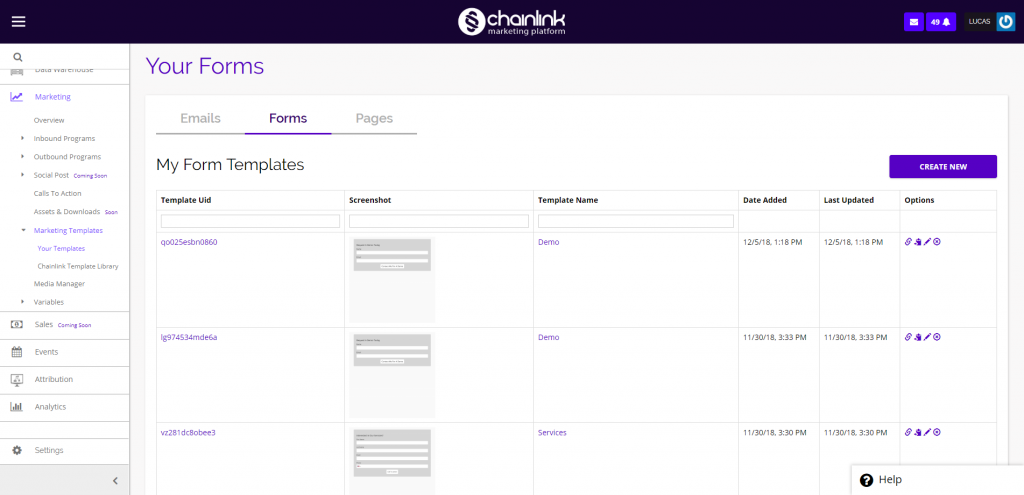
Your Forms is where you will be able to find all of the forms you have created in the platform or imported from Chainlink’s Form Template Library. From here you can preview, duplicate, update, or delete any of your forms, as well as create a new Form from scratch.
Saving Form Templates to Your Forms can be useful if you plan on building off of the same Form Template in the future.
In your Chainlink Marketing Platform, navigate to Marketing > Marketing Templates > Your Templates > Your Forms.


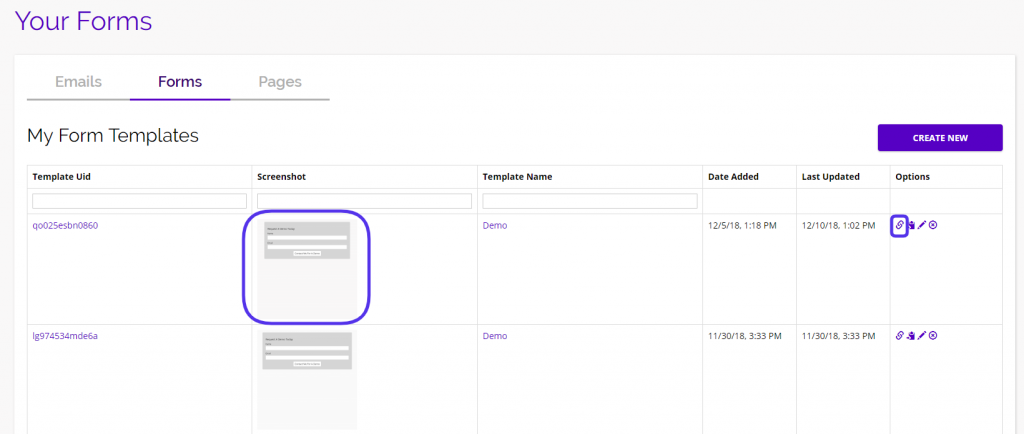
This is what the Your Forms page looks like:
1. Create a New Form
To create a new Form from the Your Forms dashboard, click Create New. You will then be prompted to enter the form name before you can begin designing the form. Below we will show you a quick overview of how to add fields and design your Form. For more information on building Forms, please take a look at our Forms Knowledge Base.
Fields:
- In the fields section, you’ll be able to populate your Form with various fields.
- When you find a field you want to add to your Form from the list on the left of the Form builder, simply drag and drop the property to the desired location on your Form.
- Fields can only be placed above or below other fields.
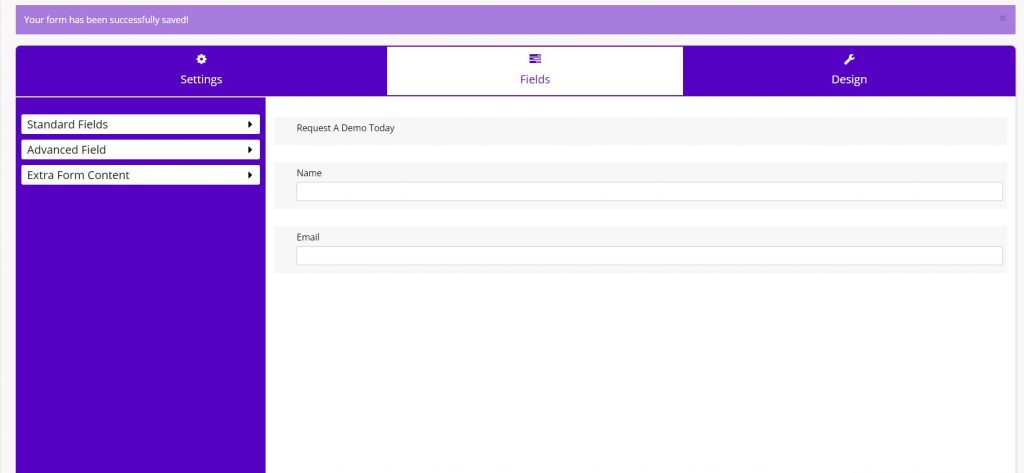
- In this example, you can see that we have added the Title, Name, and Email fields.
- To edit the field labels and options, hover over a field and click the pencil icon on the right. A drop down will appear where you can edit that field’s details.
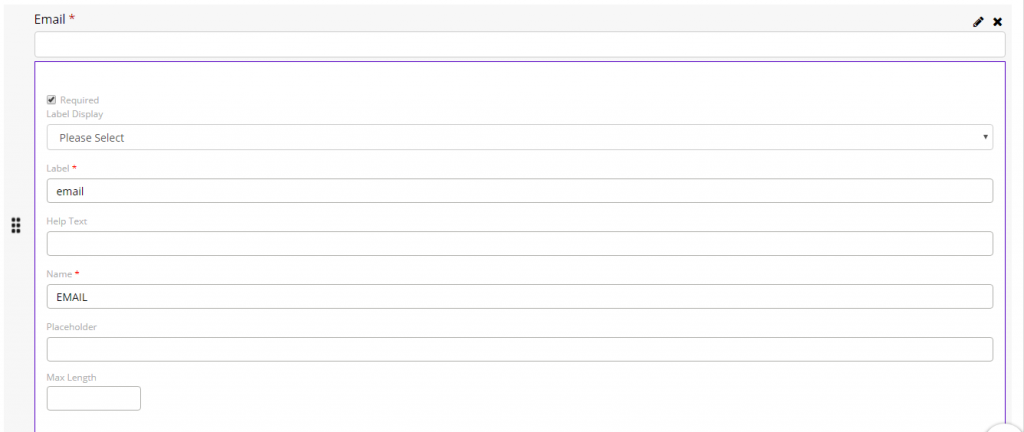
- Note: An email address is required to create a contact, so the Email field will always be marked as required on your Forms.
- Click Next when you are finished adding fields to your Form to proceed to the next step.
Design:
The next step in building a Form is the design. There are a number of design options, allowing you to customize every aspect of the form.
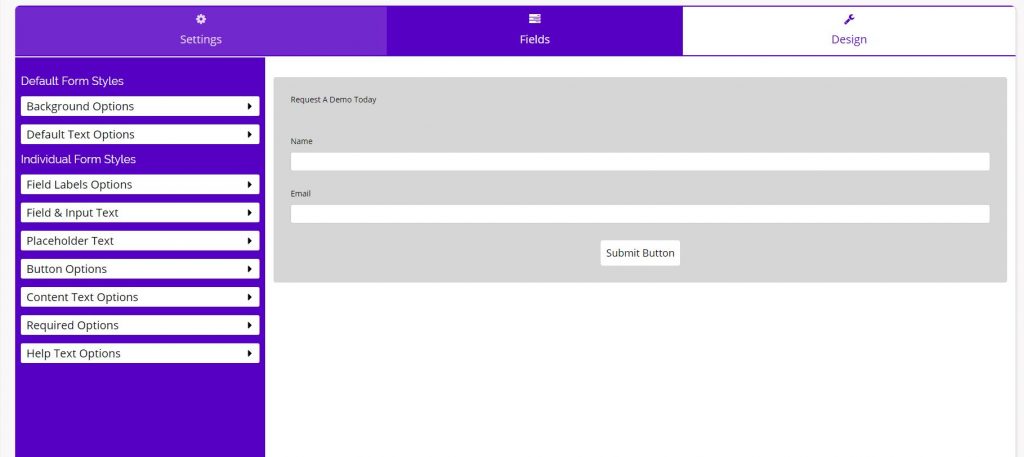
- You can edit the Form background, default text, field labels, field and input text, placeholder text, buttons, content text, required options, and help text options.
- As you can see, in this example we made the Form background gray.
- Hover over a menu option on the left to see more details about what you can edit and click on the tab to open the drop down options.
- When you are finished designing your Form, click Next and your form will be added to Your Forms dashboard.
2. Options
Preview:
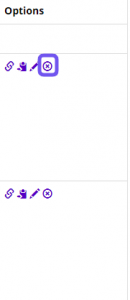
- To see a preview of a Form Template, you can either click on the screenshot of the Form or click on the link icon under the options column and a preview will appear in a separate window.
Copy:
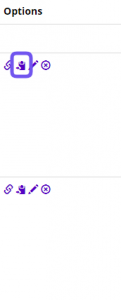
- To make a copy of a Form Template so you can edit the copy without changing the original template, click on the clipboard icon under the options column.
Edit:
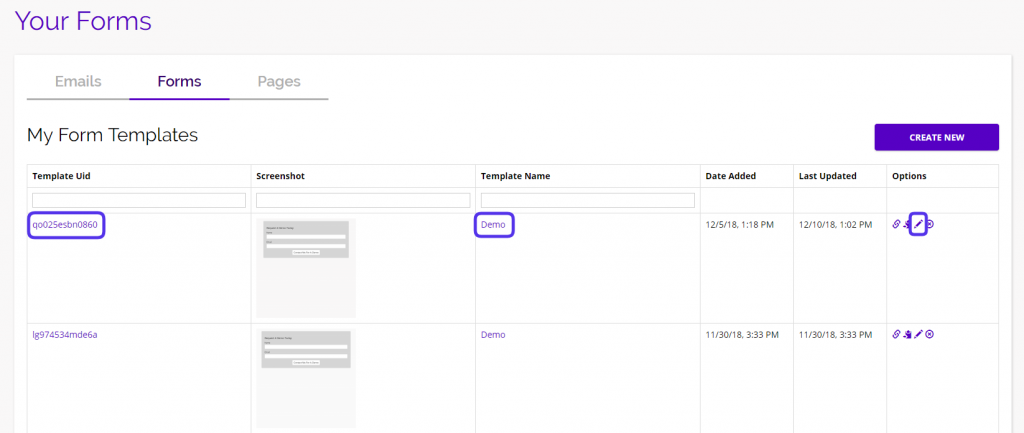
- To edit one of your Form Templates, click on the Template Uid, Template Name, or the pencil icon under the options column.
Delete:
- To delete one of your Form Templates, click on the delete icon under the options column.