Setting up sending domains in the Chainlink Marketing Platform gives you the ability to customize your emails on behalf of yourdomain.com instead of having the standard Chainlink domain attached.
The ability to add the via yourdomain.com for emails helps to reduce confusion for the end recipient who should focus on the company sending email, not the client they are sending it through.
Email sending domains are used for DKIM (DomainKeys Identified Mail) email authentication which is a form of email authentication used to verify a sender’s identity. By setting up your email sending domain, you allow the Chainlink Marketing Platform to encrypt your message and “sign” it using your domain’s unique signature.
Note: Forever Free accounts are only allowed to have 1 sending domain.
To access Domain Settings, navigate to Settings > Domain Settings > Domain Settings.
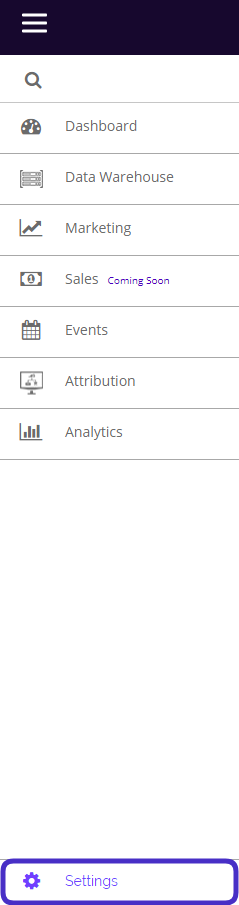
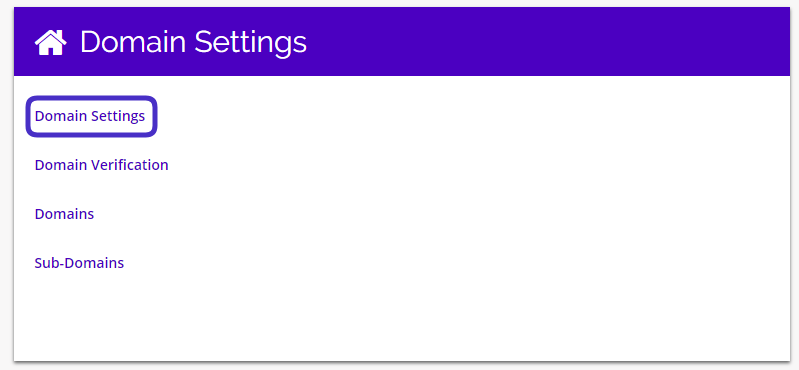
Domain Settings Dashboard
- This is what the Domain Settings page looks like:
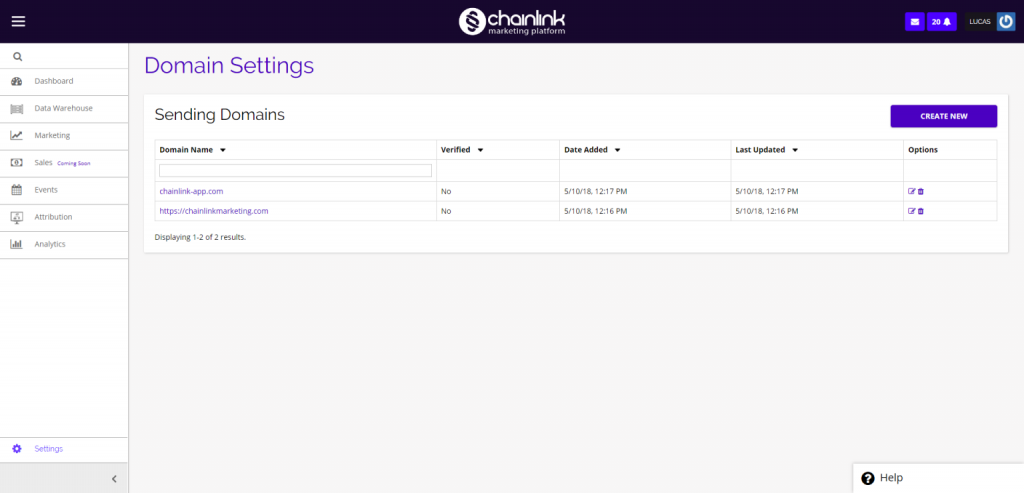
- From here you have the ability to view and edit any sending domains that are in your platform account, delete a domain, as well as create a new, personalized domain.
- To view or update an existing sending domain, click the pencil/paper icon under the options column.
- To delete a sending domain, click on the trash can icon under the options column.
Create a New Sending Domain
- To create a new domain, simply click the Create New button and follow the instructions on the Create New Sending Domain page.
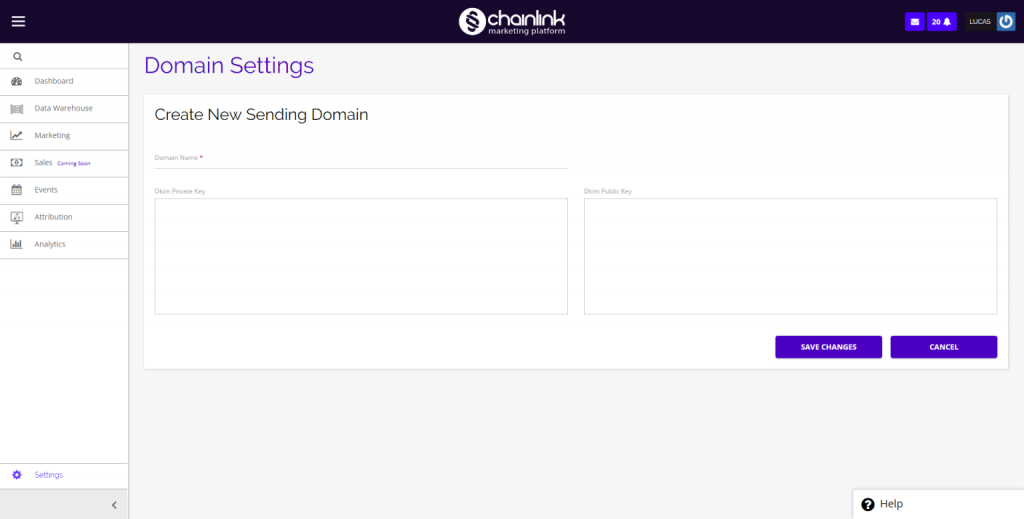
- When creating a new sending domain, you will see sections for the Private and Public DKIM keys. Leave both of these blank to be auto generated, unless you really know what you are doing.
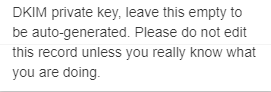
- All you have to do is add your sending domain name and click Save Changes when finished to add your new sending domain to the platform.
- After adding any sending domains to the platform, you will have to verify those domains before using them to send any email programs. Take a look at our Domain Verification Knowledge Base for more information on verifying your sending domains.
Update Sending Domain
- To update an existing sending domain, click on the edit icon under the options column.
- You will then be brought to a domain verification page for the domain you are updating.
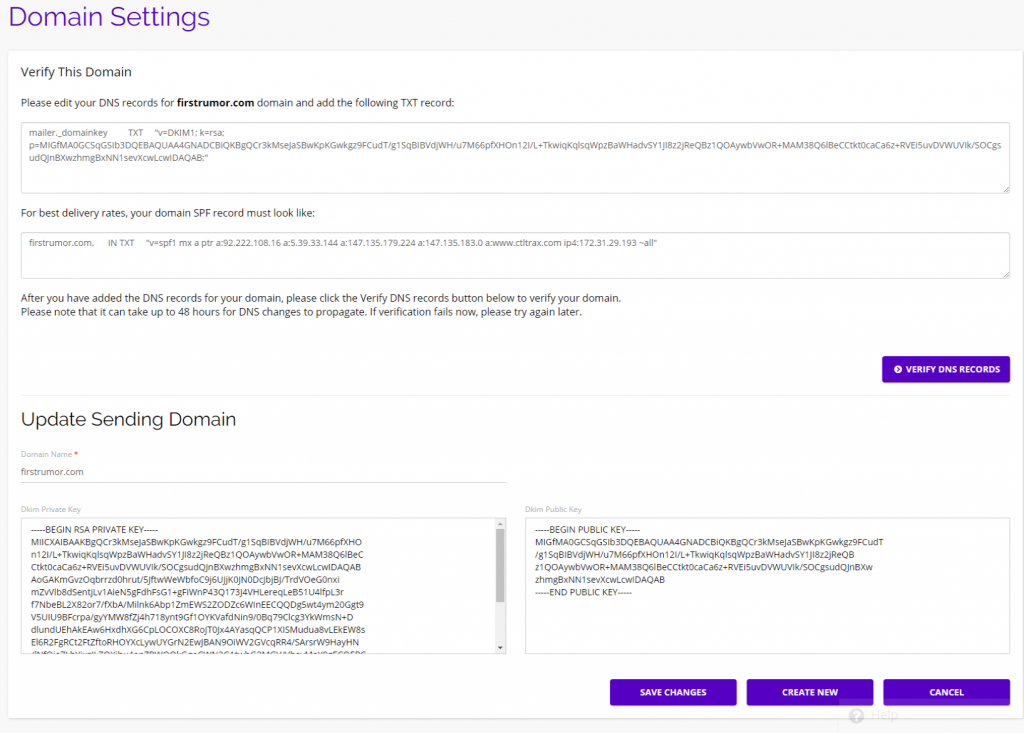
- If you are changing your domain, you will be instructed to edit your DNS records and add the listed TXT record.
- DNS (Domain Name System) take human friendly names, such as store.example.com, and translates it to an IP address
- TXT records are used for SPFs (Sender Policy Frameworks) and DomainKeys, to verify that emails are coming from a trusted source
- After you have added the DNS records for your domain, please click the Verify DNS Records button to verify your updated domain.
- Note: It can take up to 48 hours for DNS changes to propagate. If verification initially fails, please try again later.