Within the Parade section of the Chainlink Marketing Platform, there is a place where Lieutenants can view and manage their float assignments for the parade. From here, Lieutenants will be able to assign their riders to specific float positions.
To access your Floats, navigate to Krewe > Parade > Float Details.
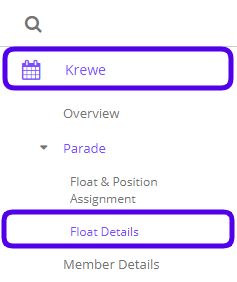
Float Overview
Most Lieutenants will be assigned to a single float, however it is possible that one Lieutenant can have two, or even three floats. Any floats that you have been assigned will will be listed on this page.
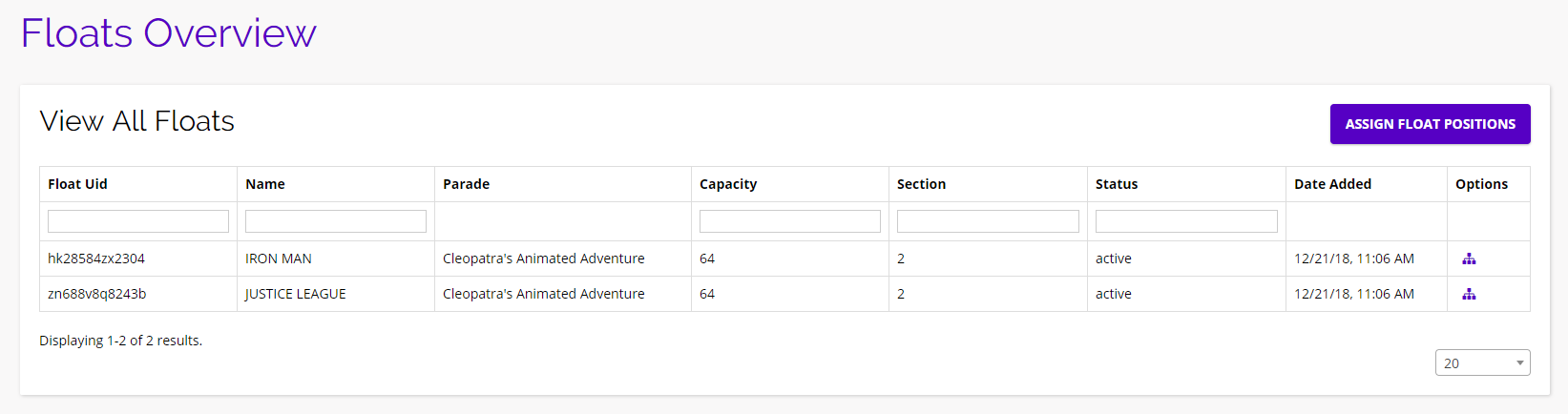
From here you will see an overview of the floats you have been assigned to. Click the Assign Float Positions button or the icon under the options column to assign your riders specific float positions.
Rider Position And Float Assignment
After clicking the Assign Float Position button, you will be brought to Chainlink’s interactive drag and drop Float Assignment tool. At the top of the page, you will find some overall float stats related to how many qualified riders you have, how many assigned rider you have per float, rider dues status, member types, and costume sizes.

- To assign a rider to a float position, simply drag a name from the unassigned members area on the right and drop their name in the float position you want them in.
- All of the riders assigned to your Lieutenant will appear on the unassigned members list.
- If that rider has paid all of their dues and has provided their costume size, their name will be purple. If they are missing any payments or their costume size, their name will appear red.
- Note: You can assign float positions and save your layout even if you have riders that haven’t paid their dues in full. This is just a reminder that they must complete all dues payments in order to ride in the parade.
- To remove a rider from a float position, simply click their name and they will be removed from that position and return to the unassigned members list on the right.
- Once you have finished editing your float assignments, click the Save button above the unassigned members list and your layout will be saved.
- Note: You can always come back and make more edits to your float layout, you do not need to finish assigning all riders a spot before saving your layout.
- You also have the ability to export a CSV file with your float assignments and rider information by clicking the Export button. This might be useful when you have finished assigning all rider positions.