Marketing Campaigns are high-level marketing efforts that can include a variety of inbound and outbound marketing programs. Chainlink’s Marketing Campaigns tool allows you to monitor and analyze the overall performance, and each individual piece of the campaign you build in the platform. Campaign attribution is extremely useful for getting a better understanding of the holistic journey targets take when interacting with your campaigns, as well as analyzing the individual aspects of your campaigns.
This guide will explain how to create new marketing campaigns and analyze all of your important attribution analytics.
To access Marketing Campaigns, navigate to Attribution > Marketing Campaigns.
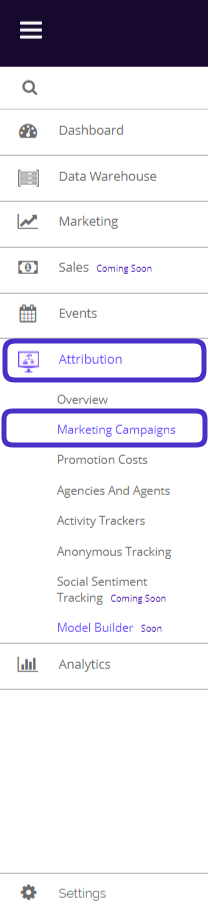
This is what the Marketing Campaigns page looks like:
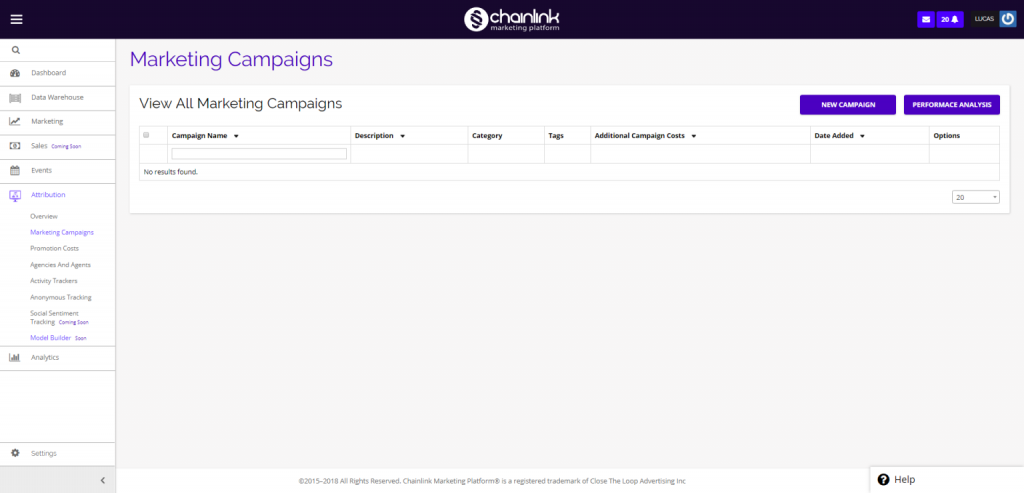
From the Marketing Campaigns page, you can view all of your current Marketing Campaigns, create a new campaign, and view your Campaign’s performance analysis.
1. Create a New Marketing Campaign
- From the Marketing Campaigns dashboard, you can easily create new campaigns. Simply click the New Campaign button and you will be brought to a page where you can fill out your campaign details.
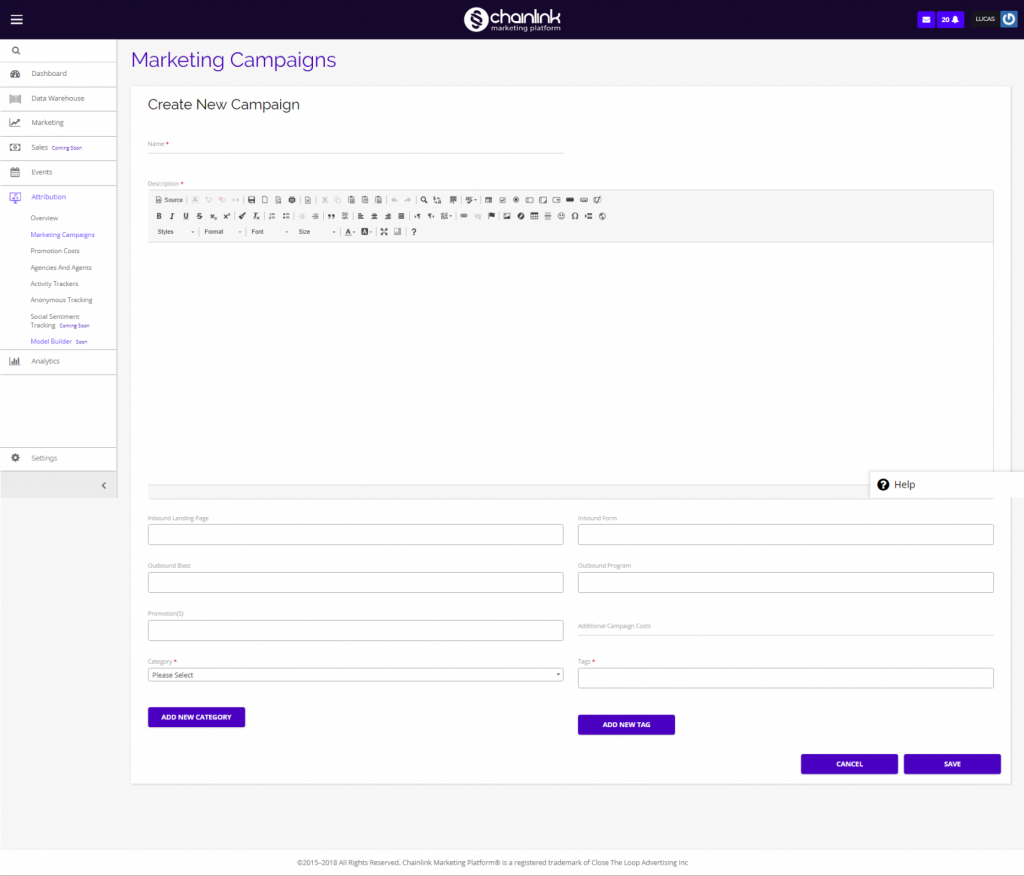
- On this page, you can add a campaign name, description, inbound landing page, inbound form, outbound email blast, outbound program, promotions, category, tags, and additional campaign costs.
- Be sure to click Save when you’re finished adding all of the information and your new marketing campaign will be added to the platform.
2. Performance Analysis
- Once you have created a marketing campaign, you will be able to track its performance.
- Click the Performance Analysis button in the top right corner of the marketing campaigns page and you will be brought to the performance analysis page:
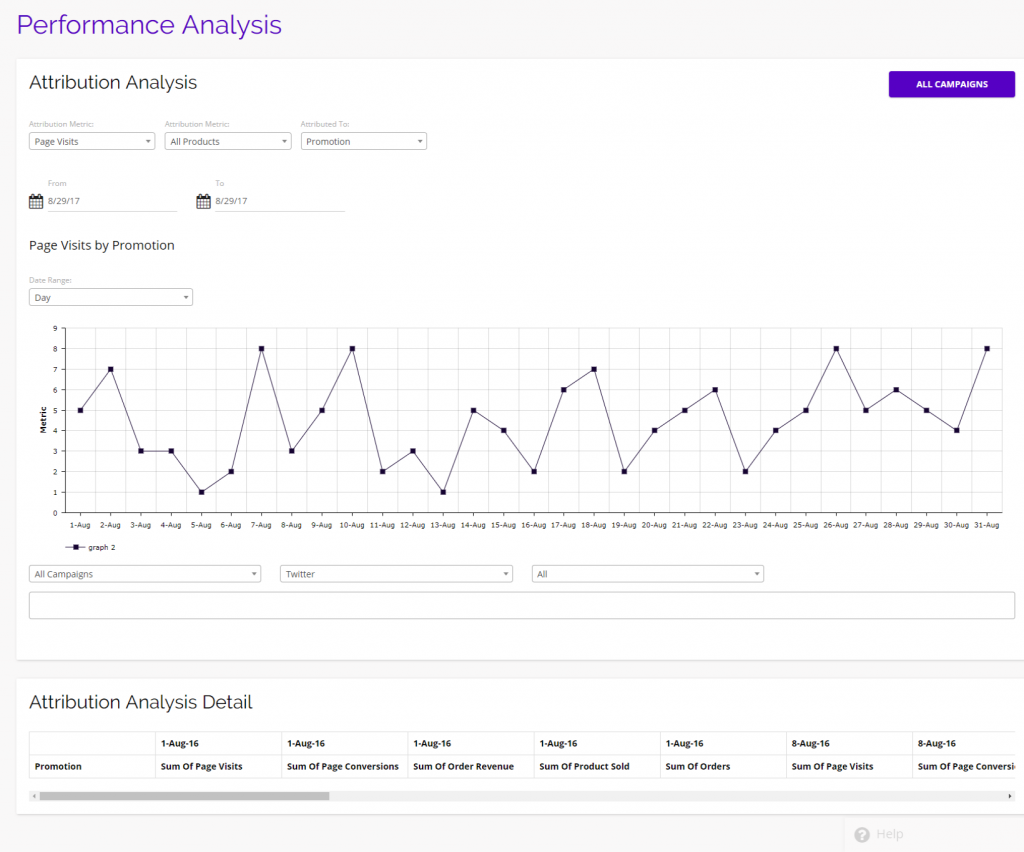
- From the performance analysis page, you have a number of options that can help you analyze the different aspects of your campaigns.
- You are able to filter by:
- Page Visits
- Page Conversions
- Order Quantities
- Order Revenue
- Products Sold
- You can also change the date range to hone in on a specific period of time.
- You have the option of filtering your data by:
- Promotion
- Marketer
- Campaign
- Medium
- At the bottom of the page you will find attribution analysis totals:
- Sum of Page Visits
- Sum of Page Conversions
- Sum of Order Revenue
- Sum of Products sold
- Sum of Orders