Update your account’s Design Default Settings that will be used for the Chainlink Email, Landing Page, and Form Builders as the default standards for Fonts, Buttons, Logos, and other design features.
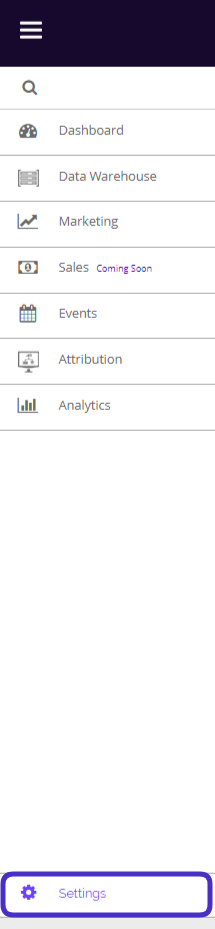
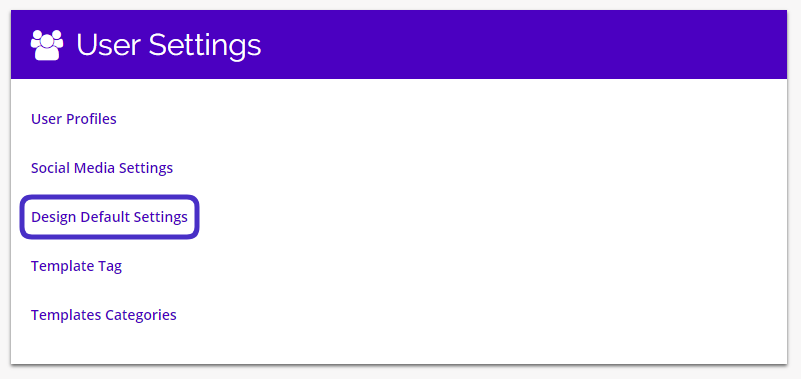
To access your Design Default Settings, navigate to Settings > User Settings > Design Default Settings.
Note: The main account user can also access their Design Default Settings in the default settings on the homepage.
This is what the Design Default Settings dashboard looks like:
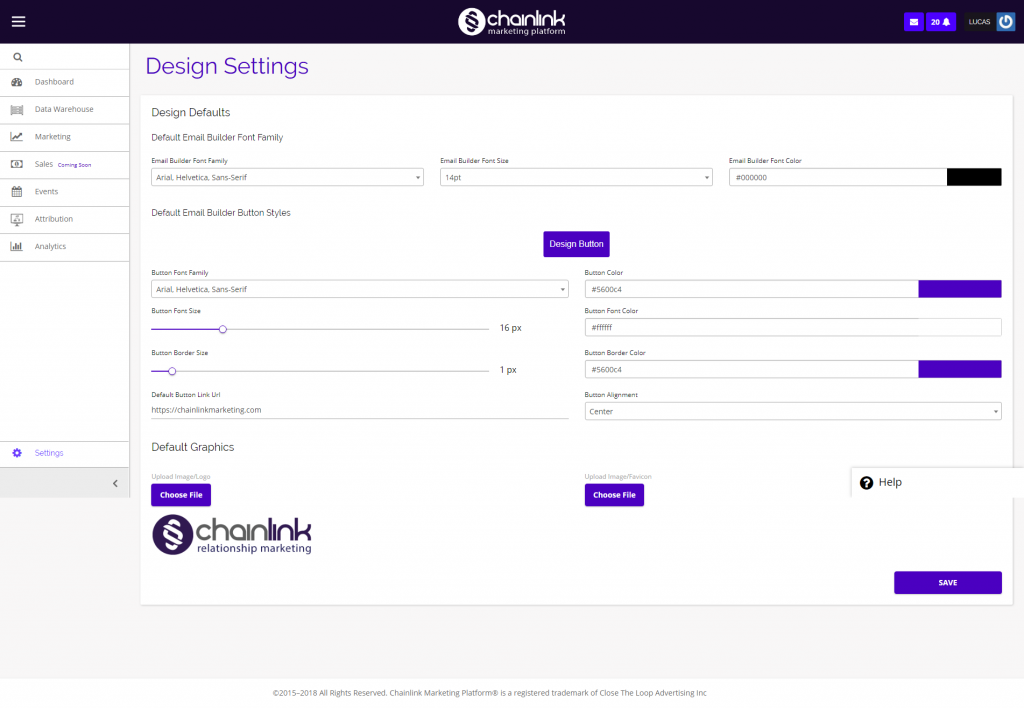
From the dashboard you have the ability to view and edit your default text options, buttons, and graphics for your Emails, Landing Pages, and Forms.
Be sure to click Save in the bottom right corner if you are making any edits to the default design settings.
Default Page Builder Font Family
- The first section of the Design Default Settings is the Default Landing Page Builder Font Family.
- This is where you can select the font family, font size, and font color that will be set as your default for any landing pages you build in the platform.

Default Page Builder Button Styles
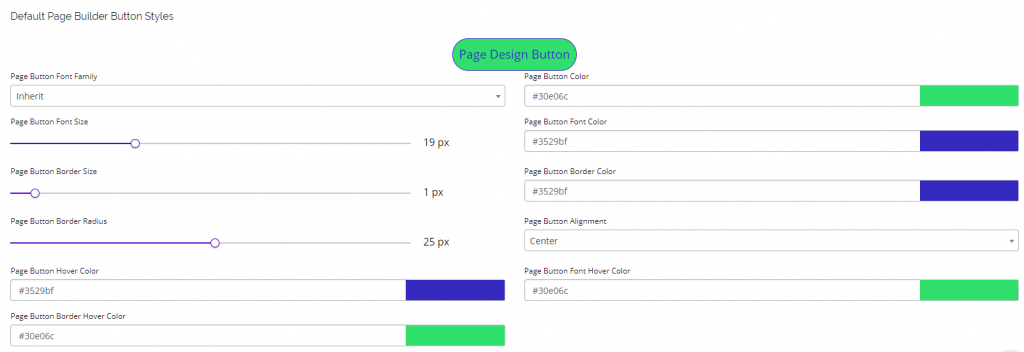
- The default page builder button styles is the next section of the Design Default Settings where you can customize your default button design.
- Any changes you make in this set of options, you will see applied to the “Page Design Button” at the top.
- You have the option of changing the font family, button size, border size, button URL, color, font color, border color, and button alignment.
- Experiment with the different settings to find the right default button design for your landing pages.
- Note: None of the changes will be made unless you click the Save button at the bottom right of the page.
Default Email Builder Font Family
- The first section of the Email Design Default Settings is the Default Email Builder Font Family.
- This is where you can select the font family, font size, and font color that will be set as your default for any emails you build in the platform.

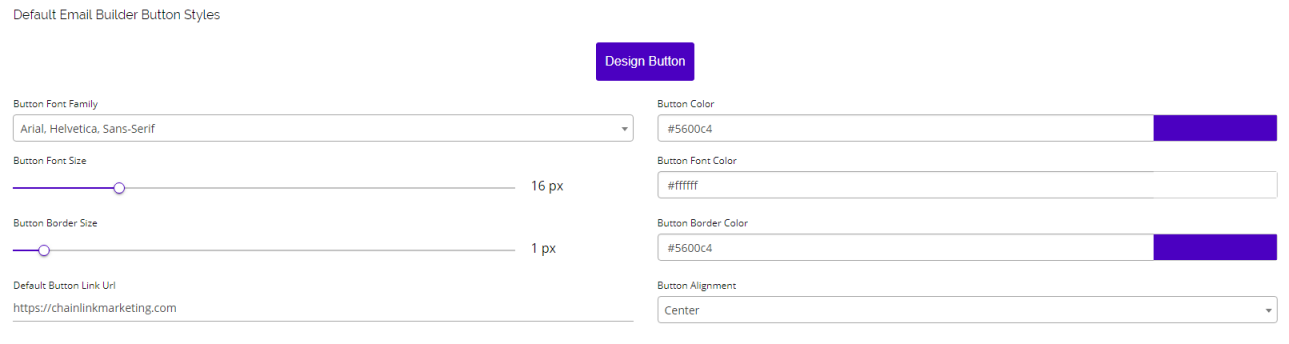
Default Email Builder Button Styles
- The default email builder button styles is the next section of the Design Defaults where you can customize your default button style for the email builder.
- Any changes you make in this set of options, you will see applied to the “Design Button” at the top.
- You have the option of changing the font family, button size, border size, button URL, color, font color, border color, and button alignment.
- Experiment with the settings to find the right default button design for your emails.
- Note: None of the changes will be made unless you click the Save button at the bottom right of the page.
Default Form Builder Options
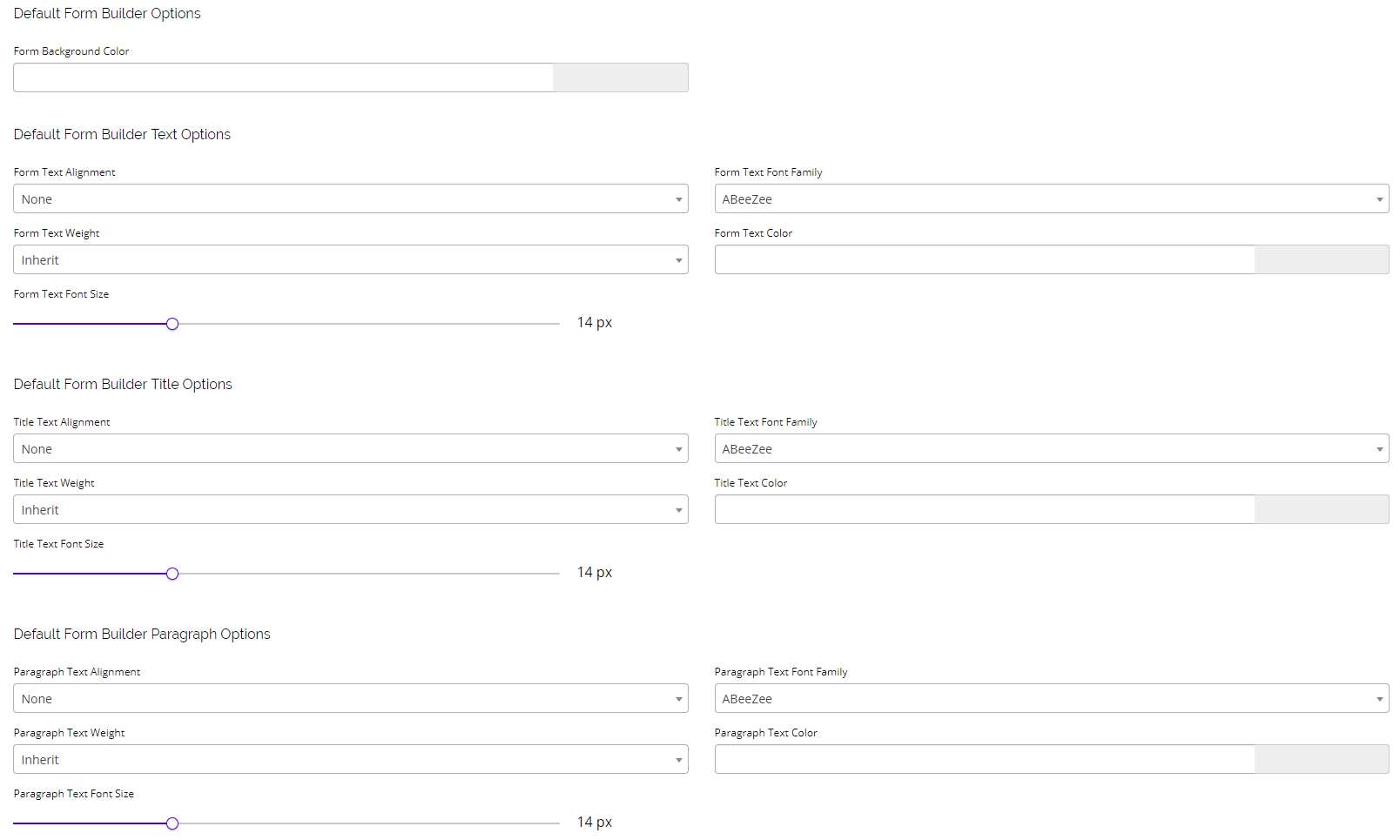
- Under the Email Builder settings, you will find a similar set of options for the Form Builder.
- Here you can edit the Form background color, text, title, and paragraph options.
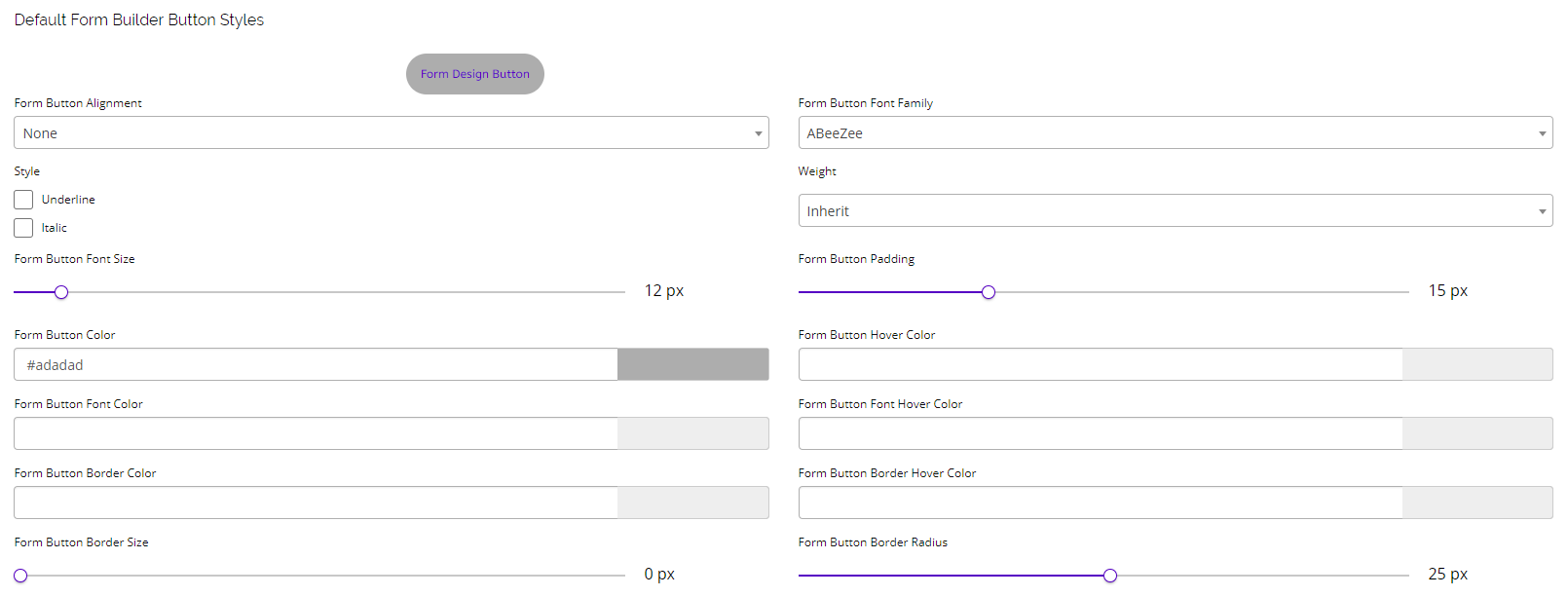
- Similar to the default email builder button styles, you also have the option of editing your default form builder button styles.
- Any changes you make to the button styles will be applied to the “Form Design Button” at the top.
Default Graphics
- The Default Graphics section is where you can add a default logo and image that are easily accessible when using the different builders.
- Here you can see the Chainlink Relationship Marketing logo is the default logo for this account.
- Any time you add a Logo block in any Drag & Drop Editor, this logo will appear.
- Be sure to click Save when you are finished making any edits or updates.
