The Chainlink Marketing Platform is an easy to use marketing platform that can help you customize, automate, and analyze all of your important marketing efforts. Using Chainlink’s Marketing Platform, you will be able to upload and organize Data Sources/Marketing Targets and create a wide range of custom marketing programs including Automated Emails, Sophisticated Landing Pages and Lead Generation Forms. If you ever get stuck on any page/feature within the platform, there is a help button in the bottom right corner of every page that provides tips and explanations for that platform feature. If you can’t find the answer you’re looking for, or you’re running into issues with the platform, please take a look at our Support Site or Submit a Support Ticket and a Chainlink Marketing Platform Admin will resolve the problem as soon as possible.
This guide will cover setting up your default account settings, the first thing you should do when signing in to your Chainlink Marketing Platform account for the first time. Once you have completed these steps, you can begin adding data to your account and start creating/sending your first marketing programs. Take a look at the Getting Started with your Chainlink Marketing Platform Account Knowledge Base for more information on next steps.
When you first login to you Chainlink Marketing Platform account, you will see a button at the top of the dashboard titled “Default Settings”. Click the button and a pop-up will appear where you can update all of your default settings.
Note: Only the main account user will have access to the Default Settings.
Note: All of the setting found here can also be edited within the Settings section in the platform.
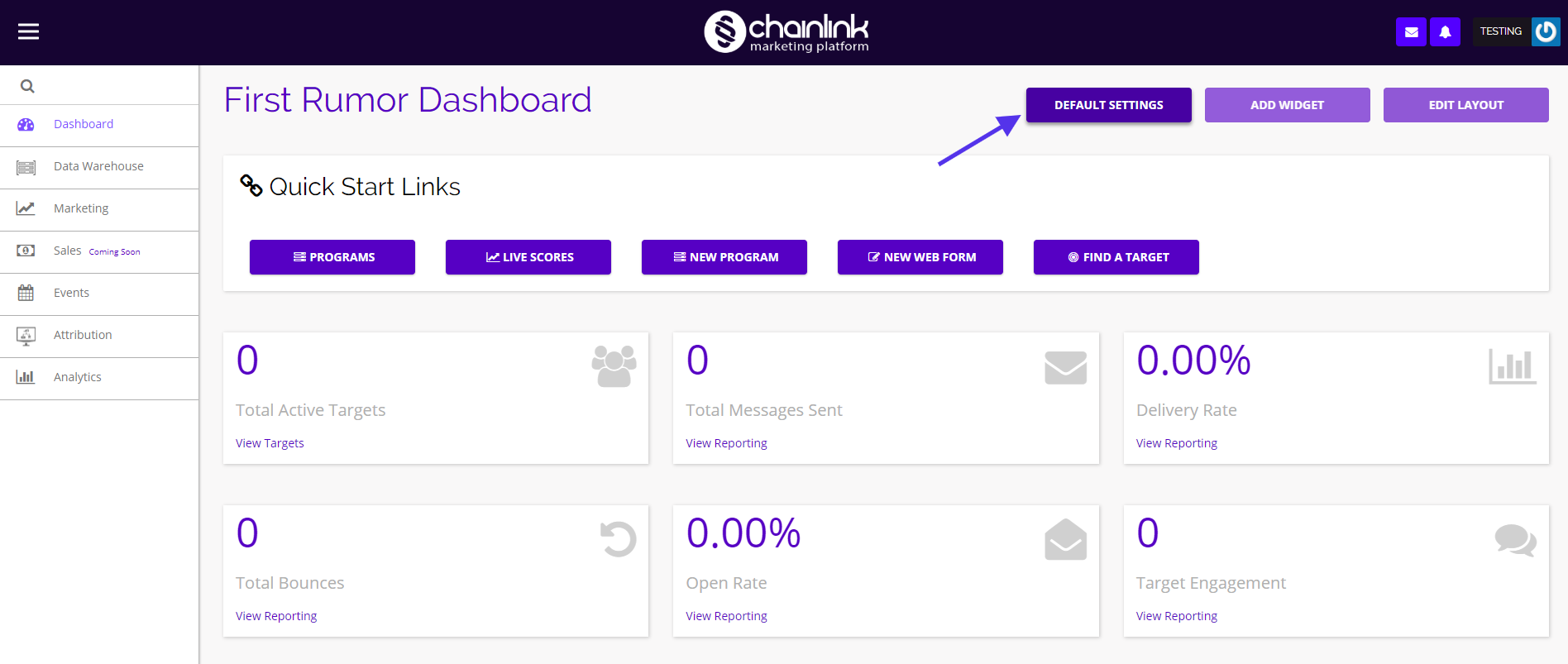
When you click the Default Settings button, you will be able to set up your:
- Account Name
- Date/Number Format
- Time Zone
- Currency
- Account Type
- Company Information
- Domain Settings/Verification
- Email Sending Defaults
- Design Defaults
- Users, Teams, and Roles
- Field Defaults
- Tracking
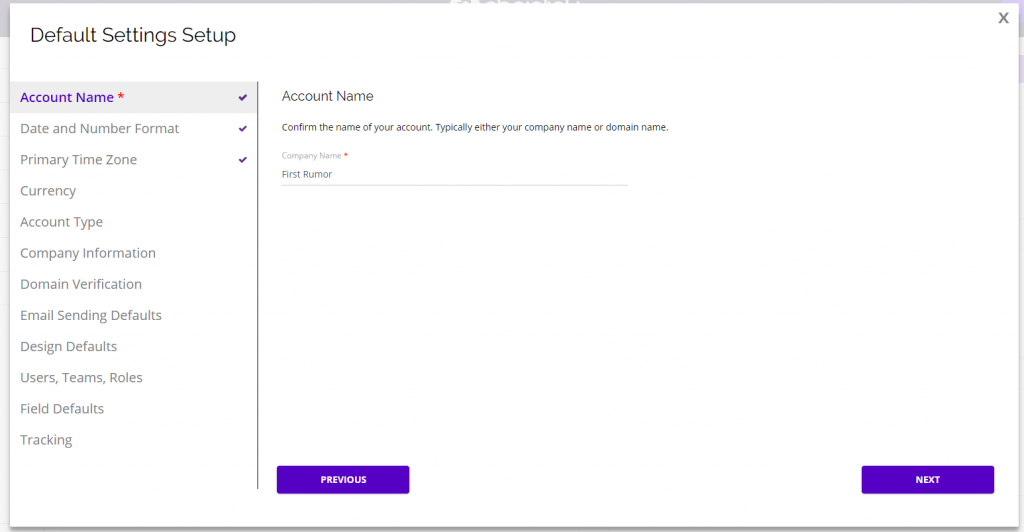
Account Name
To update your account name, simply add your new account name in the Company Name Field and click Next.
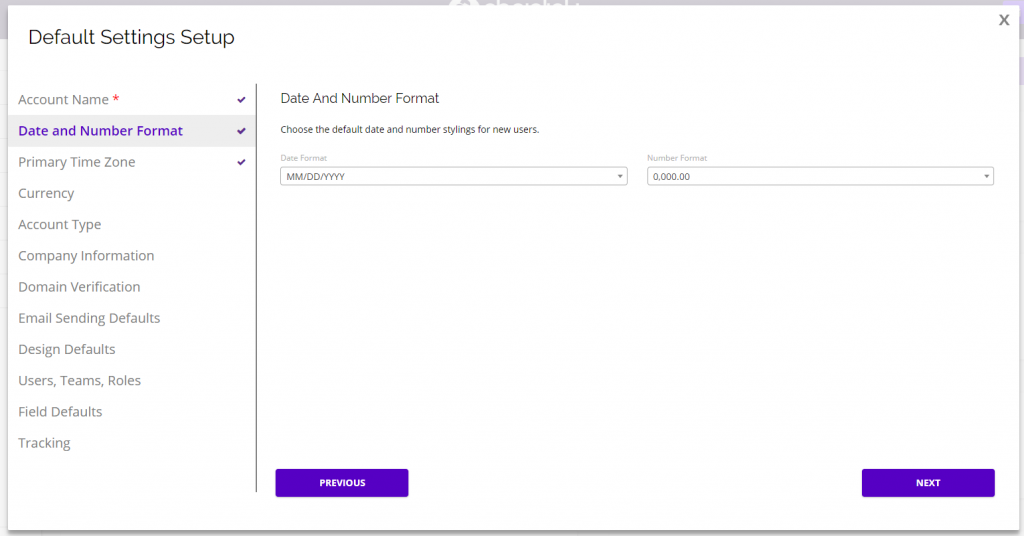
Date & Number Format
Here you can easily edit your default date and number formats.
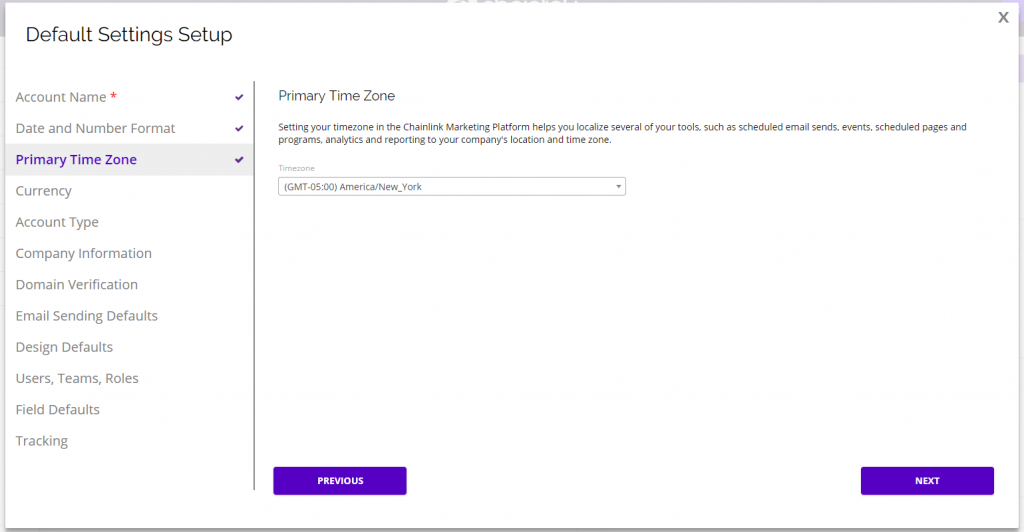
Primary Time Zone
Update your account’s primary time zone to help you localize several of your tools, such as scheduled email sends and programs, events, and analytics/reporting related to your company’s location and time zone.
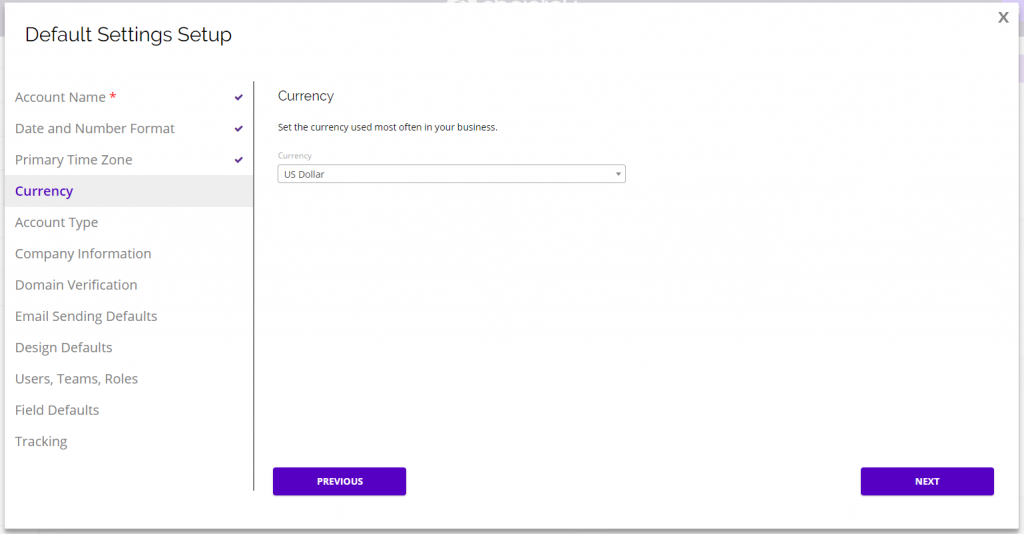
Currency
Here you can easily update the currency most often used in your business.
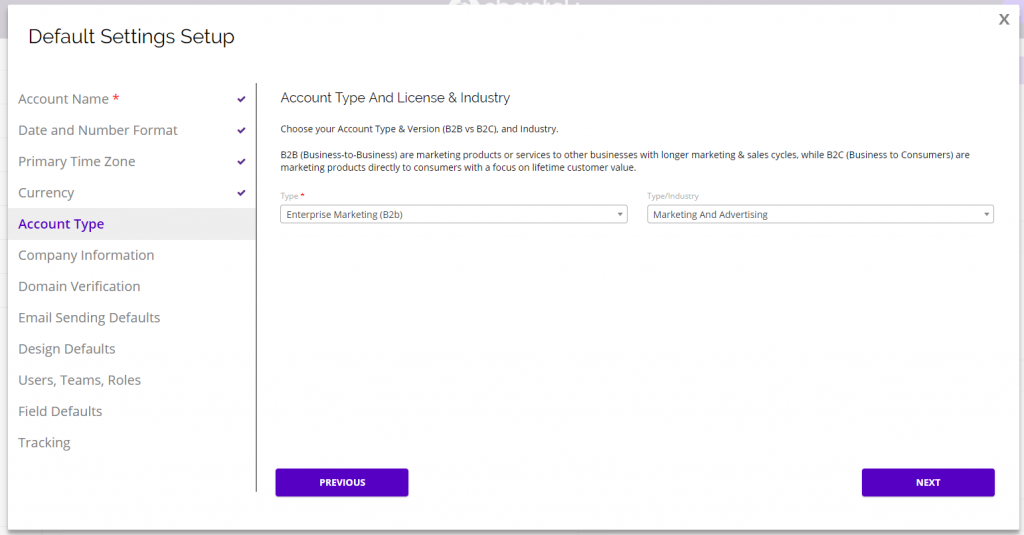
Account Type
Choose your account type: Enterprise Marketing (B2B) or Consumer Marketing (B2C). You can also select your account type/industry from the drop-down on the right.
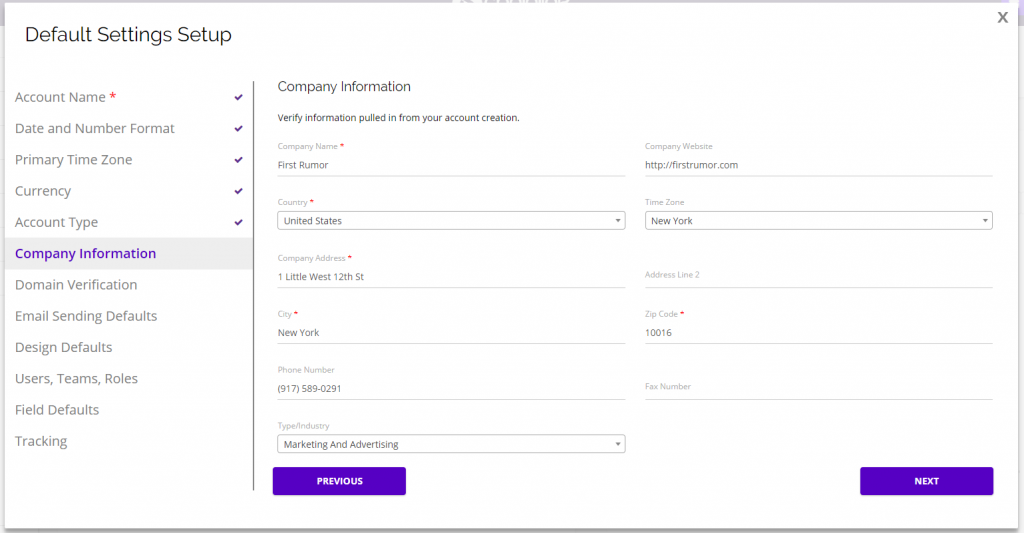
Company Information
Here you will be able to verify and update your company information that was pulled from the information you provided during your account creation.
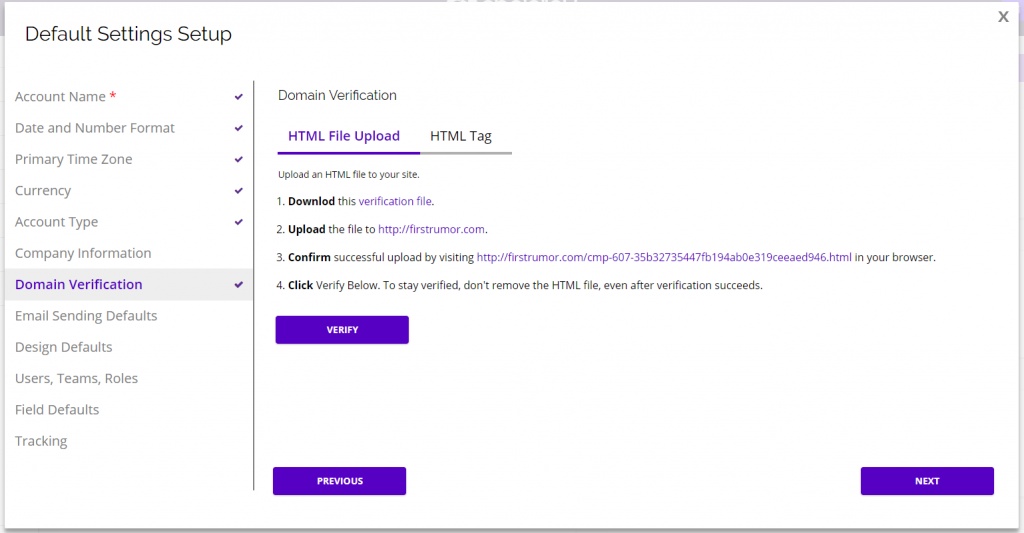
Domain Verification
When creating your Chainlink Marketing Platform account, a sending domain needed to send email programs from the platform will be automatically generated by default. Before using this domain to send any email programs, you will first have to verify the sending domain. To verify your domain, follow the steps for either the HTML File Upload or HTML Tag verification. You can always update/edit your sending domain information by navigating to Settings > Domain Settings in the platform.
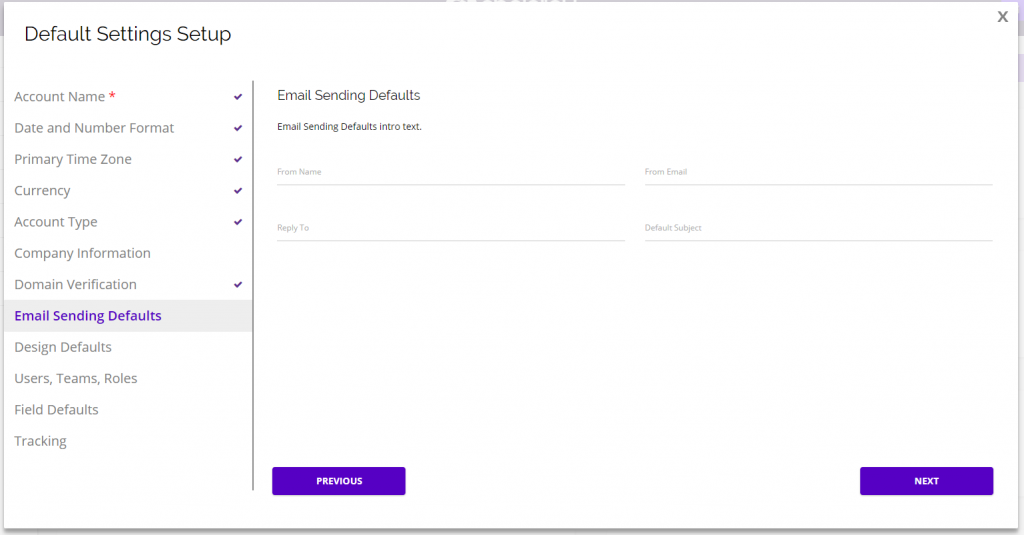
Email Sending Defaults
Here you will be able to customize some of your email sending defaults:
- From Name
- From Email
- Reply To
- Default Subject
Design Defaults
Design Defaults is where you will be able to customize all of your default design settings for your Landing Page, Email, and Form Builders:
- Font Settings
- Button Styles
- Background Options
- Default Graphics
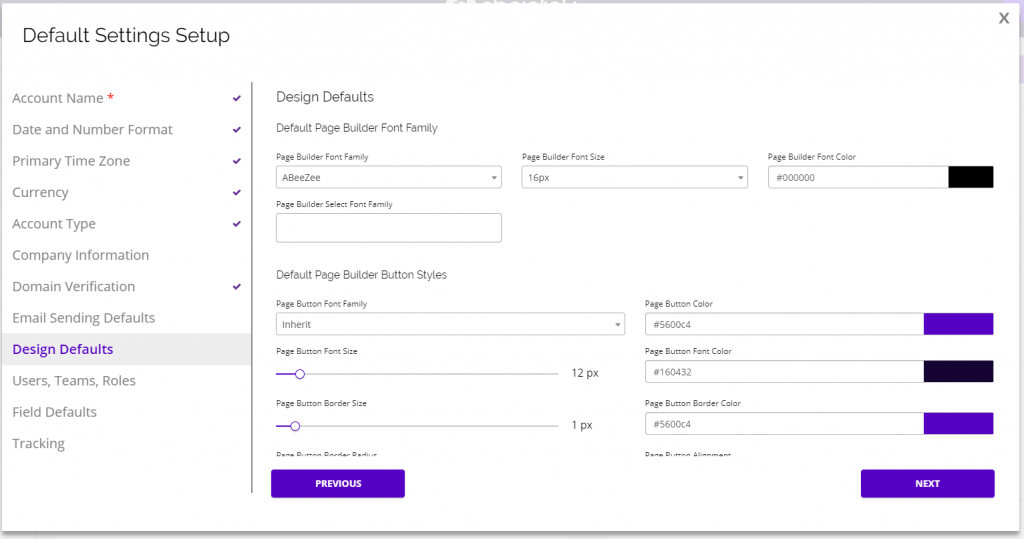
You can always update these Design Default Settings by navigating to Settings > User Settings > Design Default Settings in the platform.
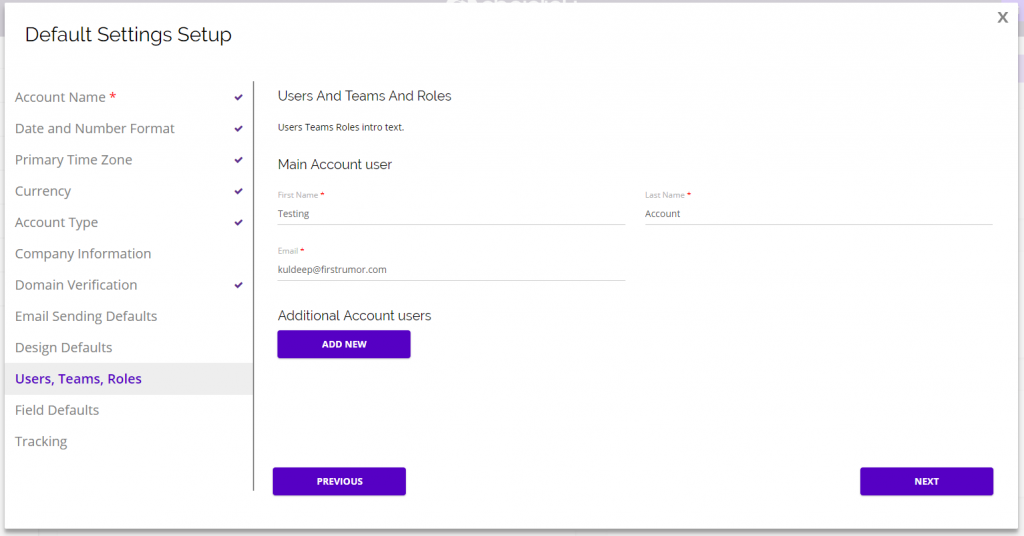
Users, Teams, Roles
Here you will be able to update the main account user’s information as well as add any new team members and choose what type of account user you want them to be.
- Main Account User: Each account has only one Main Account User, which is the highest level of access in the Chainlink Marketing Platform, including Account Settings, Billing, and the ability to add other users. (The Email address cannot be updated for the Main Account User for security reasons, so please submit a ticket to support if this email needs updating.)
- Regular Account User: Regular Account Users have access to all essential functions of the Chainlink Marketing Platform account (creating and sending programs, viewing target data, creating segments, launching inbound marketing programs, and viewing reports). However, a Regular Account Users cannot access account settings, change billing, or create other users.
- Author User: An Author User can create marketing campaigns and programs and edit templates, but cannot send them. (You might give this access to an in-house designer or writer, or even to an outside design agency.)
- Viewer User: A Viewer User only has the ability to view campaign reports. Grant this to someone in the company who needs to see campaign results, but doesn’t need to be creating campaigns or fiddling with lists.
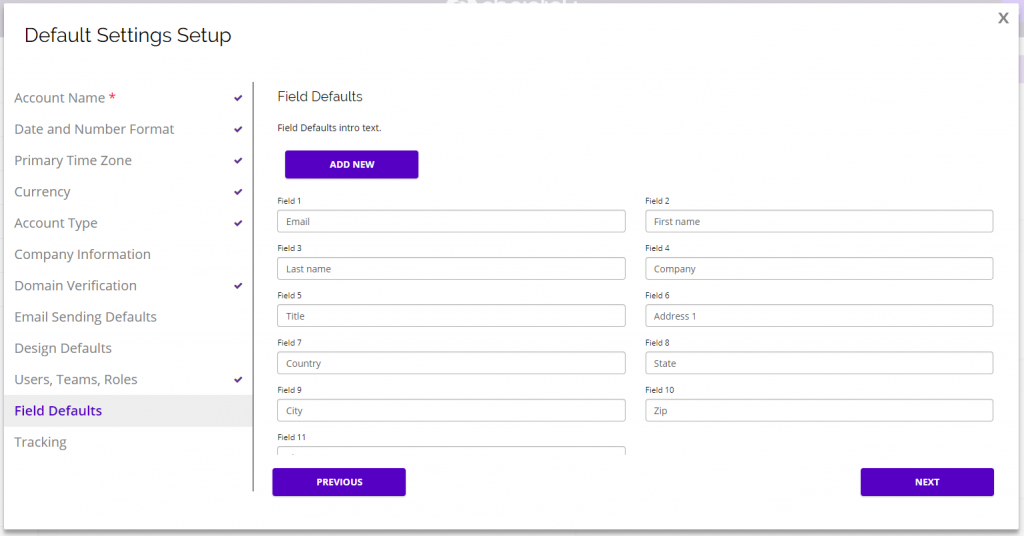
Field Defaults
Field Defaults is where you will be able to customize your default fields that will be listed on all of your Targets’ individual profile pages.
Tracking
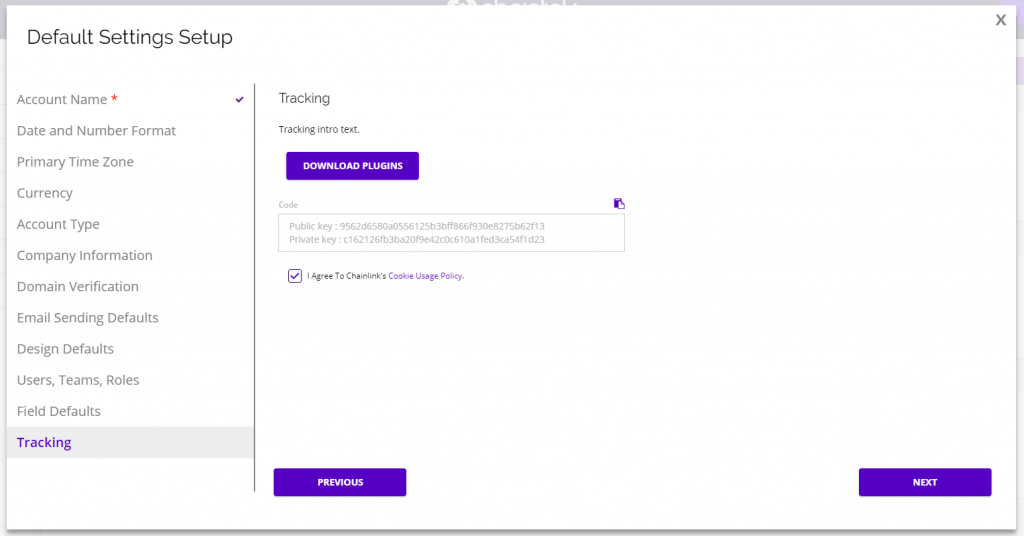
Here you will be able to view and copy your Private/Public API Keys. You can also download Chainlink’s WordPress plugin by clicking Download Plugins.
You can always access your API Keys in the platform by navigating to Settings > Account Settings > API.