• My Account
  • Help & Support
  • Knowledge Base
  • FAQs
  • My Account
  • Help & Support
  • Knowledge Base
  • FAQs
home/Knowledge Base/Settings

Default Account Pages, Emails, and Forms Settings

25 views 0 July 26, 2018 December 5, 2018 lucas

In The Chainlink Marketing Platform, the Default Account Pages Settings is where you can view and edit the default page, email, and form templates that come free with your Chainlink Marketing Platform Account. These basic templates are primarily used as default subscription and profile updating confirmations/notifications. Each template can be customized to fit your company’s needs.


To access Default Account Pages Settings, navigate to Settings > Account Settings > Default Account Pages Settings.
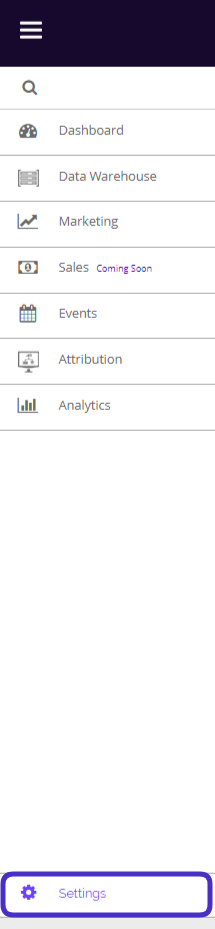
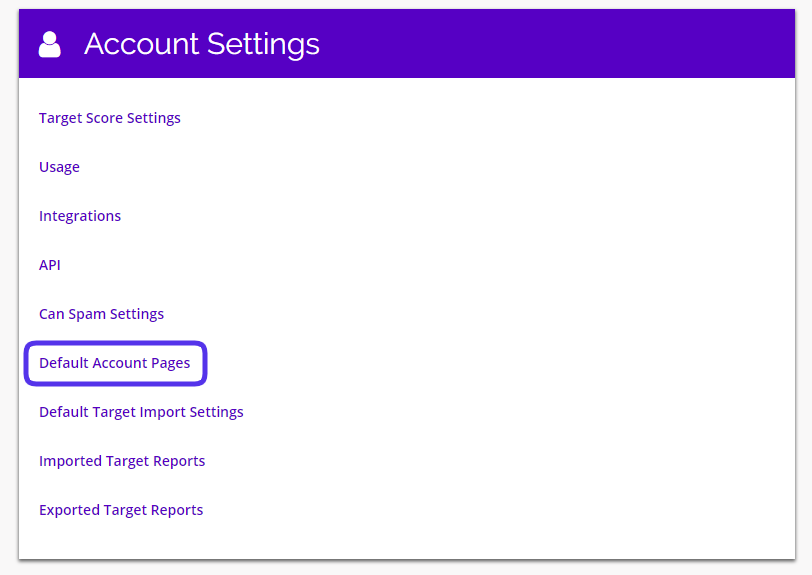
Chainlink navigate account settings

chainlink marketing platform settings


This is what the Default Account Pages Settings looks like:
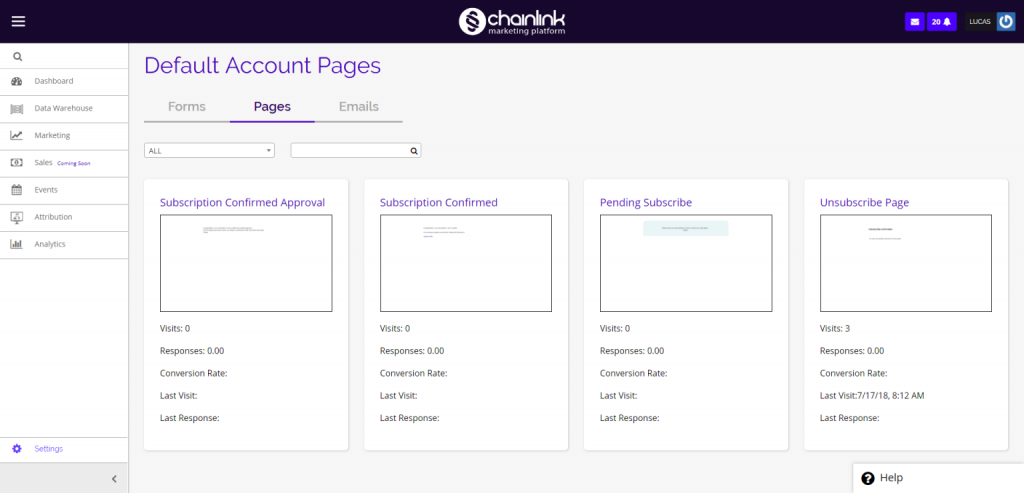
 

Chainlink default account pages settings dashboard


From the dashboard, you can view and edit any of your default pages, emails or forms. Navigate between default pages, emails, and forms by clicking on the desired tab underneath the page title.
 

Chainlink marketing platform default account emials pages and foms


1. Pages

  • The Pages tab contains a few default subscription landing pages that come free with your Chainlink’s Marketing Platform Account.
  • You can use them as they are, or customize them to better fit your marketing needs.
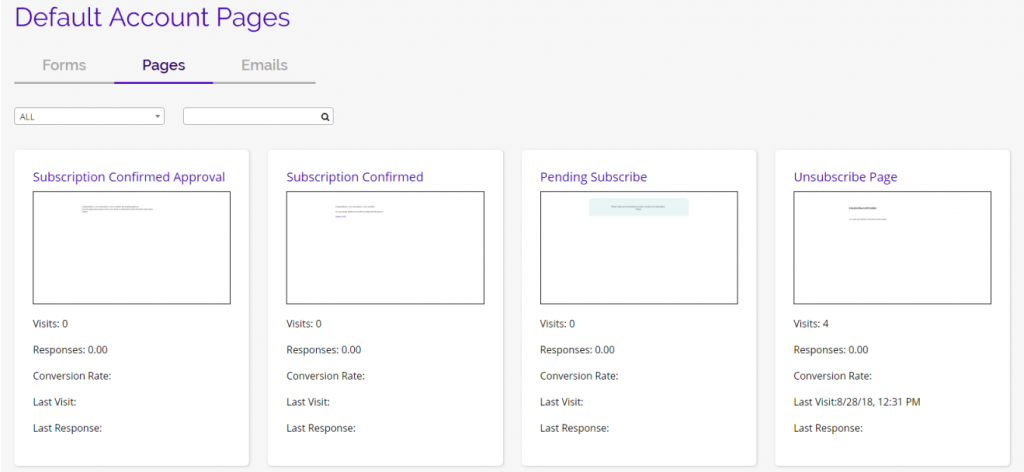
Chainlink marketing platform default account pages

  • To view/edit any of the Default Account Pages, simply click on the name of the page.
  • You will be brought to the Lead Conversion Page where you can further edit and customize the landing page.
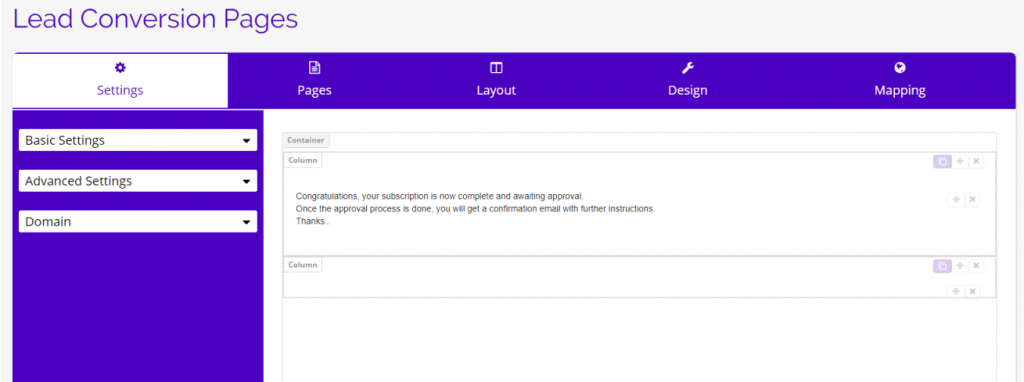
Chainlink marketing platform lead conversion pages


2. Emails

  • The Emails tab contains a few default email confirmation templates that come free with your Chainlink’s Marketing Platform Account.
  • Click on the email template you want to use and you will be redirected to the email template editor.
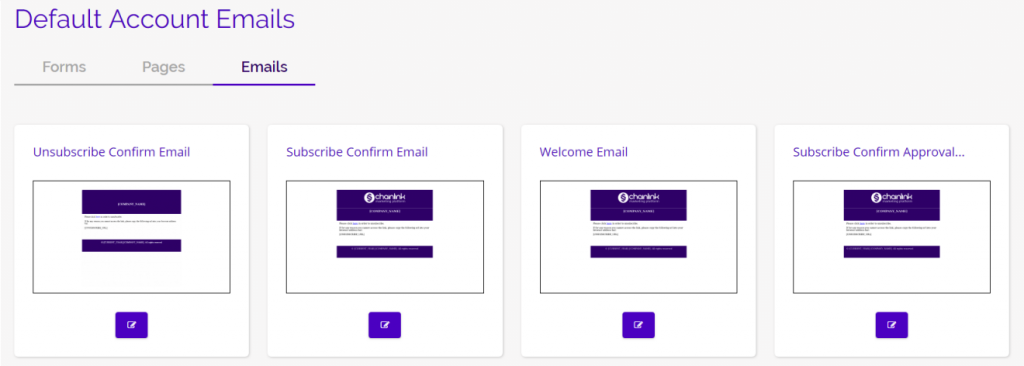
Chainlink marketing platform default account emails


  • Use the email template editor to customize your email template for your specific email campaign or company.
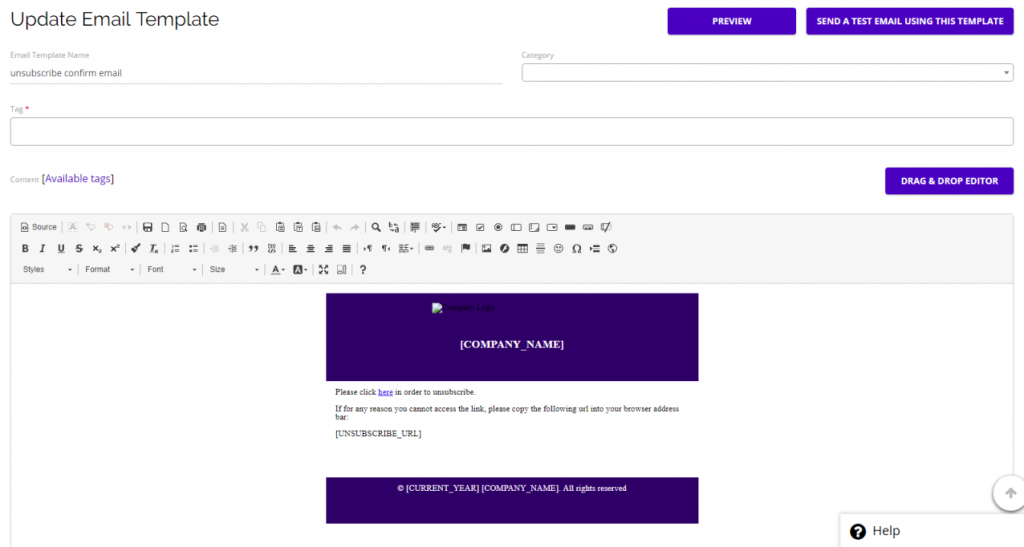
 

Chainlink marketing platform email template


3. Forms

  • The Forms tab contains a few default subscription and profile updating forms that come free with your Chainlink Marketing Platform Account.
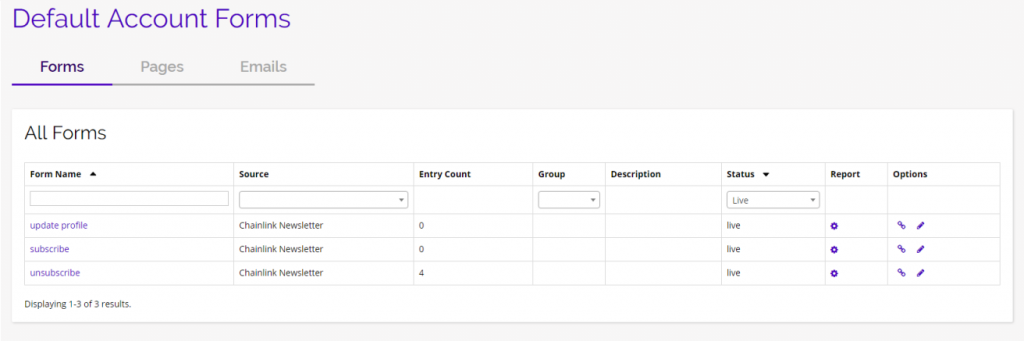
Chainlink marketing platform default account forms

  • Click on the form name to be taken to the Lead Capture From Editor where you can further customize the forms.
  • By clicking on the report icon you can quickly access that form’s: Analysis, Response Report, and Email Trigger Report.
  • Click on the link icon under the options column to view the default form in a separate window.
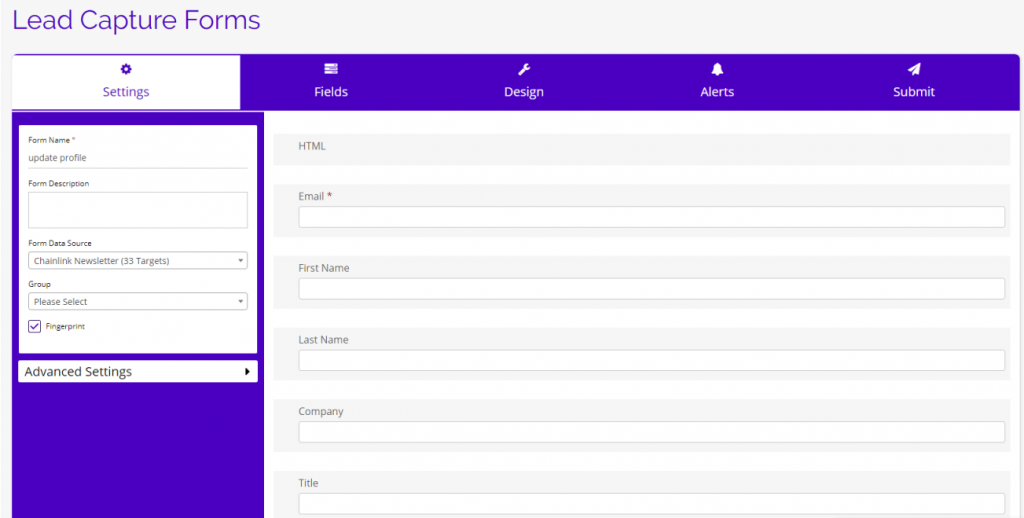
 

Chainlink Marketing Platform lead capture form

Was this helpful?

Yes  No
Related Articles
  • Billing Plans
  • Sub-Domains
  • Domains
  • Domain Verification
  • Design Default Settings
  • Social Media Settings
Category
  • Attribution
  • Call To Action
  • Campaigns
  • Data Sources
  • Email Marketing
  • Events
  • Forms
  • Getting Started
  • Landing Pages
  • Media Manager
  • Parades
  • Reporting
  • Segments
  • Settings
  • Social
  • Targets
  • Variables
  • Workflow
Contact Us

info@chainlinkmarketing.com

Submit a Ticket

Company
  • Digital Marketing Services
  • Website & Software Development
  • Chainlink Marketing Platform
  • Agency Partnerships
  • Careers
Chainlink Marketing Services
  • Search Engine Optimization
  • Website Development
  • Email Marketing
  • Content Marketing
  • PPC, Display, & AdWords
  • Social Media Marketing
  • Event Marketing
  • Integrated Print & Offline
  • Promotional Swag
Marketing Insights
  • Search Engine Optimization
  • Content Marketing
  • Social Media
  • Email Marketing
  • E-Commerce Marketing
  • Pay Per Click (PPC)
Primary Office

NYC Headquarters
1 Little West 12th Street
New York NY 10014
info@chainlinkmarketing.com
+(844) 701-2808

  • © Copyright Close The Loop Advertising, Inc, 2013 - 2018 - Privacy Policy