Email Broadcasts are one-time email blasts used for any variety of marketing efforts. They are great for sending out company or product updates, providing one-time or limited offers, and much more.
From the Email Broadcast page, you can either Create a New Email Broadcast, make edits to drafts, or review the success of your previous Email Broadcasts.
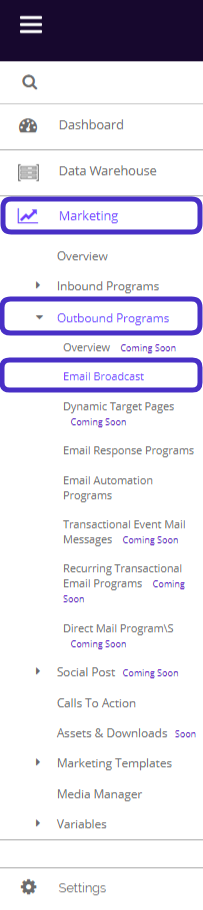
To access your Email Broadcasts, navigate to Marketing > Outbound Programs > Email Broadcast.
This is what the Email Broadcast dashboard looks like:
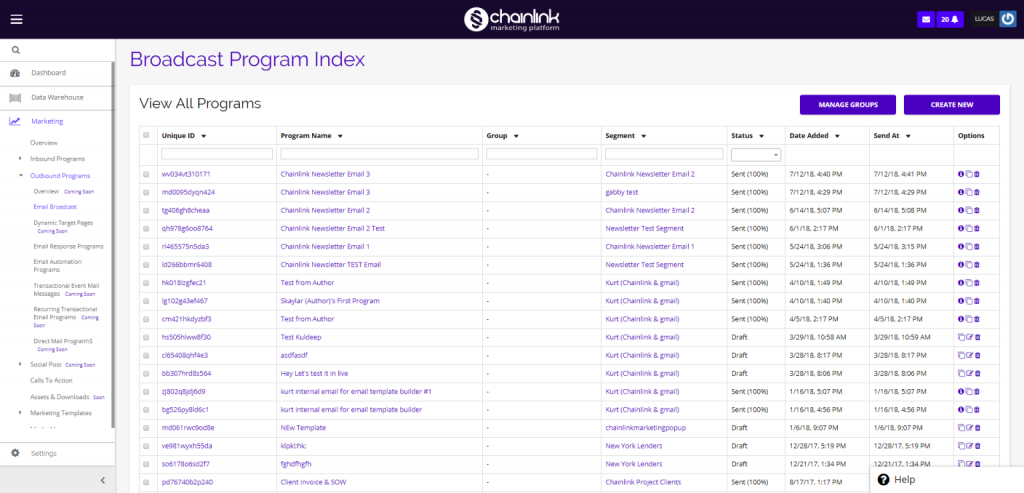
This guide will walk you through creating a new Email Broadcast from scratch. To learn about the other capabilities of Email Broadcasts, take a look at our Email Broadcasts Overview Knowledge Base.
1. Create a New Email Broadcast
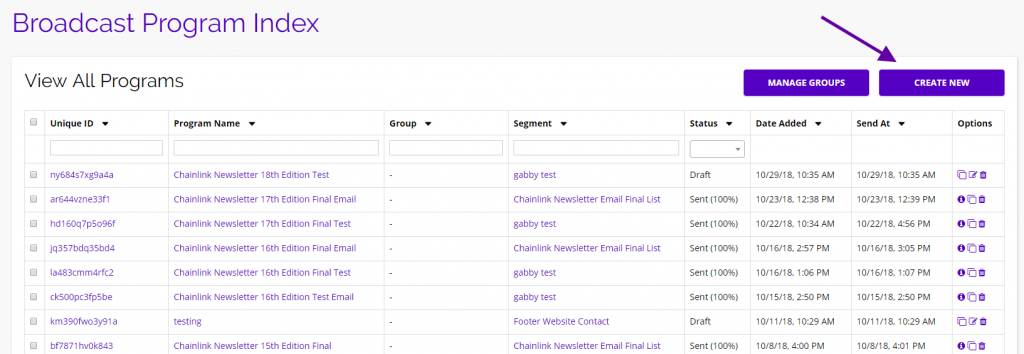
- To create a new Email Broadcast, click the Create New button in the top right corner of the dashboard
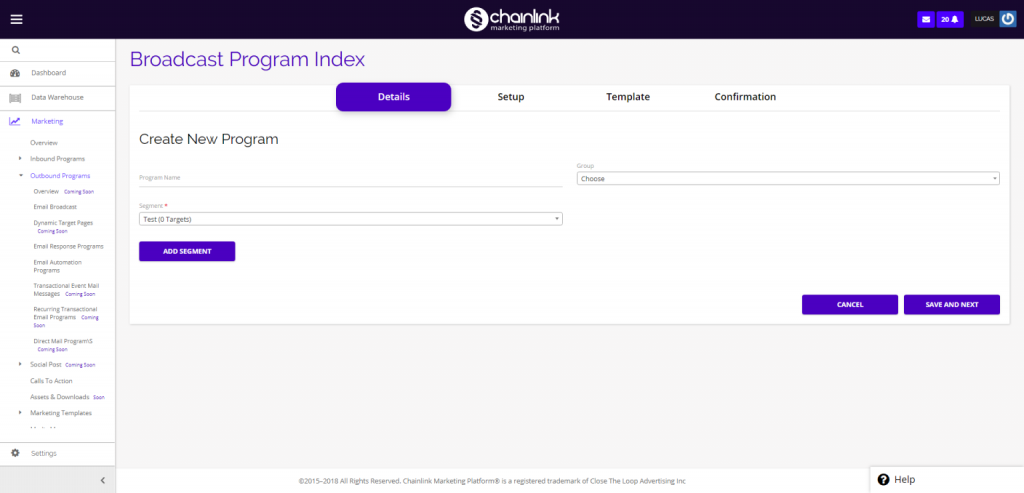
Details:
- You will then be brought to a new page where you can enter the program name, segment, and group.
- When you’re finished filling out the required fields, click the Save And Next button in the bottom right of your screen.
Setup:
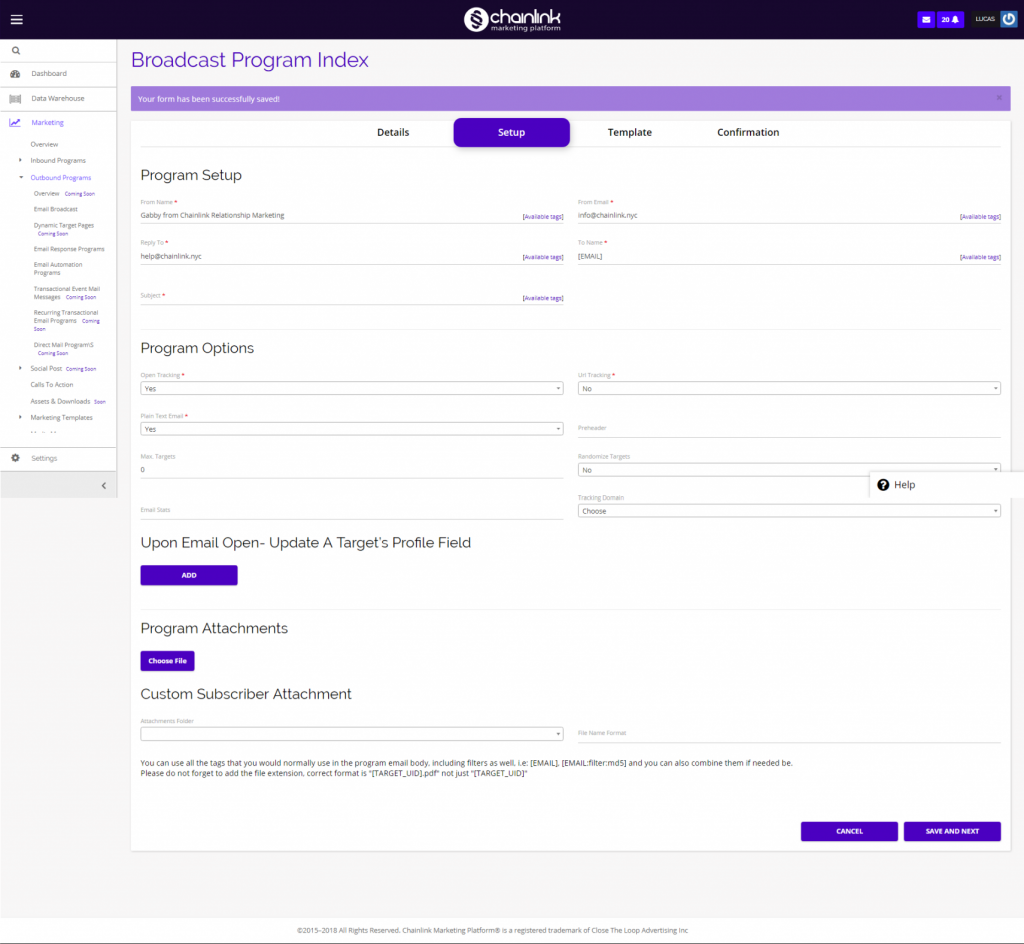
- Next, you will be brought to the setup page where you can enter information regarding to/from names and emails, subject, tracking options, tags, and attachments. You can also set up a Target’s profile to dynamically update certain fields upon opening an email.
- If you select Yes for Plain Text Email, there will be more options regarding the plain text email in the Template section.
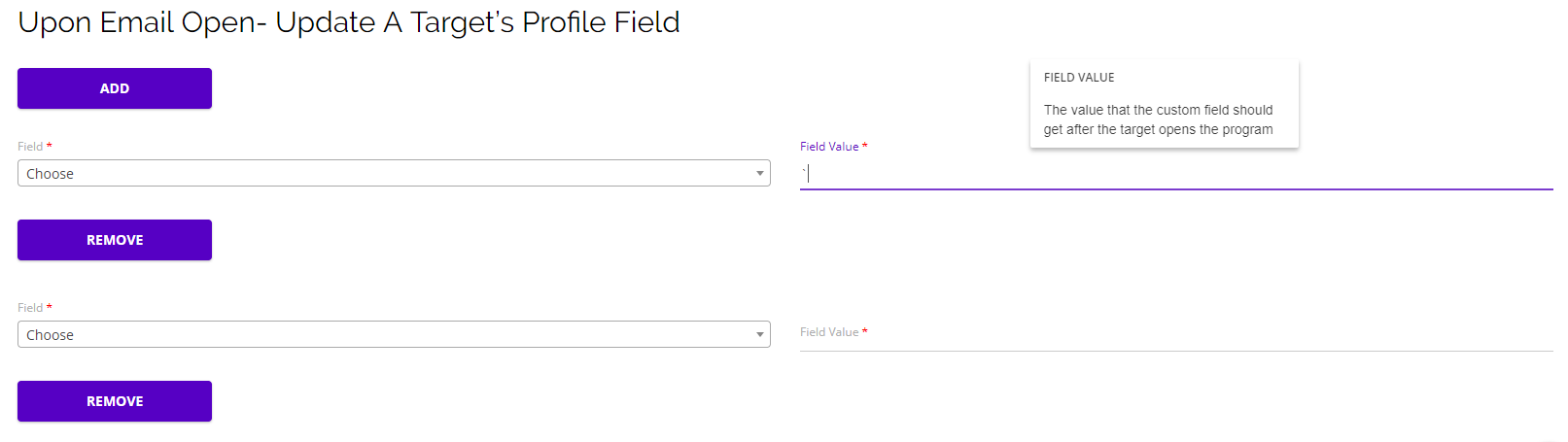
- You can customize the fields and values that are updated for a Target upon opening the email.
- If you want to add Custom Subscriber Attachments, you can use all the tags that you would normally use in the body of an email program, including filters as well, i.e: [EMAIL], [EMAIL:filter:md5] and you can also combine them if needed be.
- Note: Please do not forget to add the file extension, the correct format is “[TARGET_UID].pdf” not just “[TARGET_UID]”
- Once all of the required fields are filled out, select Save And Next at the bottom right of the page.
Program Delivery Servers:
- If your platform account is set up as one of the paid plans (Monthly, Pay As You Go, Monthly Pro, or Monthly High Volume Pro), you will have the options of choosing which server you want to deliver your email program through.
- If you do not have a preference for a specific server, you can leave this section blank and the platform will select the Chainlink server as a default to send your program.

Template:
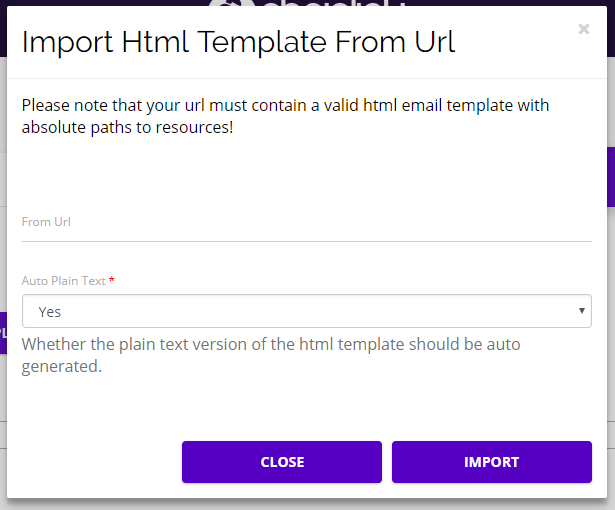
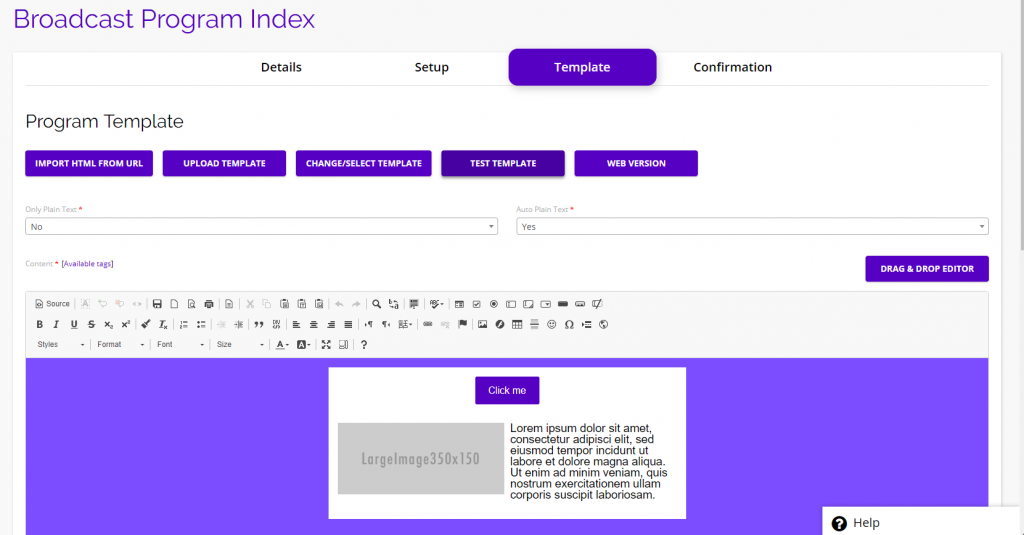
- You will then be brought to the Email Broadcast Template Page where you have the option of importing HTML code from a URL, uploading a template, selecting a template provided by the Chainlink Marketing Platform, or building one from scratch using the HTML Code builder or the Drag & Drop Editor.
- Note: If you choose to import a HTML template from a URL, your URL must contain a valid HTML email template with absolute paths to resources.
- Note: We recommend using the Drag & Drop Editor, unless you have extensive HTML coding experience.
HTML Code Builder:
- This is what the HTML visual builder looks like:
- Only use the HTML email builder if you have HTML coding experience.
- If you selected Yes for Plain Text Email, on this page you will have the options of Only Plain Text Email and Auto Plain Text.
- If you select Yes for Auto Plain Text, the platform will automatically update your plain text email. You can view the plain text email by clicking the Show Plain Text Version button at the bottom of the page.
- Note: Be careful, if you select Yes for Plain Text Email and No for Only Plain Text, your Targets will receive two emails, one original and one plain text.
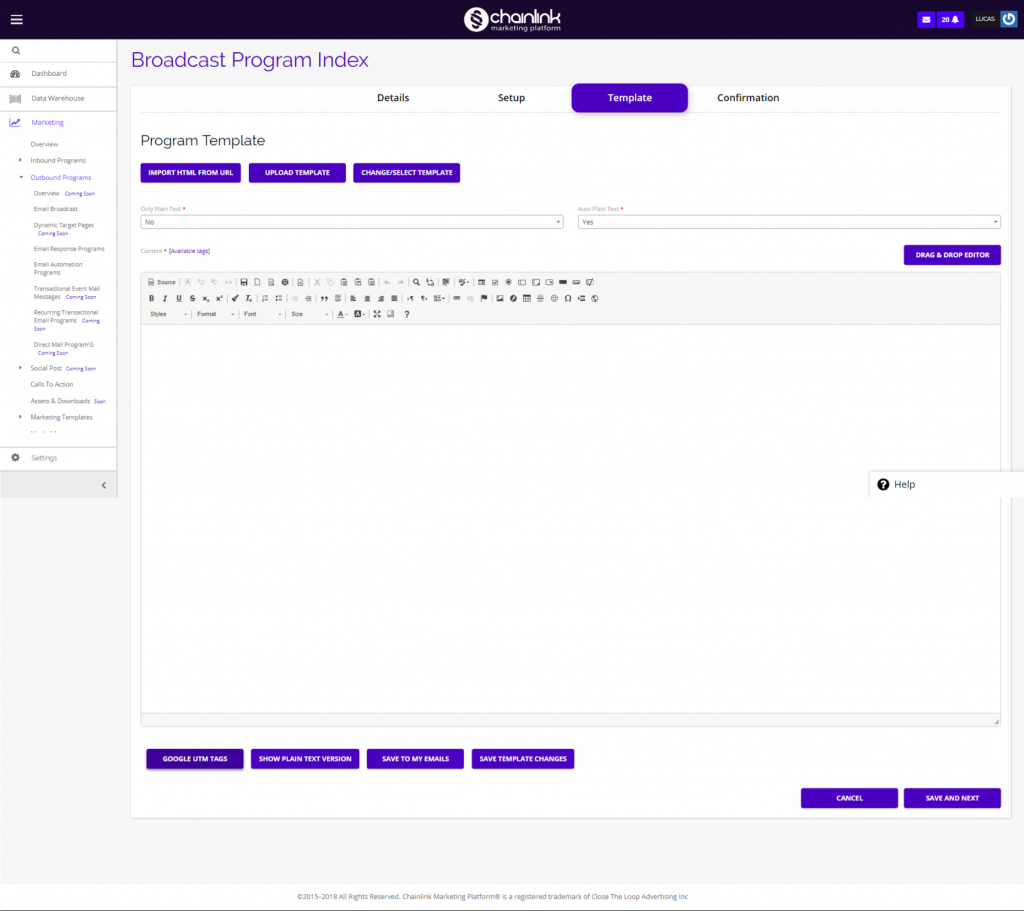
- To switch from the visual editor to the HTML Code builder, click the Source button in the top left.
- This is what the HTML Code Builder looks like:
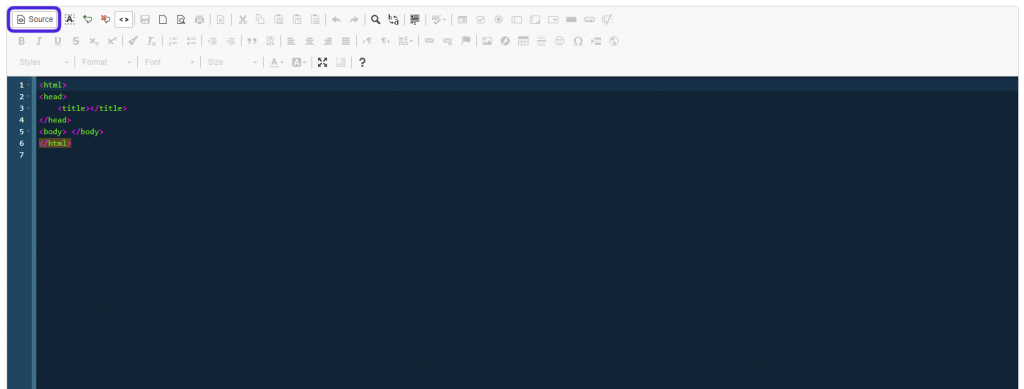
- Note: If you build your email using the HTML Code builder, you will not be able to edit your email template using Chainlink’s Drag & Drop editor. It is advised to only use the HTML builder if you have extensive HTML coding knowledge.
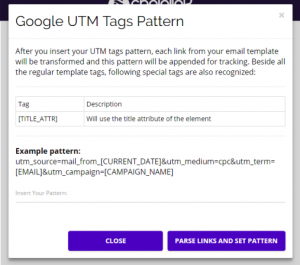
- Click on the Google UTM Tags button in the bottom left to insert your pattern.
- After you insert your UTM tags pattern, each link from your email template will be transformed and this pattern will be appended for tracking. Beside all the regular template tags, the following special tags are also recognized:
- [TITLE_ATTR] – Will use the title attribute of the element
- A UTM tag is a simple code that you can attach to a custom URL in order to track a source, medium, and campaign name.
- To save any changes you have made to the template, click the Save Template Changes button.
- If you want to save the email you have built as an Email Template, click the Save To My Emails button and the template will be saved to “Your Emails”.
Drag & Drop:
- If you want to build your email using Chainlink’s easy to use Drag & Drop Editor, click the Drag & Drop Editor button on the HTML Code builder page.
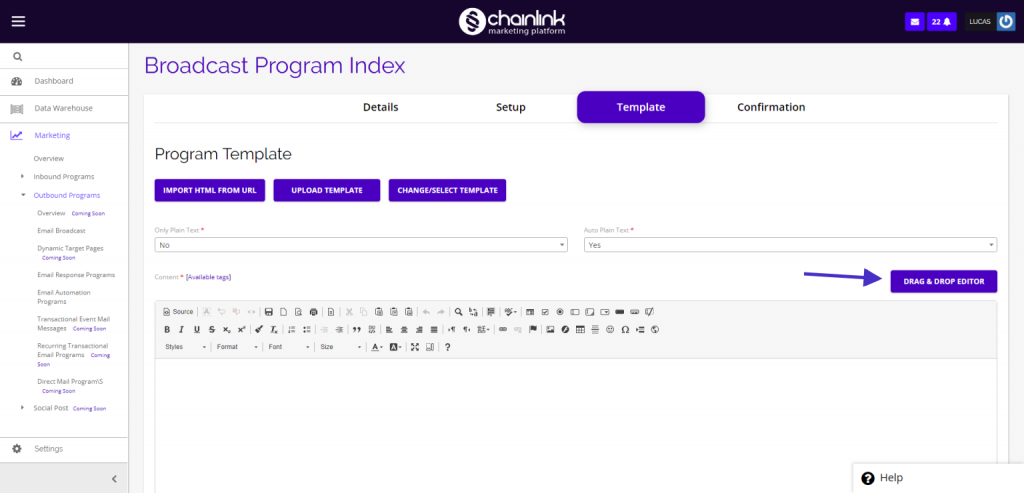
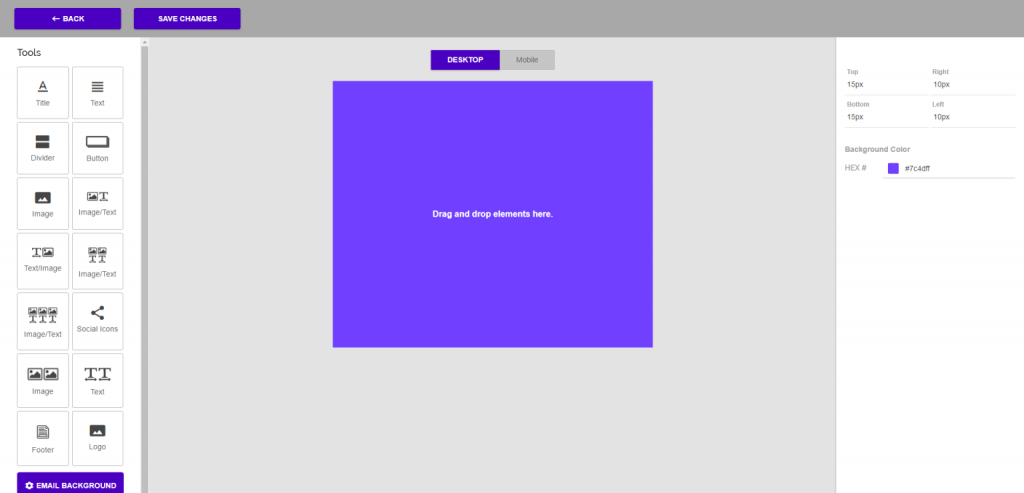
- You will then be brought to Chainlink’s interactive Drag & Drop Editor page.
- Take a look at the video below for a basic overview of how to use some of the features of the Drag & Drop Editor:
- It’s that easy!
- Within the Drag & Drop Editor, you can customize the padding, colors, and font.
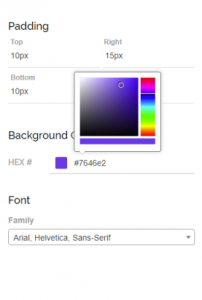
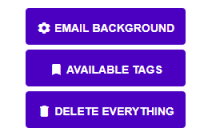
- The Drag & Drop Editor also allows you to customize the background color/padding, add any available tags, upload images from outside of the platform, switch from desktop to mobile view, and has a button to delete everything you’ve worked on if you want to start over.
- When you’re finished designing your email broadcast, be sure to click Save Changes.
- Note: You must have an unsubscribe URL somewhere in the body of your email broadcast to proceed from the Drag & Drop Editor.
- After saving your changes, you will have the option of testing and previewing your email before moving on to the next step.
- Click Test Template to send a test email. You will be able to choose what email address you want to send the test to and what email address it will come from.
- To preview what the email will look like in a web browser, click the Web Version button and a new window will appear with the email preview.
- Click Save and Next in the bottom right corner to move on to the final step.
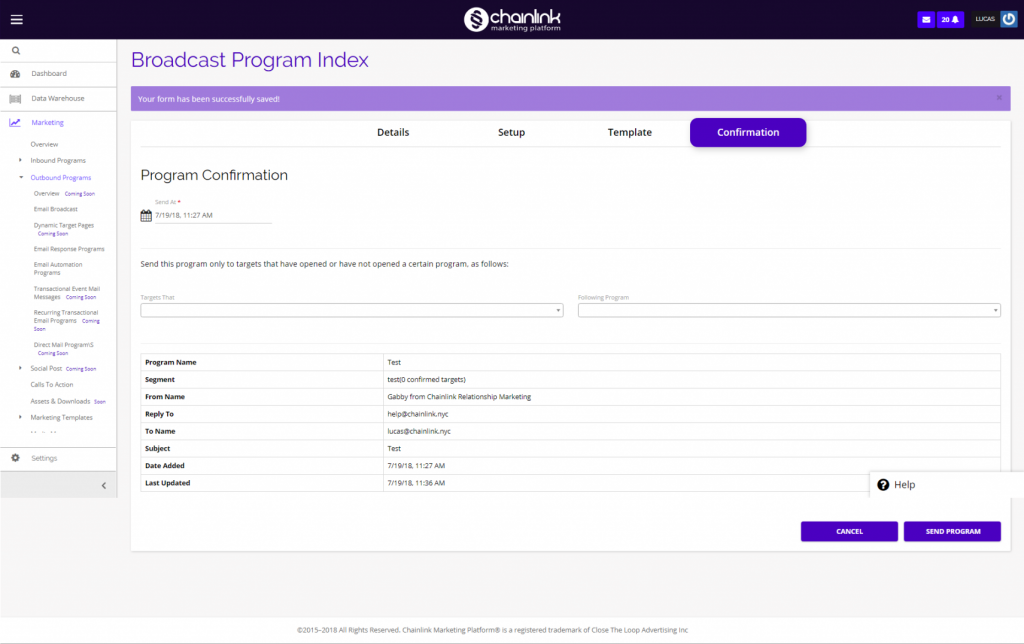
- You will then be brought to a confirmation page where you can set the send date and ensure that all of the details of the program are correct before sending the email broadcast out. Once you’re sure the program is perfect you can hit the Send Program button in the bottom right of your screen to activate the email broadcast.
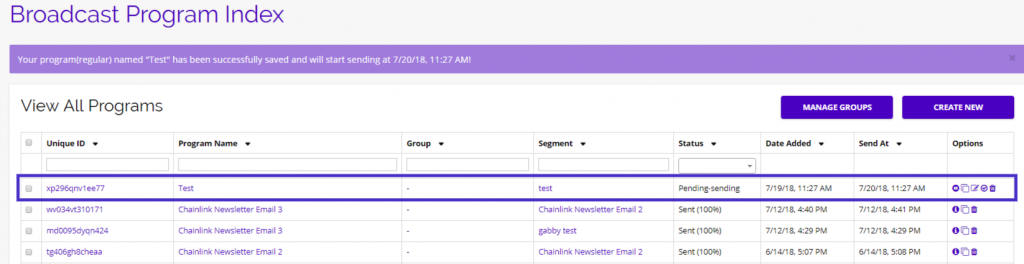
- After confirming all of your email broadcast information and hitting the Send Program button, you will be brought back to the Email Broadcast Index where you will be able to see your new program at the top of your Broadcast Program Index.
- Take a look at our Email Broadcast Overview Knowledge Base for more information on your Email Broadcast reporting and Program Groups.