Archived Targets are the Targets your account has chosen to remove from your account as they are no longer (or never will be in the future) potential Targets for use in your Marketing efforts.
Note: If you’ve moved Targets here incidentally, please submit a ticket with a justified reason to Un-Archive, and a Platform Admin can change this back upon approval. However, this can only be done on a limited case-by-case basis and will be unavailable if abused.
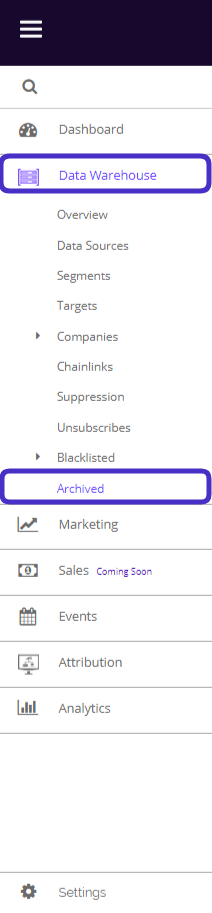
To access your Archived Targets, navigate to Data Warehouse > Archived.
This is what the Archived Targets dashboard looks like:
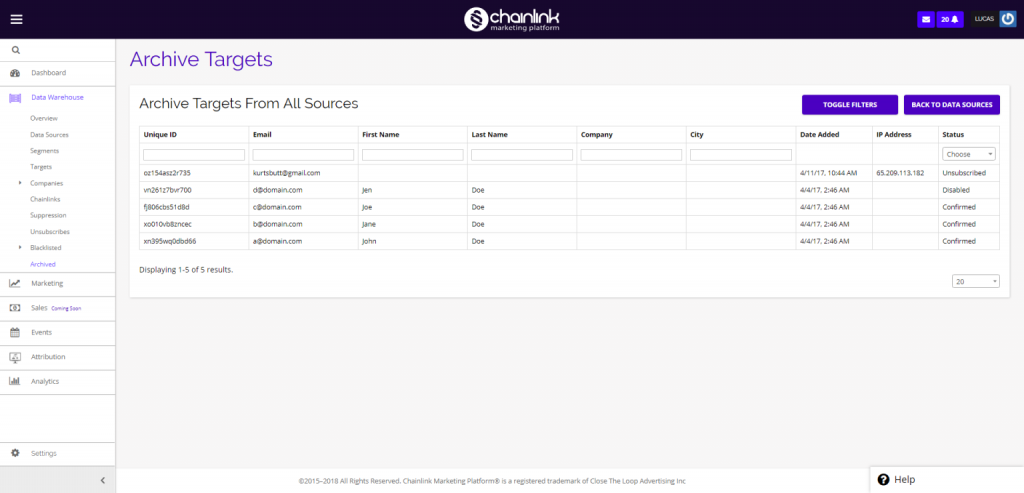
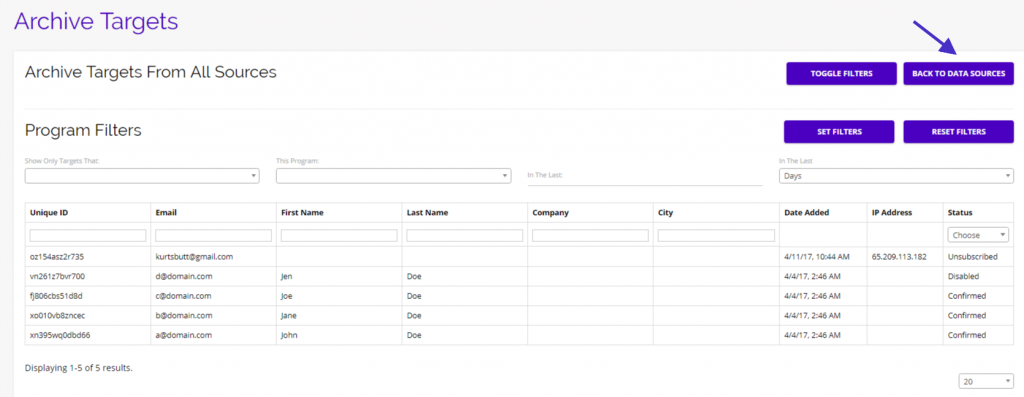
On the dashboard, you will be able to see all of your Archived Target’s Unique IDs, Emails, First and Last Names, Company, City, Date Added, IP Address, and Status.
1. Toggle Filters
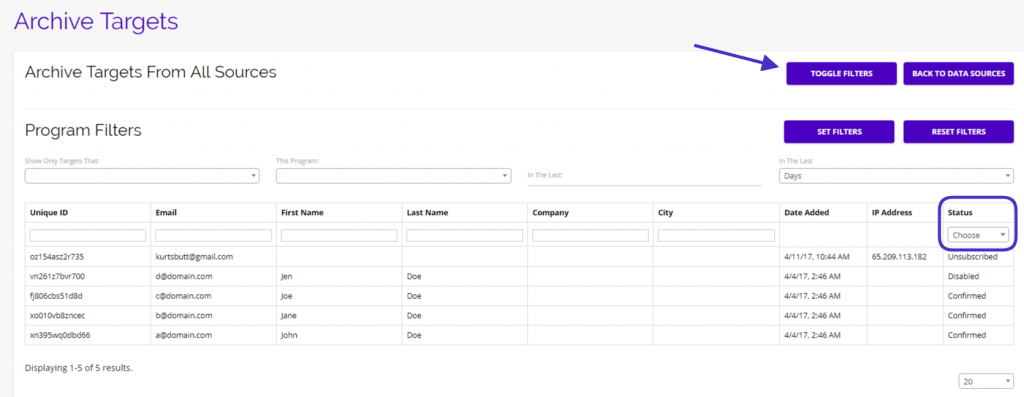
- To easily organize your Archived Targets, click the Toggle Filters button and select which filters you would like to activate. You can filter Archived Targets based on behavior, program, and time.
- For example, you could filter your Archived Targets by those who Did Click on the Chainlink Newsletter in the last 30 Days.
- You can also organize your Archived Targets by selecting the Target status from the Status drop-down. The options are:
- Confirmed
- Unconfirmed
- Unsubscribed
- Blacklisted
- Unapproved
- Disabled
- Moved
- To return to your Active Data Sources, simply click the Back to Data Source button and you will be brought back to your Data Source dashboard.