One of the most advanced features of the Chainlink Marketing Platform is the Anonymous Tracking tool. Chainlink’s Anonymous Tracking tool allows you to gather some preliminary data on people who engage with your site without having to ask them to fill out a form or complete a purchase to provide their information. This is an easy way to figure out how your targets arrived on your site, what country/state/city they are located in, and what page on your site they visited.
We are able to keep this process completely anonymous by using Chainlink’s unique pixel tracking codes that allow you to see exactly how an IP Address got to a certain page on your website. This data is only based on IP addresses, and can never be used to correlate IP addresses with personal information.
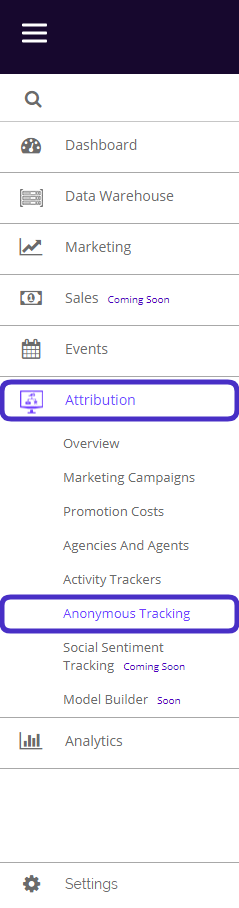
To access Anonymous Tracking, navigate to Attribution > Anonymous Tracking.
This is what the Anonymous Tracking dashboard looks like:
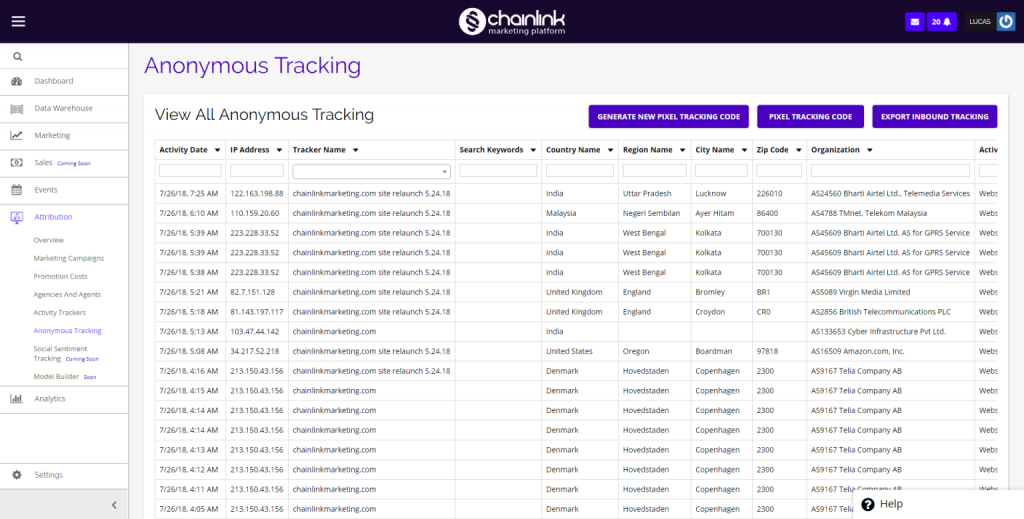
From here you can see the activity date, IP address, tracker name, search keywords, country name, region name, city name, zip code, organization, activity, referral URL, page name, and options.
You also have the ability to view all of your pixel tracking codes, generate a new pixel tracking code, and export your inbound tracking information.
1. Generate New Pixel Tracking Code
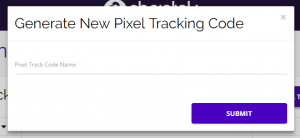
- To generate a new pixel tracking code, simply click the button labeled Generate New Pixel Tracking Code. A pop-up form will appear where you can enter the name of your new tracking code and submit it to the platform.
- A unique pixel tracking code will be automatically generated. You can then copy the tracking code and paste it in the code of your desired web page to begin tracking that page.
- Every time that page is visited, the pixel will fire and the visit will be tracked in the platform.
2. View Existing Pixel Tracking Codes
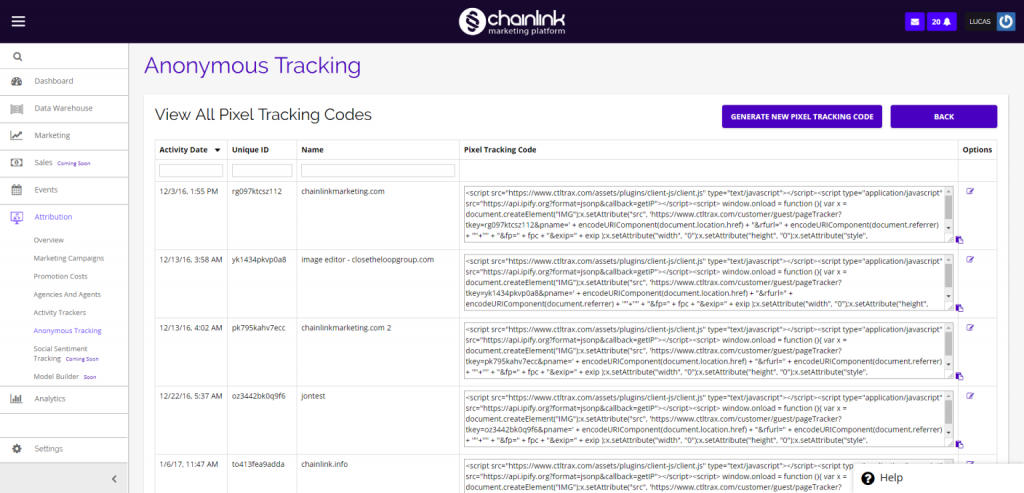
- To view all of the pixel tracking codes already being used in your Chainlink Marketing Platform account, click the Pixel Tracking Code button.
- You will be brought to a new page where you can view all of the details of each pixel tracking code, edit the tracker name, as well a generate a new code from here.
- Here you can access the actual tracking codes that you will need to copy and insert in the code of your desired website.
3. Anonymous Tracking Data
- From the Anonymous Tracking dashboard, you have the ability to view all of the tracking data associated with any IP Address that has activated one of your pixel tracking codes.
- To do so, find the IP Address you want to analyze, and scroll all the way to the right side of the table.
- Click on the “i” icon under the options column for the address you want to view, and you will be brought to a page with all of the tracking info for that individual IP Address.
- This page will show all of the tracking information for that IP Address any time they activated one of your pixel tracking codes.

4. Export Anonymous Tracking Data
- From the anonymous tracking dashboard, you have the ability to export a CSV file containing the data from your anonymous tracking pixel codes.
- To do so, simply click the Export Inbound Tracking button and you will be brought to a new page where you can easily export a CSV file.
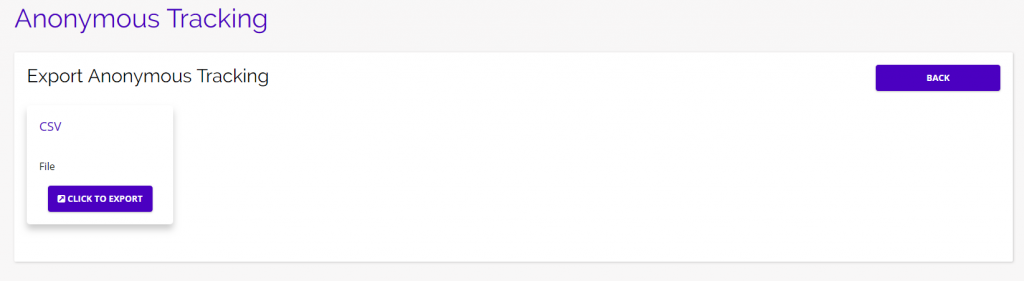
- From here select the Click To Export button and you will be presented with a drop down menu from which you can select which tracker you want the data from.
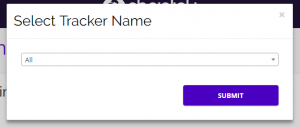
- You have the option of exporting data from all of your tracking codes, or just the data from an individual tracker.
- Click Submit when you have made your decision and the export will begin automatically.
- A zip file containing your tracking data will be downloaded to your computer.