Attribution in Chainlink’s Marketing Platform is used to better understand the complete journey someone takes when interacting with your campaigns and websites. Activity Trackers, or Attribution Trackers, are what make it possible for Chainlink to track the actions taken by a target and attribute what led to a purchase. Creating attribution trackers for each product page you want to analyze will help you determine the number of page visits, page conversions, order quantities, order revenue, and products sold attributed to each product.
To access your Activity Trackers, navigate to Attribution > Activity Trackers.
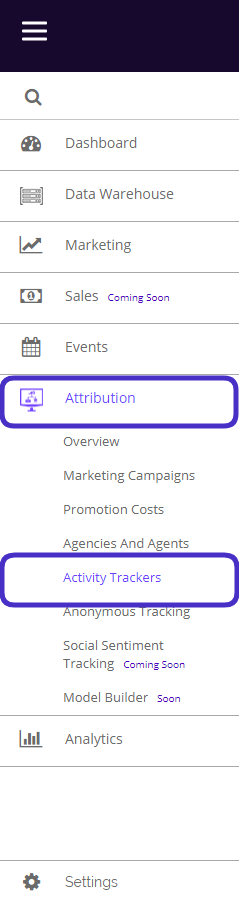
This is what the Activity Trackers page looks like:
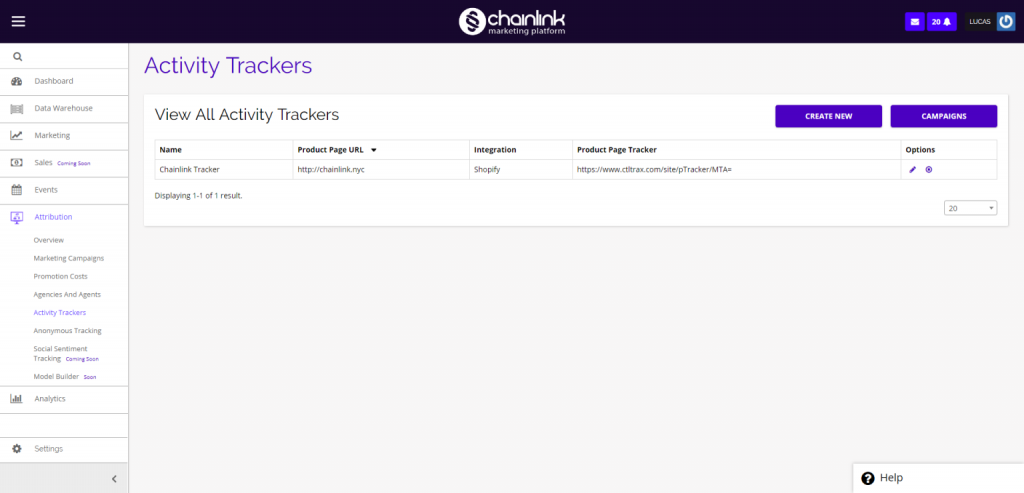
From the Activity Trackers page, you can view, edit, or delete all of your current activity trackers, as well as create new trackers and quickly navigate to your marketing campaigns.
- To view, edit or delete a tracker, click on the respective button under the options column.
- Click on the Campaigns button to quickly navigate to your Marketing Campaigns.
1. Create New Activity Tracker
- To create a new activity tracker, click the Create New button and fill out the activity tracker details.
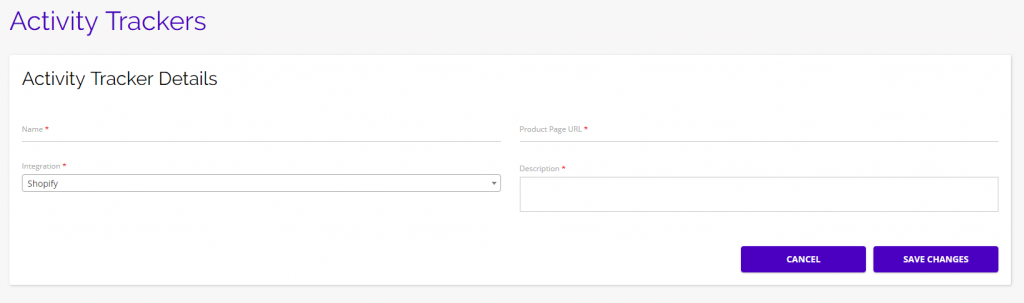
- Fill out all of the required fields to create your new activity tracker:
- Name
- Integration
- Product Page URL
- Description
- Your sales integration options are:
- Shopify
- Woo Commerce
- Magneto
- Volusion
- Activity Trackers are useful for learning about how your Target came to complete a purchase. Each tracker will help you understand exactly what attributed to a Target completing a purchase on that product page.
- Be sure to click Save Changes when finished to complete creating a new activity tracker.
2. Analyzing Your Activity Trackers
- All attribution data is compiled in one place. To access this data, navigate to Attribution > Marketing Campaigns > Performance Analysis.
- From this page, you can filter your attribution data by campaign, metrics, activity trackers, medium, promotions, and custom date ranges.
- Select the activity tracker you want to filter by and you will see the data on this page update in real time.
- At the bottom of the page, you will find the sum of page visits, conversions, revenue, and products sold for the date range you selected.