When you click the delete icon for a segment on the segments dashboard, only the segment itself will be deleted. All of the targets that are a part of that segment will remain in the platform.
What’s the difference between a Data Source and a Segment?
In your Chainlink Marketing Platform account, you will see that your Data Warehouse is broken into a number of sections including Data Sources, Segments, Targets, and more. Before creating and sending out any marketing programs, it is important to understand the difference between your Data Sources and your Segments.
Data Sources:
- The first thing you should do after setting up your platform account is create your first Data Source. A Data Source is where an account can manage where each Target originates from and resides in the Platform. There is no requirement to have more than one Data Source, and for many accounts one Data Source is all it needs. Every Data Source is completely separate, meaning you can customize each Data Source based on profile fields, marketing interactions, and more. Once you’ve created your first Data Source, you can begin adding Targets to that source.
Segments:
- On the other hand, a Segment is essentially a live “list” of Targets that can update in real time based on a set of conditions. These conditions can be based on profile data, marketing interactions, and much more. Your Segments can simply be a static list of Targets (Static Segment), or they can get as sophisticated as you want by updating in real time based on set conditions (Dynamic Segment). Segments are the groups or lists of Targets that are used to send out marketing programs based on specific conditions.
What is the difference between dynamic and static segments?
Dynamic segments update in real-time based on your Target’s marketing interactions and additions to the platform. Static segments only update when the segment is initially built or manually updated.
It might make sense to have a Static Segment for one-time promotion for everyone that lives in a city & state if you have a limited time offer or an event. However, you may want a Dynamic Segment that updates based on your account Target Scoring, which will update in real time. For example you might want to have a Dynamic Segment with conditions for any Target that has interacted with a previous program.
How does user suppression work?
User suppression is useful if you want to temporarily remove a target from a segment, without having to completely remove them from that segment. This can be useful if you want to stop a Target from receiving additional promotional emails sent out to a Segment because the target has already completed a purchase during the promotion, but you don’t want to completely remove them from the Segment because you might send out future promotions to that same Segment, and will want to include that suppressed target.
To suppress a target from a segment, follow the steps below:
- Navigate to Data Warehouse > Suppression
- Find the target you want to suppress by searching their email
- Click the suppress/un-suppress icon under the action column for the desired target
- To temporarily remove a target from a segment, drag the segment from the un-suppress side to the suppress box
- If you want to add the target back to the segment, simply drag the segment from the suppress side into the un-suppress box
How do I set up Segment Conditions?
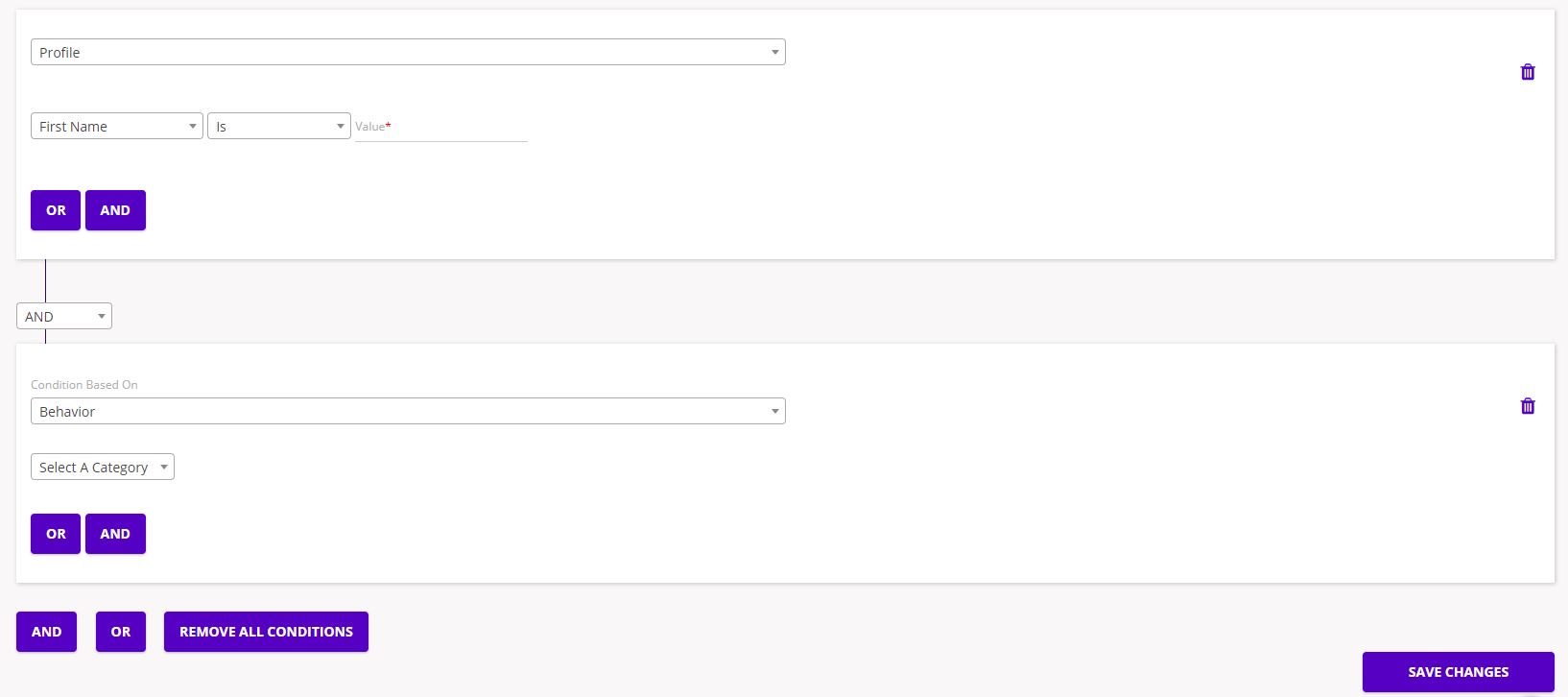
The Chainlink Marketing Platform uses Segments instead of lists like other platforms. There are multiple marketing reasons to do this, but the easiest way to think of it is that a Segment is just a set of account-based conditions that define a group of Targets to be used in marketing programs.
Segments can be defined by Profile (Name, Company, City etc), Behavior (Did open an email, did click a link etc), Member of a Data Source or other Segment (or not), Suppression (whether a target is Suppressed from other programs), or Social Profiles (Facebook profile Y/N etc).
You can make your segments as specific as you want by adding multiple conditions using AND/OR branching logic.
How do I add recipients to my emails?
When you create a new email broadcast, the first page you will be brought to is titled Details. Here you can enter the program name, group, and segment. The way to add email recipients, or targets, is to add the segment or segments you want to send the program to. If a segment with the desired targets does not already exist, you can easily create a new segment by navigating to Data Warehouse > Segments and clicking Create New Segment at the top of the page. You can then add all of the targets you want to send your email broadcast to.