Chainlink is currently in the process of developing a section of the platform dedicated to mapping rules. Once ready, you will be able to manage your rules by navigating to Marketing > Variables > Rules.
What are Google UTM Tags?
A UTM tag is a simple code that you can attach to a custom URL in order to track a source, medium, and campaign name. This enables Google Analytics to tell you where targets came from, as well as what campaign directed them to you.
After you insert your UTM tags pattern, each link from your email template will be transformed and this pattern will be appended for tracking. Beside all the regular template tags, the following special tags are also recognized:
- [TITLE_ATTR] – Will use the title attribute of the element
Example pattern:
- utm_source=mail_from_[CURRENT_DATE]&utm_medium=cpc&utm_term=[EMAIL]&utm_campaign=[CAMPAIGN_NAME]
How do I use Variables?
Variables, or Tags, can be used to dynamically update Target information and personalize programs by pulling profile information from the platform. The only time a variable is ever required is when you are sending outbound emails. Every email must include the [UNSUBSCRIBE_URL] somewhere in the body of the email to follow compliance regulations for the CAN-SPAM Act of 2003. Essentially, CAN-SPAM makes sure every email sent by a business/corporation has an option to unsubscribe so peoples’ inboxes don’t fill up with unwanted and unsolicited spam mail. Chainlink’s default email footer contains an unsubscribe link, but you can always customize your unsubscribe settings.
Variables are not only useful for unsubscribing and preventing spam emails, they can also be used to personalize your marketing efforts and make automation simple. For example, if you are sending out a large email blast to a segment of 1,000 targets, but want the introduction for each target to be personal, you can add the [FNAME] tag. This will add the first name for each target after Hello in the email they receive. The Chainlink Marketing Platform makes this possible by pulling the first name information from every targets’ profile that is included in the segment you are trying to reach.
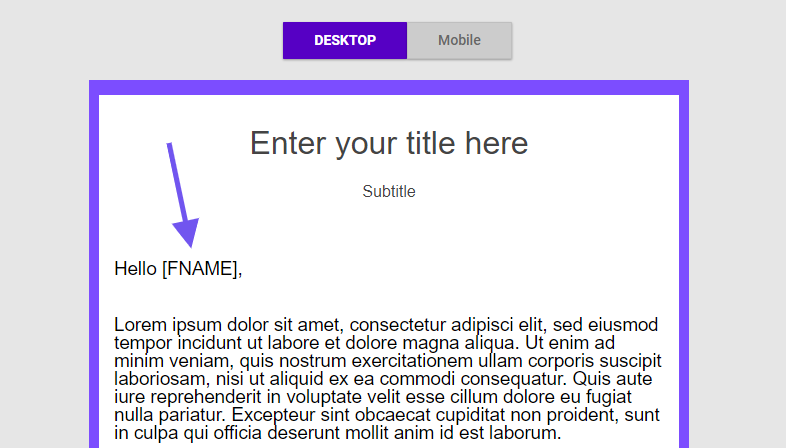
There are a number of standard variables/tags that come with the Chainlink Marketing Platform, but if you cannot find a variable you need, you can easily create your own in Custom Variables. If you want to map a custom variable in an outbound email, you can add {variable} anywhere in the body of the email. You will then be able to edit the mapping conditions to customize which profile field the {variable} data will come from.
How do I map my programs using variables?
Mapping allows you to dynamically update your marketing programs with personalized information from the platform, and can be used with any of your inbound or outbound marketing programs. However, mapping is slightly different for Emails, Landing Pages, and Forms.
Emails:
Outbound email mapping allows you to include personalized content in every email, even if you are sending to a segment of 1,000 Targets. The most common email mapping tactic is to include the first name variable so an email will contain every Target’s real name: Hi [FNAME], …
You also have the ability to include custom variables and map them with any platform profile fields. You can add custom variables anywhere in the body of your email like this: {variable}. You will then be able to select which profile field data you want to populate the {variable} in your email.
Landing Pages:
When creating a new landing page, you have the same mapping options as email mapping, and more. You can easily include any standard or custom variables and map them with any platform profile fields. You also have the option of mapping form fields if you included a form on your landing page.
Form mapping works a little differently than mapping variables on your emails/landing pages. Instead of providing personalized marketing experiences for you Targets, form mapping allows you to update a Target’s platform information based on their form responses. When mapping landing pages, you will be able to choose between mapping page variables and form fields.
Forms:
When creating a new Form, you will be able to customize your mapping settings. Form mapping allows you to update a Target’s profile information based on the information they provide when submitting a Form. You will be able to choose which fields you want to update upon form submission from all of the form fields you included in your form. On the Form mapping page, you will also have the option of limiting entries per user, or by total entries.
How do I create custom tags?
Tags can be used to populate user and account information, as well as personalize programs by including information pulled from platform profiles. The Chainlink Marketing Platform comes with a large number of standard tags or variables, so you should first check the list of Standard Variables to see if you can find the tag you’re looking for. If you cannot find a tag that you need in the platform, you can easily create your own. Follow the steps below to create your own custom tags:
- Navigate to Marketing > Variables > Custom Variables
- Click the Create New button at the top of the page and you will be brought to a page titled “Create New Program Tag”
- Here you can enter the tag name and content, and decide if you want the tag to be random or not
- All Custom Tag content has to be formatted like: {variable} or {{variable}}
Note: Be sure to enter the name of the tag in uppercase letters. The CMP_ prefix will be added to your tag, so you will access your tag like: [CMP_YOUR_TAG_NAME]
