Settings

Why do I need to verify my sending domains?

The verification step is necessary to prevent the Chainlink Marketing Platform from being overrun by spammers and scammers. This will also help keep your emails out of the spam folder.

We promise to do everything we can to verify your sending domains as quickly possible.

If you have any questions about verifying sending domains, please submit a ticket and we’ll get right back to you.

Why can’t I add widgets or edit the layout of the marketing dashboard?

The ADD WIDGET and EDIT LAYOUT buttons you see in the top right corner of your Dashboard are features coming soon to the Chainlink Marketing Platform. When added, you will be able to add any new widgets and completely customize the layout of your dashboard.

When hovering over any of the widgets on the dashboard, you will see a gear icon in the top right corner. If you click the icon you will be given the options of editing or deleting that widget. These features are also coming soon to the Chainlink Marking Platform.

What is the difference between Domains and Sending Domains?

Within the settings of the Chainlink Marketing Platform, you have the ability to create unique Domains and Sending Domains. There are some key differences between Domains and Sending Domains…

Domains:

Domains are used for your inbound marketing programs: Landing Pages and Forms. In the Domains section within your Settings, you can easily view, edit, and create new Domains, or Vanity Domains, used for marketing programs. A Vanity Domain is an unique Web Domain that is branded for marketing purposes. Essentially, a Vanity Domain is a custom Domain that is used to promote a specific product/service. For example, if your primary Domain is www.yourcompany.com, your vanity domain for a product called ABC could be www.abc.com.

Sending Domains:

Sending Domains are the email sending domains that give you the ability to customize your emails on behalf of yourdomain.com instead of having the standard Chainlink domain attached. The ability to add a custom sending domain for emails helps to reduce confusion for the end recipient who should focus on the company sending email, not the client they are sending it through. Unlike regular Domains, you must verify every Sending Domain you create in the platform before you will be able to send any emails using that Sending Domain. This verification step is necessary to ensure that you are using a valid email address hosted by a domain that is accessible. This will help keep your email programs out of spam folders and ensure other can’t use your domain without permission.

What are the different Billing Plans?

When signing up for a Chainlink Marketing Platform Account, you have a number of Billing Plans to choose from. Each plan gives you access to different features at various price points, depending on how many Targets, Messaging Programs, and Account Users you are going to need. Your options are; Forever Free Plan, Monthly Plan, Pay As You Go, Monthly Pro, and Monthly High Volume Pro. Below we will go into more details on the different features and price points for each Billing Plan.

Note: Only the Main Account User will have access to the Billing Plan page.

For more details on each plan, please take a look at our Billing Plans Knowledge Base. If you still have questions about which plan is right for your marketing needs, feel free to reach out to info@chainlinkmarketing.com.


Forever Free Plan

The Forever Free Plan is great for new users who are just getting setup. Never pay. Ever. No credit card required. Give it a try for free to try out the Chainlink Marketing Platform features.

  • Up to 500 Targets
  • Up to 5,000 Emails per Month
  • Up to 3 Account Users
  • No Credit Card Required

If you enjoy the Chainlink Marketing Platform features, but want to increase your number of Targets, Email Sends, or Account Users, consider upgrading to the Monthly or Pay As You Go Plan.


Monthly Plan

The Monthly Plan is perfect for any marketer looking to increase digital engagement with current and prospective customers. Access additional features unavailable to you in the Forever Free Plan.

  • Additional Paid Features
  • Unlimited Targets & Emails
  • No Long Term Commitments

Billing is based upon the total Targets within an account, however there are no long term commitments, and an account can be closed at any time. The more Targets in an account, the cheaper each one costs. It’s $0.025 / Target for the first 1,000 ($25 / month), and then decreases on a sliding scale to $0.011 / Target up to 50,000 ($550 / month) Targets.


Pay As You Go

For infrequent marketers that want to send intermittent marketing messages, but still want access to the rest of the Chainlink Marketing Platform’s great features.

  • No Monthly Charges
  • Credits Never Expire
  • Access to Paid Features

Pay for Credits (one credit = one email) that can be used at once, or anytime in the future. Credits never expire, and the more Credits you buy, the better rates you get.


Monthly Pro

Monthly Pro enables even more great features for your account for an additional monthly fee. Turn back from Pro at anytime with no hard feelings.

  • Social Media Features
  • Unlimited Email & Landing Page Templates
  • White Labeled Vanity URLs & Tracking

The Monthly Pro Plan is $185 per month in addition to the Monthly Plan pricing, which is driven by the total Targets within the account. Monthly Pro uses the same month-to-month structure, and an account can be closed at any time. Accounts can also remove Monthly Pro at any time. The more Targets in an account, the cheaper each one costs. It’s $0.025 / Target for the first 1,000 ($25 / month), and then decreases on a sliding scale to $0.011 / Target up to 50,000 ($550 / month) Targets.


Monthly High Volume Pro

For the highest frequency marketers, receive discount pricing on bulk email block purchases for the most economical transactional & marketing messaging.

  • Bulk Pricing on Email Blocks
  • Discounted Volume Purchases
  • Maximize Your Account’s Economics

The Monthly High Volume Pro Plan is reserved for the highest-volume accounts with over 50,000 Targets or more than 500,000 email sends per month. Access all of the same great features as the Monthly Pro Plan, however you have the opportunity to buy blocks of Transactional Email Blocks that can reduce the overall cost of your account based on projected month-to-month needs.

Note: For new accounts, Monthly High Volume Pro is only available upon request as it requires additional verification and may require custom administrative setup and support.

How does Target Scoring work?

Every Target in the Chainlink Marketing Platform has a score that is based on their marketing interactions. Points are awarded to a target based on emails sent, opens, link clicks, page visits, and form submissions. Points are subtracted from a target based on email bounces and unsubscribes. Custom conditions can also be added to award points for specific actions. The number of points awarded or subtracted for every action can be customized in your accounts’ Target Score Settings. You can customize the scoring system for every account type: Contact, Lead, Account, and Former Account

chainlink marketing platform target scoring

You can view your live Target Scoring on the Chainlink Marketing Dashboard in the Target Activity And Scoring section. You can also view a Target’s current score on their profile page.

How do I view all of the user profile associated with my platform account?

You can view/manage your own user profile, and those of your team in User Profiles Settings. Based on your account billing plan, you may be limited in the number of account users you can add. Below you can see the 4 different types of account users you can have:

Main Account User
Each account has only one Main Account User, which is the highest level of access in the Chainlink Marketing Platform, including Account Settings, Billing, and the ability to add other users.

The Email address cannot be updated for the Main Account User for security reasons, so please submit a ticket to support if this email needs updating.

Regular Account User
Regular Account Users have access to all essential functions of the Chainlink Marketing Platform account (creating and sending programs, viewing target data, creating segments, launching inbound marketing programs, and viewing reports).
However, a Regular Account Users cannot access account settings, change billing, or create other users.

Author User
An Author User can create marketing campaigns and programs and edit templates, but cannot send them.

You might give this access to an in-house designer or writer, or even to an outside design agency.

Viewer User
A Viewer User only has the ability to view campaign reports. Grant this to someone in the company who needs to see campaign results, but doesn’t need to be creating campaigns or fiddling with lists.

How do I verify a sending domain?

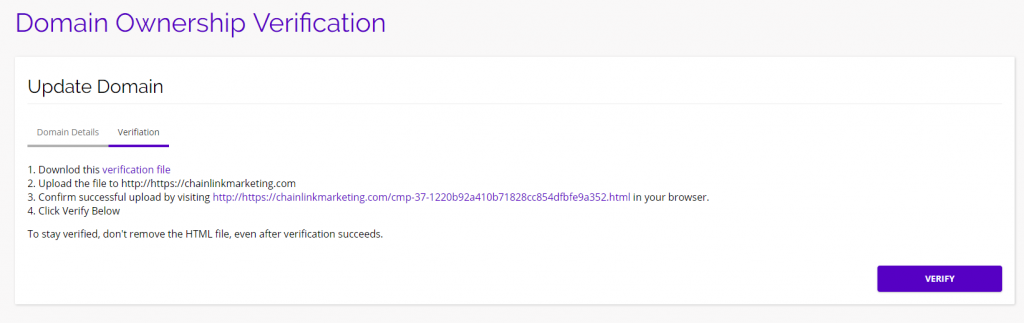
Once you have created your unique sending domain, the next step is to verify your newly created sending domain. There are two ways to verify a sending domain: HTML & Meta Tag. Navigate to Settings > Domain Settings > Domain Verification. Once on this page, you can either create a new sending domain, or verify an existing domain. Click on the name of the domain you want to verify, select the verification type, and then click on the Verification tab and follow the instructions.

HTML:

If you select HTML, you will have to follow these steps:

  • Download the verification file
  • Upload the file to your website
  • Confirm successful upload by visiting the listed link in your browser
  • Click the verify button
    • To stay verified, don’t remove the HTML file, even after verification succeeds

chainlink marketing platform domain verification

Meta Tag:

If you select Meta Tag, you will have the follow these steps:

  • Copy the Meta Tag listed and paste it into your site’s home page. It should go in the <head> section, before the first <body> section.
  • Click the verify button
    • To stay verified, don’t remove the Meta Tag, even after verification succeeds
How do I submit a support ticket?

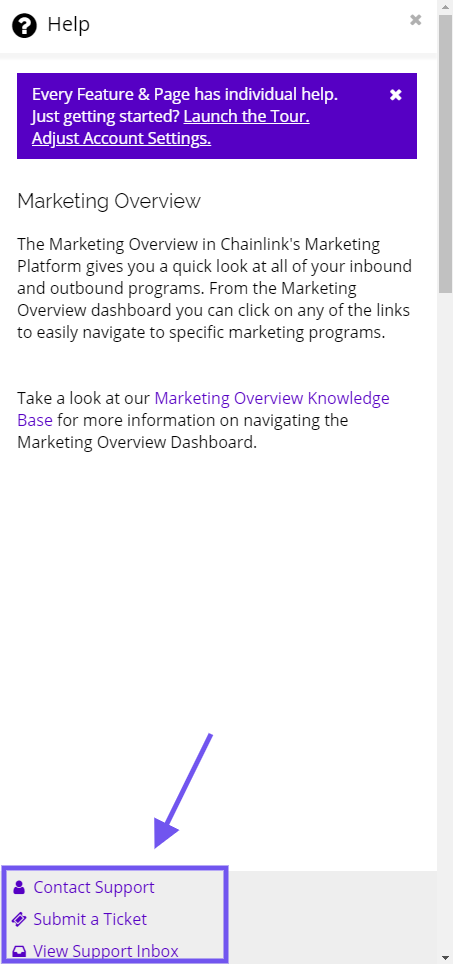
On any page within Chainlink’s Marketing Platform, you can find helpful tips and information by clicking on the help button in the bottom right. A short explanation of the feature will expand along with links to contact support by submitting a ticket. Click on any of the three links and fill out the required support ticket information and a platform admin will get to the bottom of the issue as quickly as possible.

Chainlink marketing platform support ticket

How do I reset my password?

If you’ve forgotten your Chainlink Marketing Platform password, or just want to change your password, there are two ways to create a new password.

Forgot Password:

Follow the steps below if you forgot your password and need to reset it:

  • From the Chainlink Marketing Platform Login Page, click the Forgot Password link
  • You will then be instructed to enter your email to identify your account
  • Check your inbox for an email from the Chainlink Team and click the link to reset your password
  • You’ll then receive another email from the Chainlink Team containing your new login credentials
  • Return the the Chainlink Marketing Platform Login Page and login using your new credentials
  • If you’re still having trouble accessing your platform account, please submit a ticket and a platform admin will resolve the problem as quickly as possible

Change Password:

If you are able to login to your Chainlink Marketing Platform Account, but want to change your password, follow the steps below:

  • In the platform, navigate to Settings > User Settings > User Profiles
  • You will be brought to a page with your account information, as well as some basic information on your other account users
  • To change your password, click the Edit Profile button at the top of the page
  • You will see the Password and Confirm Password fields appear where you can enter your new login credentials
  • Be sure to click Save when you’ve entered your password information and your new platform password will be saved
How do I edit the social media accounts associated with my account?

To edit your social media accounts within the Chainlink Marketing Platform, navigate to Settings > Social Media Settings. From here you will see a list of social media accounts that have been linked to your platform account. You can easily add or delete any of the accounts by editing the account username and URL. Be sure to click Save at the bottom of the page when you are finished.

How do I download the Chainlink – WordPress Plugin?

The Chainlink Marketing Platform API Keys allow the platform to communicate and interact with entirely different programs, like WordPress, without giving out any personal information. To download the Chainlink – WordPress plugin, follow the steps below:

  • Navigate to Settings > Account Settings > API
  • At the top of the API Keys page, click on the Download Chainlink WordPress Plugin button
  • A zip file titled “chainlinkapi” will download automatically
  • This zip file will include everything you need to seamlessly connect the Chainlink Marketing Platform and WordPress
How can I view my Billing & Invoices?

Within the Chainlink Marketing Platform, you can easily view all of your billing/invoice information. To access this information, navigate to Settings > Billing > Billing/Invoices.

Here you will be able to view all of your billing orders, dates, total sends, targets, remaining credits, amount paid, refunded amount, payment status, as well as view PDF invoices for every payment you’ve made.