Email Marketing

Why doesn’t my email look the same across all email clients?

There will come a time, as an email marketer, that this question runs through your head. Unfortunately, each individual mail client renders based on their own CSS and HTML standards, therefore, there will never be perfection of your design across all mail clients. We suggest that you send a test email and check on every email client to make sure it looks good across all email applications.

Note: Outlook, in particular, tends to cause the most problems when designing your email.

What’s the difference between an Email Response Program and an Email Automation Program?

Email Response Programs and Email Automation Programs are both automated workflows and share some similarities, but there are some major differences between the two.

Email Response Programs:

An Email Response Program allows you to add a single email and landing page to your workflow. The objective of a Response Program is to generate some type of response from your Targets. These responses can be as simple as clicking the link in an email to direct your Targets to a landing page, or directing traffic to your online store. Automation Programs give you more freedom to set up custom workflow conditions.

Email Automation Programs:

An Email Automation Program allows you to create complex workflows consisting of multiple emails and landing pages as well as implementing custom workflow conditions. The objective of an Automation Program is to direct Targets through a series of personalized programs based on conditions you set up. This could mean sending emails to Targets who have visited one of your landing pages, or sending personalized programs based on regular time based intervals.

What is the difference between Your Emails and Email Templates?

If you navigate to Marketing > Marketing Templates, you will notice the options “Your Emails” and “Email Templates”. You will also find the same options for Forms and Landing Pages. Although these pages might look similar, they have some key differences.

“Email Templates” contains all of the freely available email templates provided by the Chainlink Marketing Platform. If you find a template that you want to use, click Import and you will be brought to “Your Emails”, where you can see the imported email template at the top of the page.

From “Your Emails”, you can use/edit any of the templates you’ve imported from “Email Templates”, as well as create a new email template from scratch by clicking Create New.

The way these two pages work together also applies to Form and Landing Page templates.

What is the difference between Total Opens and Unique Opens?

When looking at your program reports, you will notice that your Opens and Clicks tracking stats are broken into two categories: Total Opens/Clicks and Unique Opens/Clicks.

Total:

Total opens and clicks shows the total number, meaning if a target opens an email or clicks on a link twice, it will be counted twice.

Unique:

Unique opens and clicks shows the number of targets who opened an email or clicked a link. If a target opened an email twice, it will only be counted once in unique opens. Unique stats are more useful for measuring the success of your programs because you might have targets who open an email multiple times, ultimately influencing your opens rate.

What is mapping?

Mapping gives a user the ability to dynamically update a Targets’ profile information based on Target responses/actions, or use a Targets’ profile information to create personalized outbound programs.

Form Mapping gives you the ability to dynamically update a Targets’ profile based on information provided in form responses. Using form mapping, you can simply update any profile field based on the information provided in the corresponding form field. Form mapping settings can be configured when creating your form.

Landing Page and Email Mapping gives you the ability to add personalized content to a program by pulling information from a Target’s platform profile. You can use email and landing page mapping when creating standard Email or Landing pages, as well as Email Response or Automation Programs (response and automation programs give you more advanced mapping options). To dynamically map you emails and landing pages, you have to add variables or tags that make it possible to pull data from the platform.

Standard Email/Landing Pages:

The steps below will explain how to properly map variables on emails (the same steps apply to landing page mapping):

  • When creating an email broadcast, you will be able to add any standard/ custom tags that are in your platform account.
  • Once you reach the Template tab, there will be a small purple link titled “Available tags”.
  • Copy the tag from the list and paste in in the email where you want the personalized content to appear.
  • In the example below, we use the [FNMAE] tag in the email introduction, so if a Target with the first name Jake receives the email, it will read: Hello Jake,
    • The same mapping rule will occur for every Target you are sending the program to as long as you have their First Name field filled out in the platform.

chainlink marketing platform mapping

  • When sending an email broadcast, you will also have the option of updating a Target’s profile fields upon an email open. In the Setup tab, you will be able to select the profile field you want to update and the custom field value that will populate the field upon opening the email.
  • In the example below, for any Target that opens the email, their City profile field will be updated to New York.

chainlink marketing platform email mapping

Response/Automation Programs:

The steps below will explain how to properly map variables on emails (the same steps apply to landing page mapping):

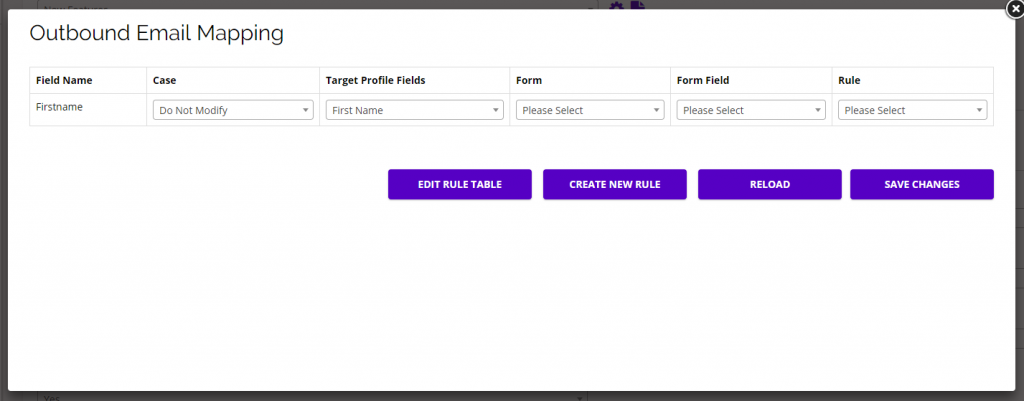
  • If you want to dynamically map your email , click the Map Email button and the Outbound Email Mapping pop-up will appear.
  • Email mapping is useful if you want a Target’s profile information to update dynamically based on certain actions your Targets take.
    • Note: You must have the variable you want to map somewhere within the email. You can add a variable using {variable} somewhere in your email content.
  • In this example, we are mapping the variable {Firstname} from the email content with the profile field First Name in the platform.
  • The Field Name is the same variable name used in your email content, and the Target Profile Field is the field that will update for each Target in the platform.
    • You can ignore the Form Fields when mapping emails.
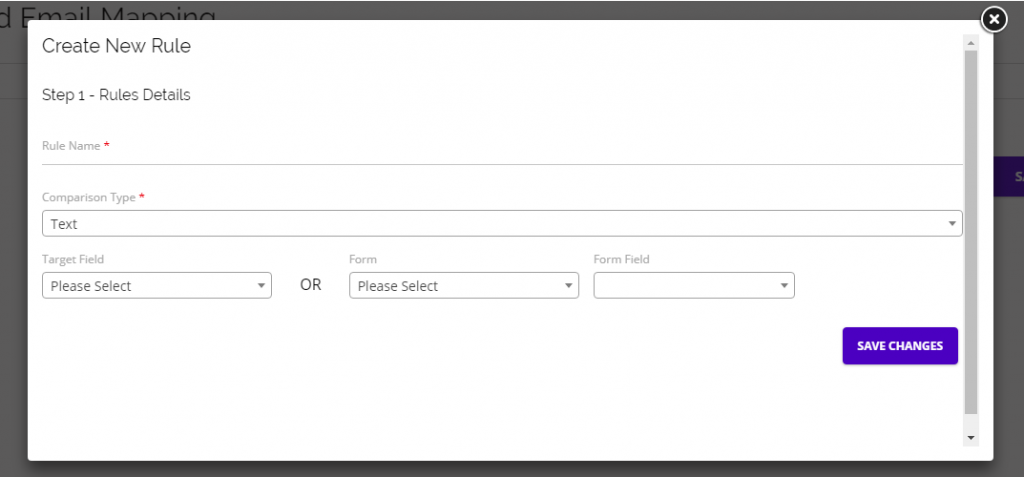
  • You can also add custom rules for each field you are mapping to decide the mapping process/type.
  • chainlink marketing platform mapping

  • After clicking Create New Rule, a pop-up form will appear where you can add the rule name, type, target field OR form and form field.
    • When creating outbound email mapping rules, use the Target Field, not the Form/Form Field.
    • Chainlink email response program create new rule
What are the different flow types in Email Automation Programs?

If you’re attempting to build an Email Automation Program, you will be presented with the option of three different flow types. Each flow type is unique and can be used for different marketing tactics.

Dynamic Flow:

A dynamic workflow is similar to a dynamic segment. It automates the program based on your targets’ interactions and behaviors. For example, with a dynamic flow, an automated email program can start on a specific date and the workflow could continue for Targets if they open the first email in the program, but stop for others who never open the first email.

Auto Sender Flow:

Auto sender flow will start the workflow for your desired segments depending solely on certain actions taken. For example, a workflow could start only for Targets who have opened a certain email, and those who do not open the email will not be included in the workflow.

Fixed Segment Flow:

Fixed segment flow will send the email program out to a fixed segment on the date specified, and will continue for every target in the segment, regardless of the actions taken. For example, you could create a fixed workflow that will send out one email every week to a desired segment and stop for every Target in that segment after 4 weeks.

What are Google UTM Tags?

A UTM tag is a simple code that you can attach to a custom URL in order to track a source, medium, and campaign name. This enables Google Analytics to tell you where targets came from, as well as what campaign directed them to you.

After you insert your UTM tags pattern, each link from your email template will be transformed and this pattern will be appended for tracking. Beside all the regular template tags, the following special tags are also recognized:

  • [TITLE_ATTR] – Will use the title attribute of the element

Example pattern:

  • utm_source=mail_from_[CURRENT_DATE]&utm_medium=cpc&utm_term=[EMAIL]&utm_campaign=[CAMPAIGN_NAME]
What are custom subscriber attachments?

Custom subscriber attachments allow you to send personalized attachments to each target in a segment that an email is sent to. You can use all the tags that you would normally use in the body of an email program, including filters as well, i.e: [EMAIL], [EMAIL:filter:md5] and you can combine them if needed.

Note: Please do not forget to add the file extension, correct format is “[TARGET_UID].pdf” not just “[TARGET_UID]”

How do I view email analytics from all of my email campaigns?

Within the Chainlink Marketing Platform, you can easily view the analytics from all of your email programs. To do so, follow the instructions below:

  • Navigate to Analytics > Marketing Overview
  • The Marketing Overview will show you statistics based on all of your programs, segments, pages, and forms.
How do I view an individual email broadcast report?

To view the report of an email broadcast, first navigate to Marketing > Outbound Programs > Email Broadcast. From the email broadcast dashboard, you will see a few icons under the options column for each email. Click on the “i” icon labeled overview to see that broadcasts’ report.

How do I test workflows?

When you are building a workflow in Email Automation or Response Programs, you have the ability to test the individual steps of your workflow to ensure they’re all set up as intended. You can send test emails for every part of your workflow by clicking the Send Test Email button.

If you are having trouble with your test emails, try decreasing the time of any delays for testing purposes. A few minutes for each delay will ensure that your test contact has time to meet the appropriate criteria while going through the workflow, but is short enough for testing. If that doesn’t work, try removing the delays completely during testing.

Once you’ve tested your emails and ensured that they’re working as intended, make sure you reset your delays to the correct amount of time and finish building your workflow.

If you want to test the complete workflow, try creating a duplicate program and sending it to a segment only consisting of your email. You will be able to go through the live workflow to see if all of the delays and conditions are working properly. If everything is working as planned, activate the original program to send to your target segment.

How do I create a Plain Text email?

Nobody loves a well-designed email blast as much as we do; but, under the right circumstances, a Plain Text email can be extremely effective.

Follow the steps below to create a plain text email broadcast:

  • Navigate to Marketing > Outbound Programs > Email Broadcast
  • Click Create New and enter the required information on the Details and Setups pages
  • At the bottom of the Template page, you will see a button labeled Show Plain Text Version
  • Click the button and a plain text box will appear where you can enter the plain text for your email.
How do I avoid the spam folder when sending emails?

Even though Chainlink Marketing Platform has a high reputation as an email sender, this is something that all event marketers and email platforms must contend with (even Mailchimp).

It’s good to follow these general tips and tricks so email clients don’t flag your email as spam:

  • Use conversational language and avoid sounding like spam.
  • Avoid excessive use of images
  • Avoid excessive hyperlinks

When you send emails to businesses from an unrecognized sender, there can be stringent firewalls in place that do not allow emails to reach someone’s inbox. Follow the steps above to prevent this from happening.

Don’t forget to check out any bounced email addresses. You have access to advanced analytics that show each person who received, opened, clicked on your emails.

Having trouble with emails landing in the Gmail Promotions tab?

Unfortunately, there is not an exact science here. Google constantly upgrades their email filtering system looking for ways to spot promotional emails.

Removing the Chainlink Marketing Platform branding from the footer of your email can help the jump from the Promotion tab to the Primary inbox.

Still having trouble? Feel free to reach out by submitting a ticket, and we’ll take a closer look.

How do I add recipients to my emails?

When you create a new email broadcast, the first page you will be brought to is titled Details. Here you can enter the program name, group, and segment. The way to add email recipients, or targets, is to add the segment or segments you want to send the program to. If a segment with the desired targets does not already exist, you can easily create a new segment by navigating to Data Warehouse > Segments and clicking Create New Segment at the top of the page. You can then add all of the targets you want to send your email broadcast to.

How can I send a personal email to a single target?

In Chainlink’s Marketing Platform there are two ways to send a personal email to an individual target. One option is to create a new segment that only contains that one target and select that segment when creating a new email broadcast. The other option is to go to an individual targets’ profile where you will find a Send Personal Email button. Click the button and fill out the to/from emails, subject, and the email content. When sending a personal email to one Target, you will only be able to access the HTML email builder.

Does The Chainlink Marketing Platform remove duplicate email addresses?

In the Chainlink Marketing Platform there are two ways to add new targets; manually add an individual target, or import a list of targets from outside of the platform. Below you will see how Chainlink prevents duplicate email addresses from being added to the platform in both instances.

  1. If you attempt to add a new individual target with a duplicate email to the platform, you will receive an error message saying that target’s email already exists in the platform. You will not be able have multiple targets under one email address. To get around this issue, you can create a new Target with the same name, but they must be registered under a different email address.
  2. If you import a .CSV file of targets, and some of those targets’ emails already exist in the platform, you will be able to customize your Target Import Settings. You will be given the option of only creating new targets (any duplicate targets will not be imported), creating and updating targets (new targets will be created while existing targets will be updated with new information), and only updating (no new targets will be created, only duplicate targets will be updated with new information). Take a look at our Target Import Knowledge Base for more information on the options you have during a Target Import.

These precautionary measures prevent duplicate emails addresses from being added to the platform, ensuring a target will never receive multiple identical email programs.

Can I embed a form in an email?

Unfortunately no, it is not possible to embed a form in an email sent through the Chainlink Marketing Platform. Forms are not supported on most email clients due to security reasons. Instead, you can add a call to action or a link to a landing page with your form on it within the body of your email.

Can a video play from within my email?

We’re gonna keep it totally honest with you: most email applications do not play videos.

For this reason — and until email technology catches up — any email that you want to feature a video in can feature a screenshot of the video (using the image element), which can then link out to where the video is hosted (i.e. YouTube or Vimeo).

To add an image to an email, simply drag and drop any of the image blocks and then click on the image placeholder. You will see the image settings appear on the right hand side of your screen where you can select the image from the gallery and choose how to link to the video.