When adding a form to a landing page, the form preview you will see in the page builder is only a placeholder preview image of your form. To see the true layout of the form on your landing page, you must first save your changes and click Preview. The layout of your page preview is what your landing page, and all of the elements on that page, will look like when the page goes live.
What is the difference between Your Forms and Form Templates?
If you navigate to Marketing > Marketing Templates, you will notice the options “Your Forms” and “Form Templates”. You will also find the same options for Emails and Landing Pages. Although these pages might look similar, they have some key differences.
“Form Templates” contains all of the freely available form templates provided by the Chainlink Marketing Platform. If you find a template that you want to use, click Import and you will be brought to “Your Forms”, where you can see the imported form template at the top of the page.
From “Your Forms”, you can use/edit any of the templates you’ve imported from “Form Templates”, as well as create a new form template from scratch by clicking Create New.
The way these two pages work together also applies to Emails and Landing Page templates.
What is mapping?
Mapping gives a user the ability to dynamically update a Targets’ profile information based on Target responses/actions, or use a Targets’ profile information to create personalized outbound programs.
Form Mapping gives you the ability to dynamically update a Targets’ profile based on information provided in form responses. Using form mapping, you can simply update any profile field based on the information provided in the corresponding form field. Form mapping settings can be configured when creating your form.
Landing Page and Email Mapping gives you the ability to add personalized content to a program by pulling information from a Target’s platform profile. You can use email and landing page mapping when creating standard Email or Landing pages, as well as Email Response or Automation Programs (response and automation programs give you more advanced mapping options). To dynamically map you emails and landing pages, you have to add variables or tags that make it possible to pull data from the platform.
Standard Email/Landing Pages:
The steps below will explain how to properly map variables on emails (the same steps apply to landing page mapping):
- When creating an email broadcast, you will be able to add any standard/ custom tags that are in your platform account.
- Once you reach the Template tab, there will be a small purple link titled “Available tags”.
- Copy the tag from the list and paste in in the email where you want the personalized content to appear.
- In the example below, we use the [FNMAE] tag in the email introduction, so if a Target with the first name Jake receives the email, it will read: Hello Jake,
- The same mapping rule will occur for every Target you are sending the program to as long as you have their First Name field filled out in the platform.

- When sending an email broadcast, you will also have the option of updating a Target’s profile fields upon an email open. In the Setup tab, you will be able to select the profile field you want to update and the custom field value that will populate the field upon opening the email.
- In the example below, for any Target that opens the email, their City profile field will be updated to New York.

Response/Automation Programs:
The steps below will explain how to properly map variables on emails (the same steps apply to landing page mapping):
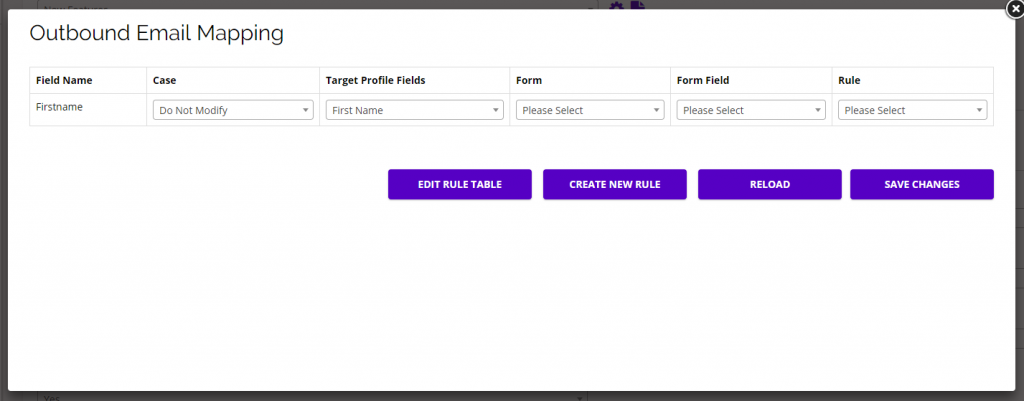
- If you want to dynamically map your email , click the Map Email button and the Outbound Email Mapping pop-up will appear.
- Email mapping is useful if you want a Target’s profile information to update dynamically based on certain actions your Targets take.
- Note: You must have the variable you want to map somewhere within the email. You can add a variable using {variable} somewhere in your email content.
- In this example, we are mapping the variable {Firstname} from the email content with the profile field First Name in the platform.
- The Field Name is the same variable name used in your email content, and the Target Profile Field is the field that will update for each Target in the platform.
- You can ignore the Form Fields when mapping emails.
- You can also add custom rules for each field you are mapping to decide the mapping process/type.
-
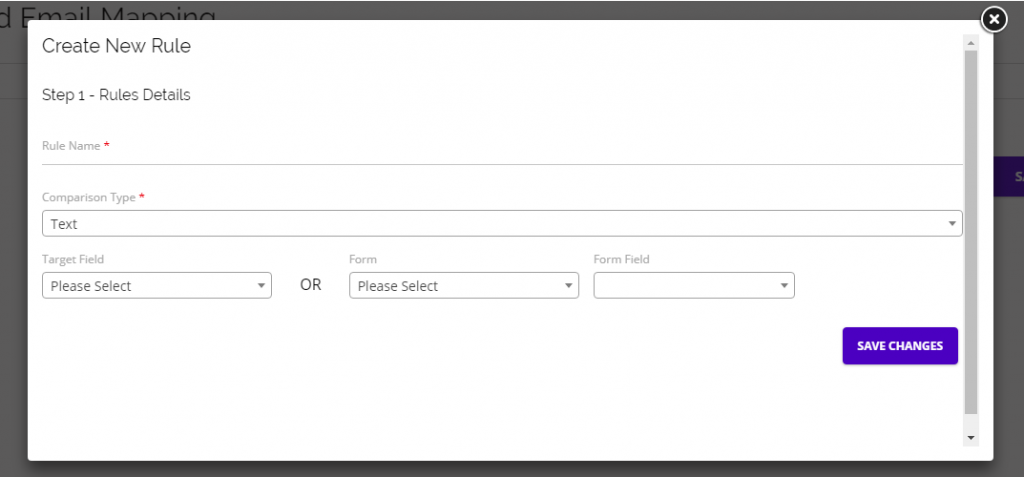
- After clicking Create New Rule, a pop-up form will appear where you can add the rule name, type, target field OR form and form field.
- When creating outbound email mapping rules, use the Target Field, not the Form/Form Field.
How do I link off page after a target submits a form on my landing page?
After someone fills out a form on your landing page, you have three options for the target: Redirect Immediately, Display a Confirmation Message For _ Number of Seconds and Then Redirect, or Display Confirmation Message.
These options can be edited under the Submit tab when creating or editing a form. If you choose to display a confirmation message, you will be able to write the message to be displayed on the same page. If you choose to redirect off page, you can easily add the redirect URL on this page as well.
How do I Dynamically Map Form Responses?
When building a form in the Chainlink Marketing Platform, you have the option of mapping any of the fields on your form to dynamically update a targets’ profile upon submission. You can find these options under the Mapping tab of the form builder. See the image below for an example of mapping form fields to dynamically update a targets’ profile:

- In this example you can see the form contains the Name, Text, and Email fields
- In the next column, you can choose DO NOT MAP or select the field that you want to update on the targets profile. Here we are mapping the Email form field with the Email target profile field, but we are not mapping the Name and Text fields
- The last column gives you the option of modifying the case of the fields value to be proper, upper, lower, or do not modify
- In this example, any target who submits the form with their email, that email will be updated in the targets’ profile within the platform
How do I add a form to my landing page?
In the Chainlink Marketing Platform, you have the ability to add a custom form you’ve created within the platform to a landing page you’ve created within the platform. You also have the option of embedding your form on a web page that was not created in the platform.
Add form to landing page built in the platform:
- To add a custom form to your landing page, you have to be using the landing page drag & drop editor.
- Add the form block to the page and double click on the form placeholder.
- Select the form you’ve created from the pop up, or click Create New Form to open the form builder in a new tab.
Add form to web page outside of the platform:
- To embed a form on a web page that was not created in the Chainlink Marketing Platform you need to be in the form builder.
- Once your form has been designed, the embed tab gives you the option of adding your form to any web page.
- Add the URL of the page/s you want the form to live on.
- Copy the desired code from the embed tab and paste it in the code of the web page where you want the form to live.
How can I track the success of my forms?
Any form you create in the Chainlink Marketing Platform has advanced tracking capabilities. Every form has three reports that you can view at any time. Follow the steps below to access your form reports:
- Navigate to Marketing > Inbound Program > Forms
- Find the form you want to analyze and hover over the gear icon under the Report column
- You will see three options; Analysis, Response Report, and Email Trigger Report
- Click on the report you want to view and the report will open in a new tab
All three reports show unique statistics that can be valuable when analyzing your form performance.
- Analysis: the analysis gives you the high-level stats showing form visits, responses, submissions, and field fills
- Response Report: the response report shows a table with all of the targets who have filled out the form as well as the top devices and clients used to fill out the form
- Email Trigger Report: the email trigger report shows all of the stats based on the email confirmation messages sent after a form is filled out
Can I place form fields next to each other?
Unfortunately, you cannot place form fields next to each other in the Chainlink Marketing Platform. You only have the ability to stack form fields on top / under each other.
Can I embed a form in an email?
Unfortunately no, it is not possible to embed a form in an email sent through the Chainlink Marketing Platform. Forms are not supported on most email clients due to security reasons. Instead, you can add a call to action or a link to a landing page with your form on it within the body of your email.