Data Sources

What’s the difference between a Data Source and a Segment?

In your Chainlink Marketing Platform account, you will see that your Data Warehouse is broken into a number of sections including Data Sources, Segments, Targets, and more. Before creating and sending out any marketing programs, it is important to understand the difference between your Data Sources and your Segments.

Data Sources:

  • The first thing you should do after setting up your platform account is create your first Data Source. A Data Source is where an account can manage where each Target originates from and resides in the Platform. There is no requirement to have more than one Data Source, and for many accounts one Data Source is all it needs. Every Data Source is completely separate, meaning you can customize each Data Source based on profile fields, marketing interactions, and more. Once you’ve created your first Data Source, you can begin adding Targets to that source.

Segments:

  • On the other hand, a Segment is essentially a live “list” of Targets that can update in real time based on a set of conditions. These conditions can be based on profile data, marketing interactions, and much more. Your Segments can simply be a static list of Targets (Static Segment), or they can get as sophisticated as you want by updating in real time based on set conditions (Dynamic Segment). Segments are the groups or lists of Targets that are used to send out marketing programs based on specific conditions.
What are the different file options when Importing Targets?

When you import a list of Targets to a Data Source from outside of the platform, you will be presented with 5 file options to choose from:

  1. CSV Asynchronous: Asynchronous allows you to import a standard CSV file that will verify and upload targets in the background, allowing you to work in the platform while the upload ius happening. This might be a useful upload option if you are uploading a large number of targets but need to continue working in the platform while the platform imports your targets. You will recieve a notification email when your import has been completed.
  2. CSV Import FTP: FTP is a good option if you are looking to upload a CSV file while keeping all of your targets data completely secure and private by using a protected FTP server.
  3. CSV: This is your standard CSV file upload. You will be able to see your upload progress on the import page while your targets are being imported.
  4. Text: Use the Text option if your data is organized in a text file.
  5. Database: Use the Database option if your data is organized in a SQL (Structured Query Language) database.
How do I apply bulk actions to the targets in a data source?

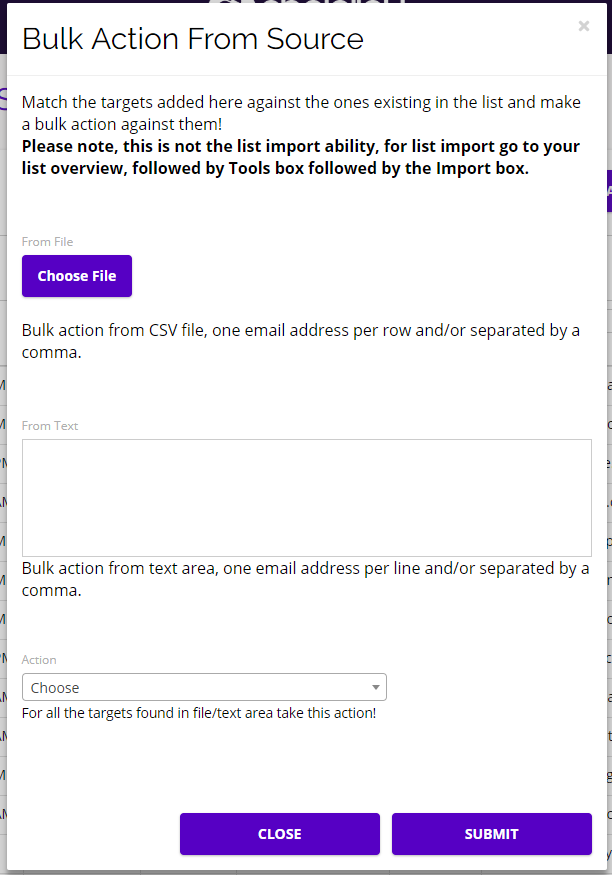
Data Sources is where an account can manage where each Target originates from and resides in the Platform. It’s easy to apply bulk actions to certain Targets within a Data Source. To do so, first click on the Name, Display Name, or person icon under the options column for the Data Source you want to edit. From here you will be able to see a list of all of the Targets in that Data Source. Next, click the Bulk Action From Source button and a pop-up form will appear.

  • You can either upload a list of Targets that you want to take a bulk action against, or enter the individual emails in the text area.
  • Select what action you want to take for all of the Targets you are uploading from the action drop-down:
    • Subscribe
    • Unsubscribe
    • Disable
  • Click the Submit button and all of those Targets will be subscribed, unsubscribed, or disabled.
  • Example: Lets say you have a data source containing 1,000 Targets and you want to unsubscribe 500 of those Targets. Instead of individually unsubscribing 500 Targets, you can upload a CSV file containing those 500 Targets and choose unsubscribe from the action drop-down. If you don’t want to upload a CSV file, you can also enter the Targets’ email addresses in the text area. Click Submit when finished entering the information and the bulk action will be applied to the Targets specified in that Data Source.
  • Note: This is not how you import a list of Targets to add to a Data Source. To import Targets to a Data Source, click the Import icon under the Tools column for the desired Data Source.

chainlink marketing platform bulk actions

How do I add targets to a data source?

There are two ways to add targets to a data source in the Chainlink Marketing Platform. Just follow the steps below:

  • Navigate to Data Warehouse > Data Sources
  • On the dashboard you will see a column labeled Tools with three icons for each data source
  • To import a list of targets to a data source, click the import icon on the far left and follow the import instructions
  • To manually add a single target to a data source, click the + icon on the right of the tools column and fill out the target’s information

You can also view all of the targets in a data source by clicking on the data source Name, Display Name, or the person icon under the options column. From there you can easily remove any targets from that data source.