Attribution

What are pixel tracking codes?

The Anonymous Tracking tool in Chainlink’s Marketing Platforms allows you to gather data on targets who engage with your site without having to ask them to fill out a form to provide their information. Chainlink’s unique pixel tracking code make it possible to gather this information and see exactly how a target got to a certain page on your site, while keeping the process completely anonymous. To access your pixel tracking codes follow the steps below:

  • Navigate to Attribution > Anonymous Tracking.
  • Click on the Pixel Tracking Code button at the top of the page to view all of your current tracking codes.
  • From here you will be able to see all of your tracking codes. To add a tracking code to a web page, copy the code from this page and paste in the code of the page you want to track.
  • Your new tracking code will then start gathering information each time someone visits that site.

On the Anonymous Tracking dashboard, you will see all of the tracking information updating in real time, including: activity date, IP address, tracker name, country, region, city, zip code, activity, referral URL, and page name.

From the Anonymous Tracking dashboard, you can easily export this data into a CSV file for any of your tracking codes or for all of the codes together. To do so, simply click the Export Inbound Tracking button at the top of the page.

This information is extremely valuable when trying to figure out how targets land on your web pages, and Chainlink’s unique pixel tracking codes allow you to gather this information while keeping targets’ information completely anonymous.
What are Activity Trackers?

Attribution in Chainlink’s Marketing Platform is used to better understand the complete journey someone takes when interacting with your campaigns and websites. Activity Trackers, or Attribution Trackers, are what make it possible for Chainlink to track the actions taken by a target and attribute what led to a sale. Creating attribution trackers for each product page you want to analyze will help you determine the number of page visits, page conversions, order quantities, order revenue, and products sold attributed to specific promotions, marketers, campaigns, or mediums for each product you want to track.

When analyzing your Marketing Campaign Performance, you will be able to filter by All Product, or choose an individual product page. Filtering by individual Activity Trackers will make it possible to figure out which promotion, marketer, campaign, or medium attributed the most page visits, conversions, orders, and revenue for certain product pages.

To create a new Activity Tracker, enter the Name, Description, Product Page URL, and Integration. The platform will generate a Product Page Tracker that you can copy and paste in the code of the product page you want to track.

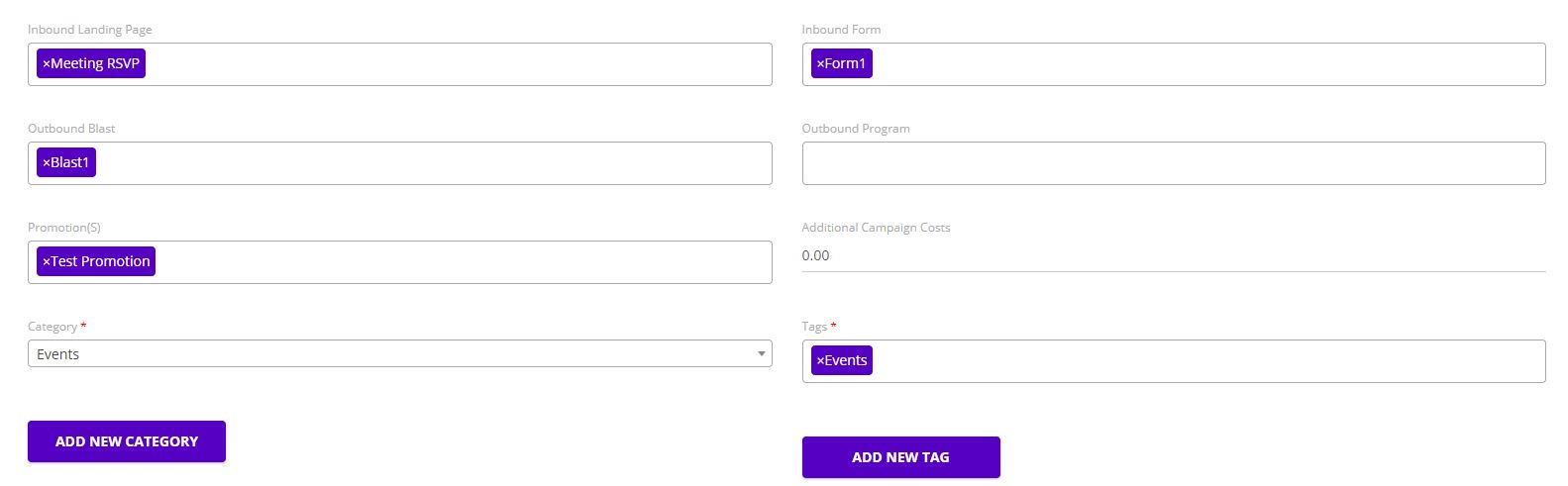
How do I associate inbound/outbound programs with a campaign?

Adding inbound and outbound programs to a marketing campaign is easy in the Chainlink Marketing Platform. Just follow the steps below:

  • Navigate to Attribution > Marketing Campaigns
  • Either click New Campaign or click on the edit icon under the options column for the campaign you want to edit
  • Scroll to the bottom and input any inbound/outbound programs you want to include in your marketing campaign
  • You can also add any promotions, campaign costs, categories, and tags you want

chainlink marketing platform campaigns

How can I view my attribution performance analysis?

Attribution is used to comprehend the holistic journey someone takes when they interact with your marketing campaigns/programs. This information will help you understand what contributed to someone interacting with your marketing efforts. Follow the steps below to access your attribution performance analysis:

  • Navigate to Attribution > Marketing Campaigns
  • From the Marketing Campaigns page, click the Performance Analysis button at the top of the page
  • You will be brought to a page where you can view the performance of all of your marketing campaigns

From this page you have a number of filtering options, allowing you to analyze any of your campaigns, marketers, and promotions by:

  • Page Visits
  • Page Conversions
  • Order Quantities
  • Order Revenue
  • Products Sold