Domains

Why do I need to verify my sending domains?

The verification step is necessary to prevent the Chainlink Marketing Platform from being overrun by spammers and scammers. This will also help keep your emails out of the spam folder.

We promise to do everything we can to verify your sending domains as quickly possible.

If you have any questions about verifying sending domains, please submit a ticket and we’ll get right back to you.

What is the difference between Domains and Sending Domains?

Within the settings of the Chainlink Marketing Platform, you have the ability to create unique Domains and Sending Domains. There are some key differences between Domains and Sending Domains…

Domains:

Domains are used for your inbound marketing programs: Landing Pages and Forms. In the Domains section within your Settings, you can easily view, edit, and create new Domains, or Vanity Domains, used for marketing programs. A Vanity Domain is an unique Web Domain that is branded for marketing purposes. Essentially, a Vanity Domain is a custom Domain that is used to promote a specific product/service. For example, if your primary Domain is www.yourcompany.com, your vanity domain for a product called ABC could be www.abc.com.

Sending Domains:

Sending Domains are the email sending domains that give you the ability to customize your emails on behalf of yourdomain.com instead of having the standard Chainlink domain attached. The ability to add a custom sending domain for emails helps to reduce confusion for the end recipient who should focus on the company sending email, not the client they are sending it through. Unlike regular Domains, you must verify every Sending Domain you create in the platform before you will be able to send any emails using that Sending Domain. This verification step is necessary to ensure that you are using a valid email address hosted by a domain that is accessible. This will help keep your email programs out of spam folders and ensure other can’t use your domain without permission.
How do I verify a sending domain?

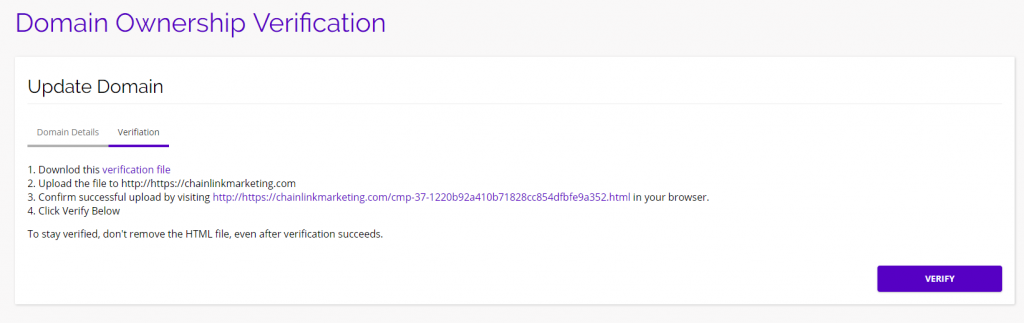
Once you have created your unique sending domain, the next step is to verify your newly created sending domain. There are two ways to verify a sending domain: HTML & Meta Tag. Navigate to Settings > Domain Settings > Domain Verification. Once on this page, you can either create a new sending domain, or verify an existing domain. Click on the name of the domain you want to verify, select the verification type, and then click on the Verification tab and follow the instructions.

HTML:

If you select HTML, you will have to follow these steps:

  • Download the verification file
  • Upload the file to your website
  • Confirm successful upload by visiting the listed link in your browser
  • Click the verify button
    • To stay verified, don’t remove the HTML file, even after verification succeeds

chainlink marketing platform domain verification

Meta Tag:

If you select Meta Tag, you will have the follow these steps:

  • Copy the Meta Tag listed and paste it into your site’s home page. It should go in the <head> section, before the first <body> section.
  • Click the verify button
    • To stay verified, don’t remove the Meta Tag, even after verification succeeds