Email Broadcasts are one-time email blasts that can be used for a variety of marketing efforts. They are great for sending out a company or product update, providing one-time or limited offers, and much more.
From the Email Broadcast page, you can either Create a New Email Broadcast, make edits to drafts, or review the success of your previous Email Broadcasts.
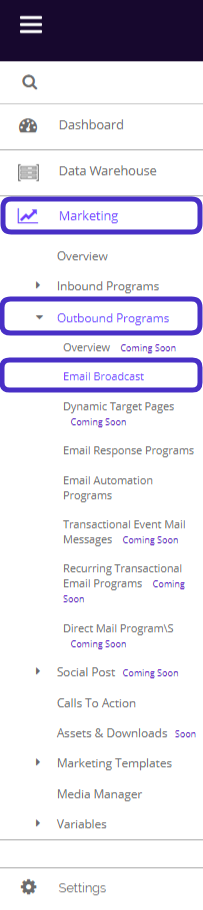
To access your Email Broadcasts, navigate to Marketing > Outbound Programs > Email Broadcast.
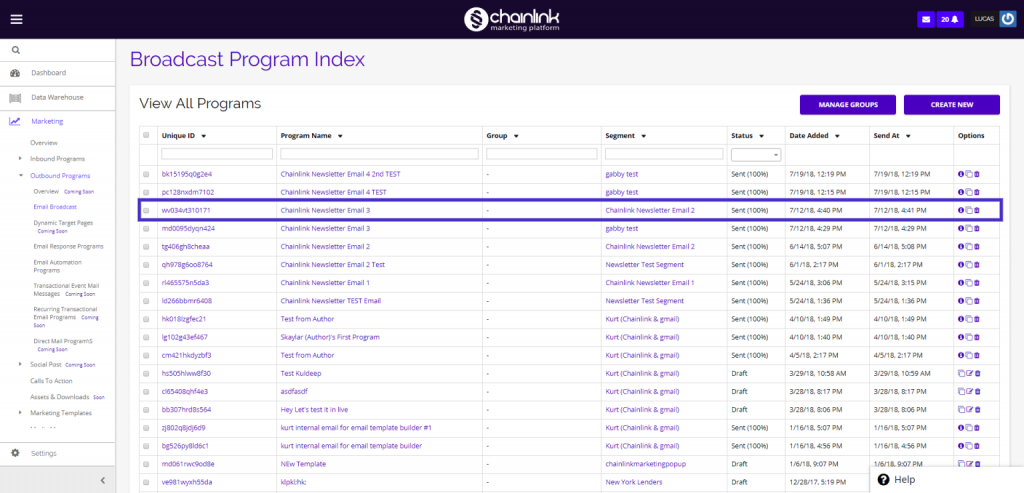
This is what the Email Broadcast dashboard looks like:
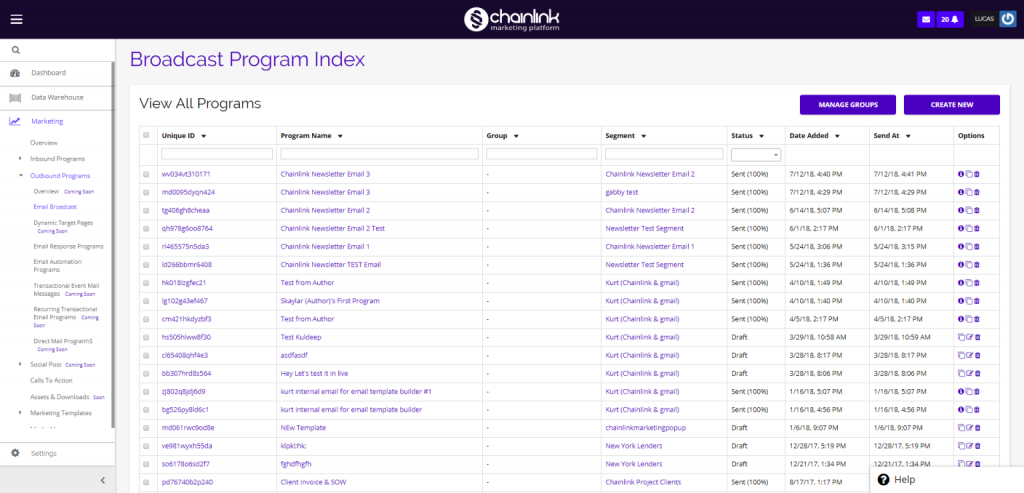
From the Email Broadcast Program Index, you have the ability to view/edit any existing Email Broadcasts, manage groups, and create new Email Broadcasts. This guide will touch on all of the capabilities of Email Broadcasts other than creating a new email. For step by step instructions on how to create an Email Broadcast, take a look at our Creating Email Broadcasts Knowledge Base.
1. Manage Groups
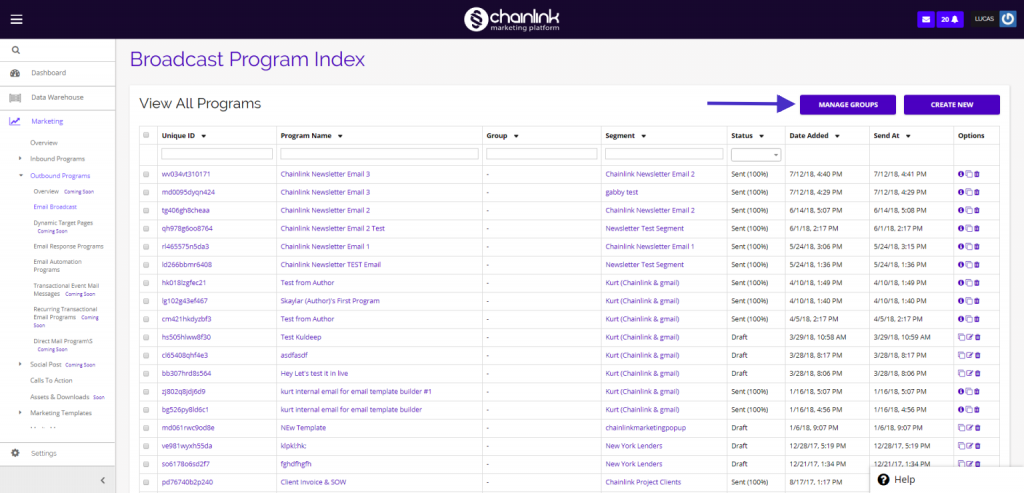
- In addition to creating new email programs, you can also manage your email program groups from the email broadcast dashboard. To do so, just click the Manage Groups button at the top right of the dashboard.
- Program groups are useful for keeping your Email Programs organized once you have created too many to easily scroll through.
- You will then be brought to a new dashboard showing all of the program groups you have created. From here, you can create a new group, update or delete an existing group, view all of the programs in a group, or return to the Broadcast Program Index page.
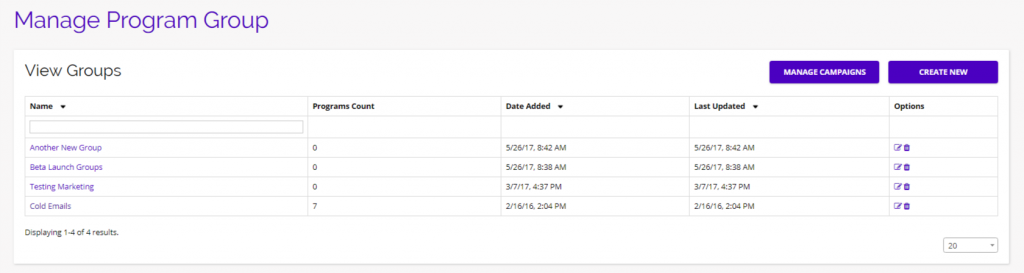
- To edit an exiting group, click on pencil/paper icon under the options column.
- To delete a group, click on the trash can icon in the options column.
Create New Group:
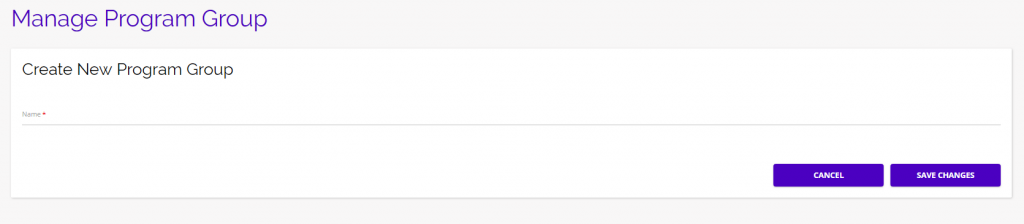
- If you choose to create a new program group you will be brought to this page where you can select a name for the new group. Click Save Changes when finished.
Update Program Group:
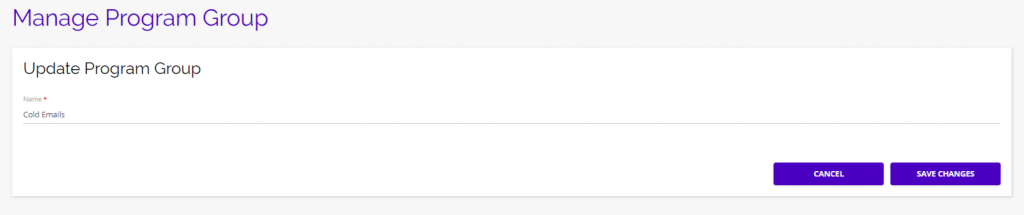
- If you want to edit an existing program group, click the edit icon under the options column and you will be brought to this page, where you can update the name of the program.
View Programs in a Group:
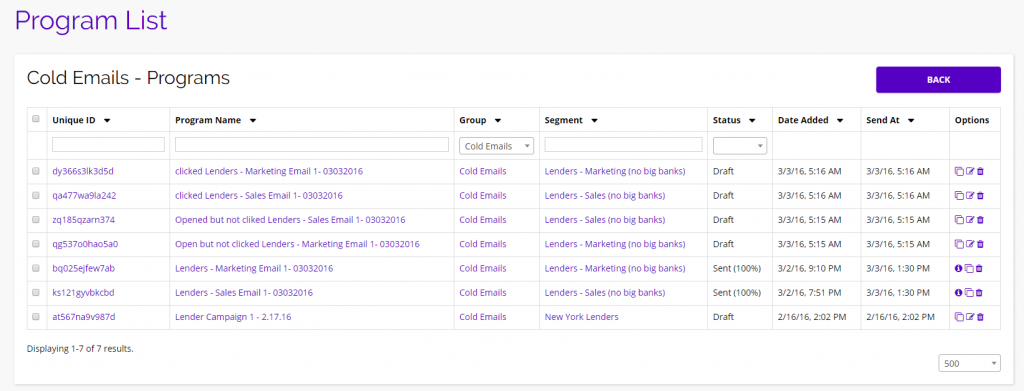
- To view a list of the programs in a program group, simply click on the program group name and you will be brought to a program list.
2. Email Broadcast Analytics
- From the Email Broadcast Index you also have the ability to view and analyze the results of each email broadcast you have sent out. To view the results page of a specific program, simply click on the Program Name, Unique ID, the “i” icon in the options column of the desired program.
- After clicking on the email program you want to analyze, you will be brought to that Broadcast Program’s analytics page where you can see a variety of tracking statistics, such as; total deliveries, opens, clicks, unsubscribes, bounce rates, top links clicked, latest opens, targets with most opens, and even an interactive activity map.
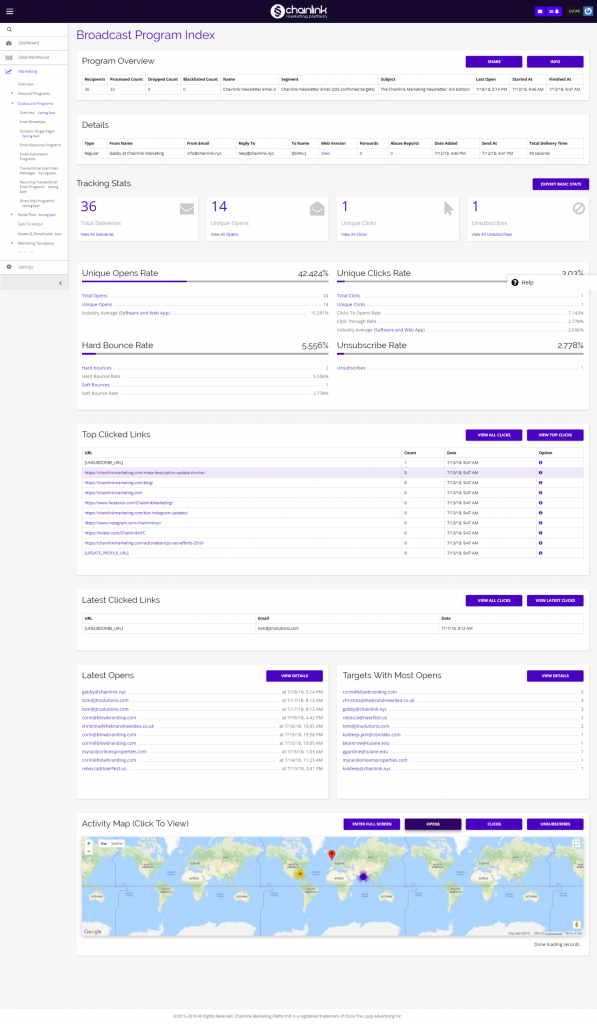
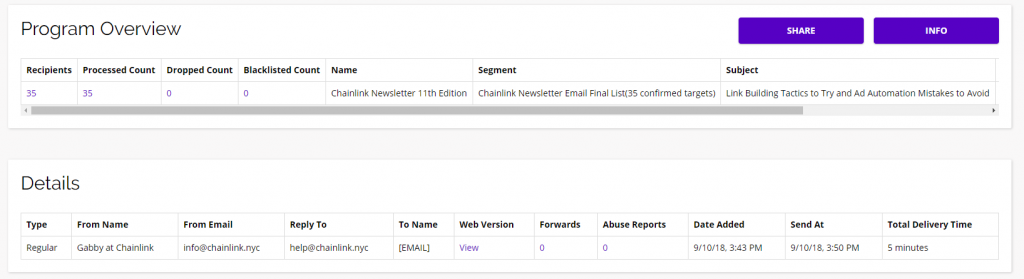
Broadcast Program Details:
- The top section of your Email Broadcast Analytics gives an overview of the program details.
Tracking Stats:
- Next, you will find the basic tracking stats with data on total deliveries, unique opens, unique clicks, and unsubscribes.
- You can also export these stats by clicking the Export Basic Stats button.

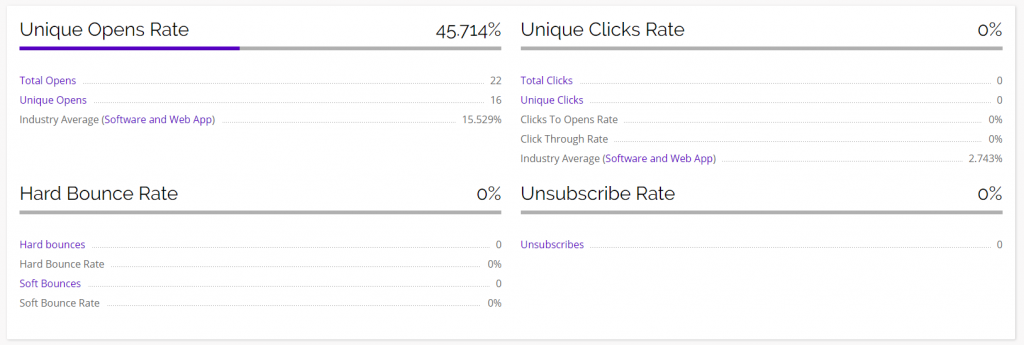
Broadcast Program Rates:
- Below the basic stats, you will find more detailed stats including unique opens rate, unique clicks rate, hard bounce rate, and unsubscribe rate.
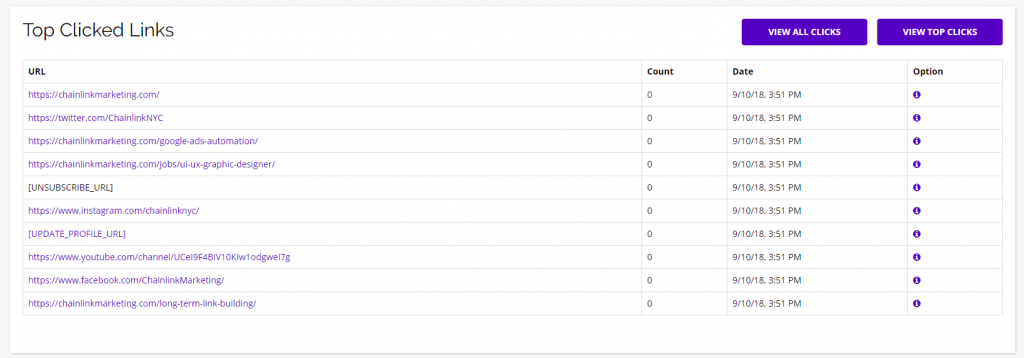
Top Clicked Links:
- Next, you will find a list of the top links clicked from the broadcast program.
- From here you can quickly redirect to the more detailed analytics section by clicking View All Clicks or View Top Clicks.
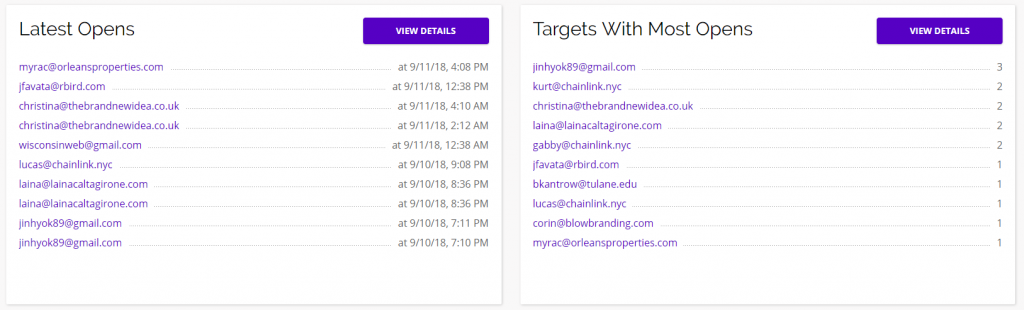
Opens:
- Under your top link clicks, you will find a list of Targets with the latest opens and a list of Targets with the most opens.
- To view either list in more detail, click on the View Details button.
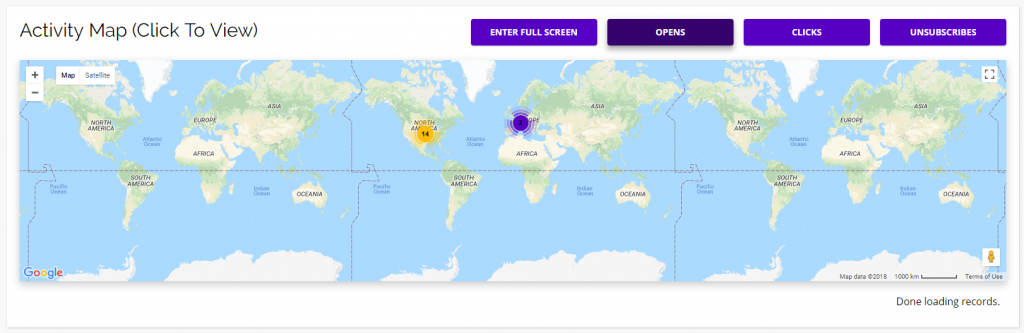
Activity Map:
- At the very bottom of the Email Broadcast Analytics page you will find the interactive Activity Map.
- You can make the map full screen by clicking Enter Full Screen.
- Use the Opens, Clicks, and Unsubscribes buttons to change what variables you are filtering by.
- You can zoom further in to see exactly where your opens, clicks and unsubscribes are coming from.