Calls To Action (CTA) can used for a variety or marketing initiatives and can be used across different programs.
A Call To Action can be used within the Chainlink Marketing Platform, or outside of the platform, can be custom design, can be used for advanced tracking and automatic forwarding to internal Landing Pages or external, as well as monitoring the Views and Clicks of each CTA.
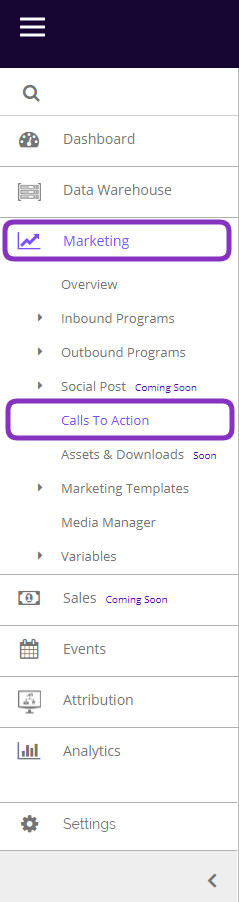
To access your CTAs, navigate to Marketing > Calls To Action:
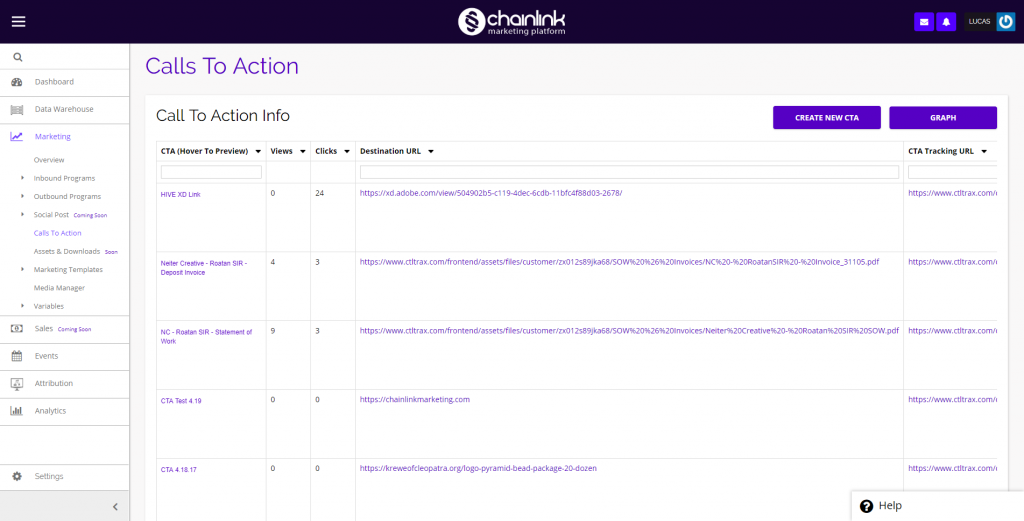
This is what the Calls To Action dashboard looks like:
1. Create a New Call To Action
- To create a new CTA, click the Create New CTA button at the top of the dashboard.
- You will then be brought to a page where you can enter your basic CTA information.
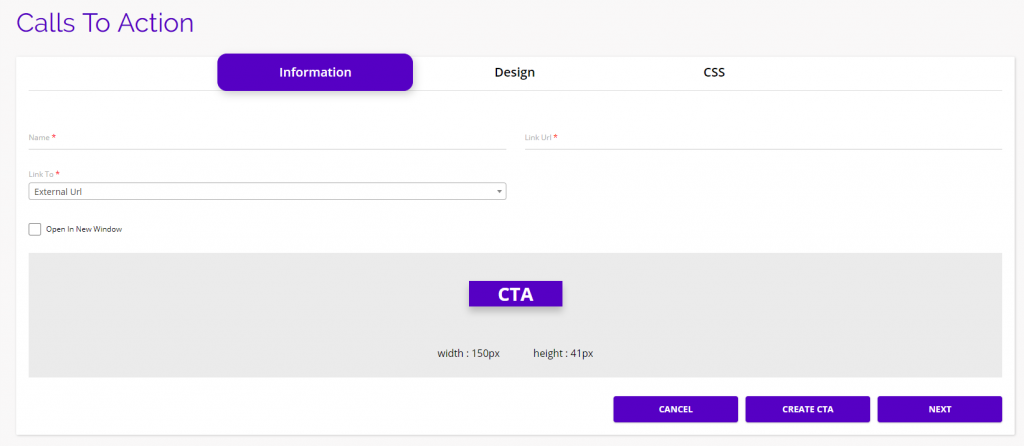
- Fill out the required information and click Next at the bottom of the page to move on.
- You will then be brought to the design page where you will be able to customize your CTA button.
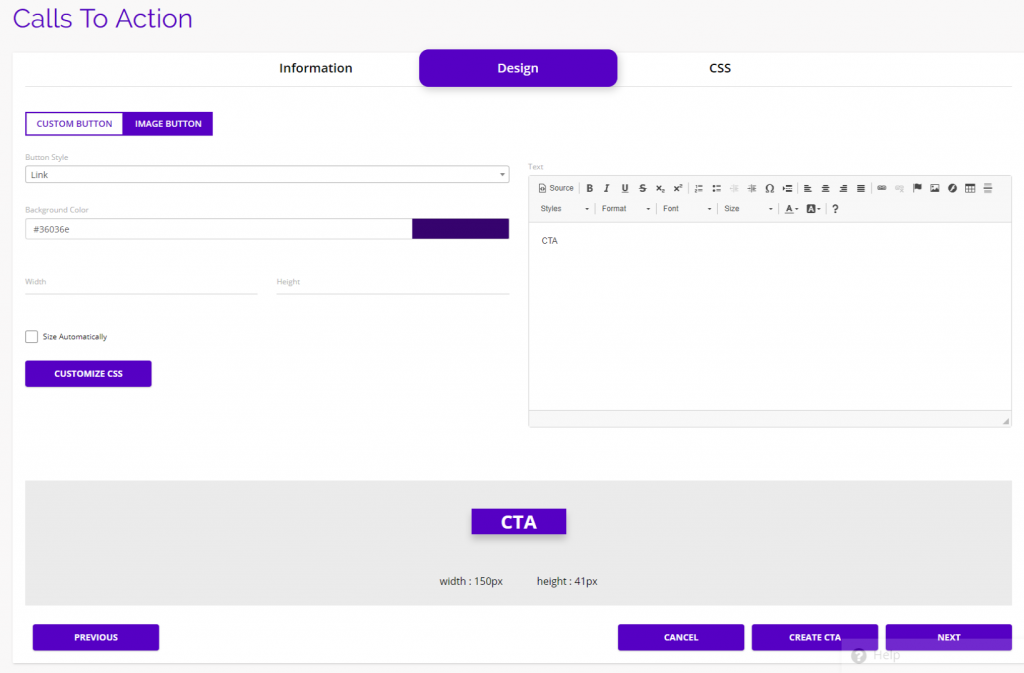
- When you’re finished designing your CTA button, click Next at the bottom of the screen and you will move on the the final step.
- The next page, titled CSS, is where you can insert any custom CSS code as well as view the current CSS for you CTA.
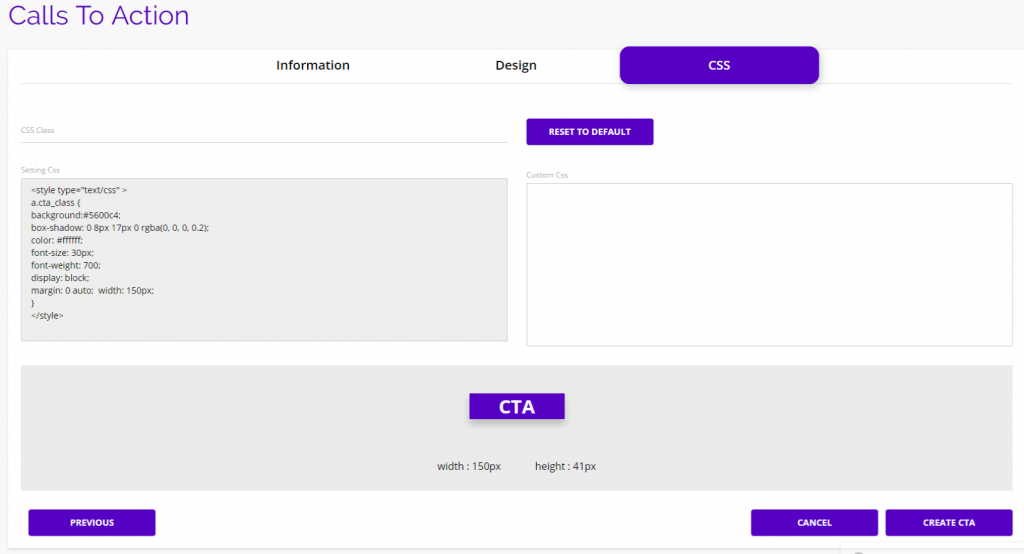
- Click Create CTA at the bottom of the page when you’re finished and your CTA will be completed and added to the top of the CTA dashboard.
2. Reporting
- To view the performance of your CTAs in terms of clicks and opens, click the Graph button at the top of the CTA dashboard.
- You will then be brought to a reporting page where you can see a graph showing all of your CTA clicks or opens.
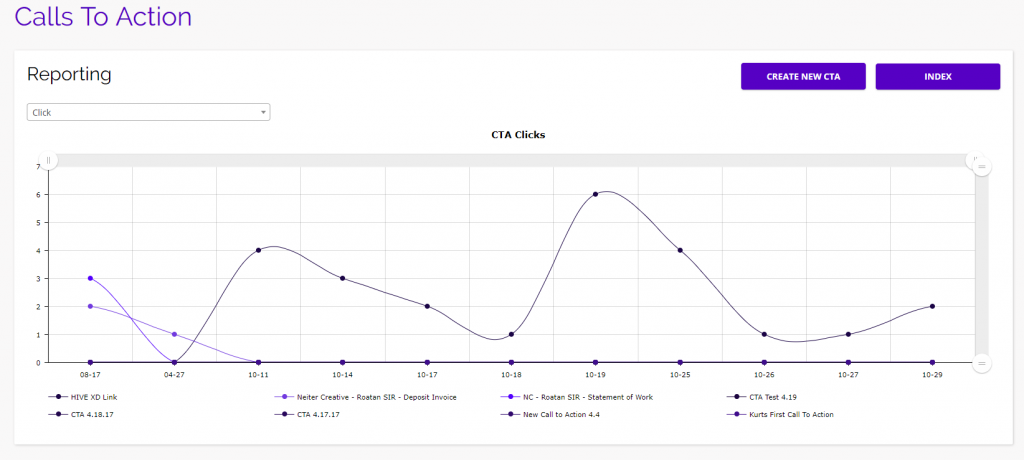
- Use the drop down under “Reporting” to switch from clicks to opens.
- To hide/show the data for a CTA, click on the name of the CTA under the graph.
- Click the Index button to return to the Calls To Action dashboard.
3. Options
- From the Calls To Action dashboard, there are a number of options:
- You can preview your CTA by hovering over the CTA name
- View the CTA on its live web page by clicking the Destination URL or CTA Tracking URL
- View/Copy the code for each CTA so you can paste it on a web page
- Update/Delete any CTA by clicking the icons under the options column