Your account’s Email Marketing Templates can all be found here.
You can Create New Email Templates for use in future Email Marketing, edit or copy previously created Email Templates, or Import Email Templates from the Chainlink Template Library. Also, if you have an email template you’ve used previously, or purchased outside of the Chainlink Marketing Platform, you can easily upload your own templates. You can also Drag & Drop your templates to rearrange the dashboard for easy access to your most used templates.
Creating custom email templates to save in Your Emails is useful if you send out weekly newsletters that use the same template, with minor modifications. This will allow you to have easy access to your newsletter template, and easily edit the template for your weekly updates.
To access Your Emails, navigate to Marketing > Marketing Templates > Your Templates > Your Emails.

This is what the Your Emails page looks like:
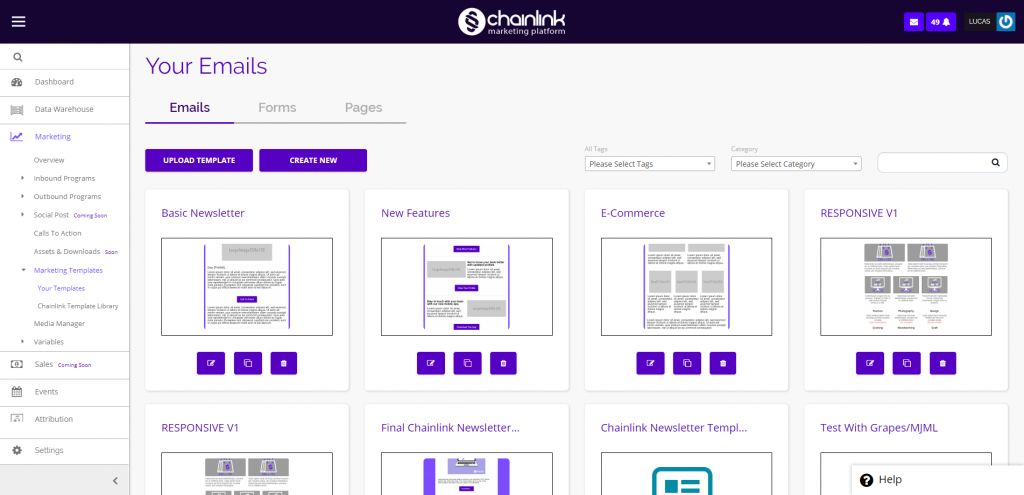
On this page, you have a few options. You can create a new email template from scratch, select and edit an email template you’ve already created, sort and rearrange your templates, or upload an email created outside of the Chainlink Marketing Platform. You can easily find specific Email Templates by using the tag/category drop downs or searching for the template name.
1. Create a New Email Template
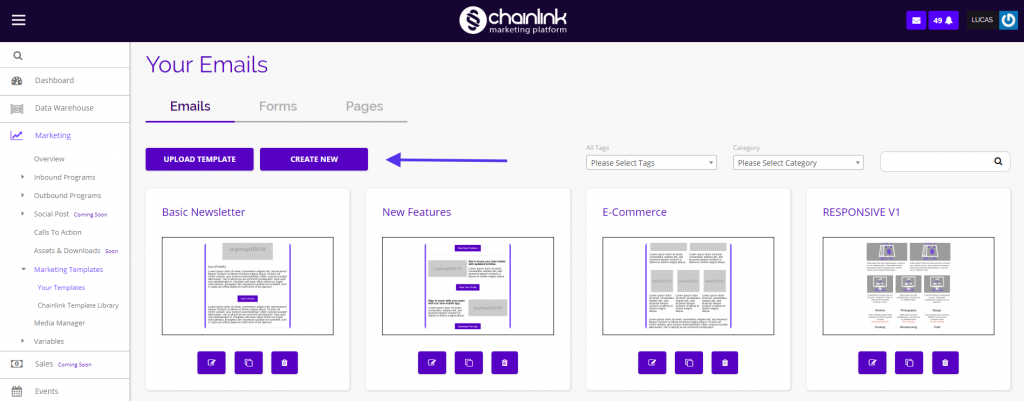
- To create a new email simply click the Create New Button.
- After clicking the Create New button, a pop up will appear asking if you want to create your email template using the HTML Code Editor or Chainlink’s Drag & Drop Editor.
- Note: We recommend using Chainlink’s Drag & Drop Editor unless you have extensive HTML coding experience.
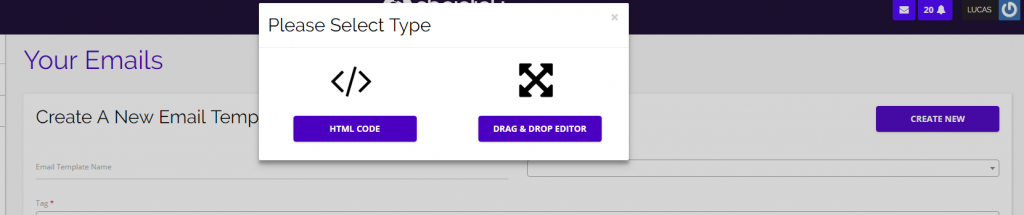
- Below are the two pages you will be brought to, depending on which option you select.
HTML Code:
- Using the HTML Builder might come in handy if you are experienced at building templates using HTML Code. If you are not familiar with coding, it is recommended that you utilize the easy to use Drag & Drop Editor.
- If you accidentally select the HTML Editor, simply click the Drag & Drop Editor button and you will be brought to Chainlink’s Drag & Drop email builder.
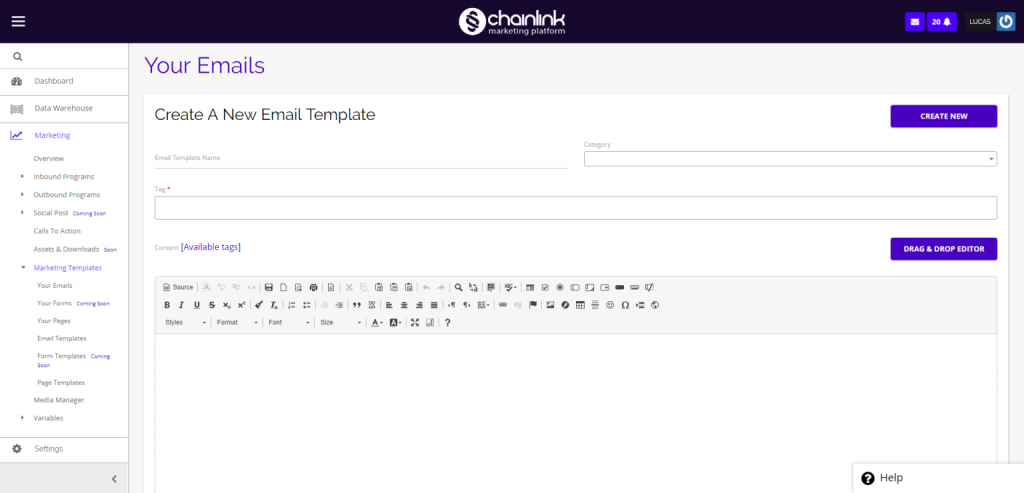
- Using this visual editor, you can easily visualize the email template you are building.
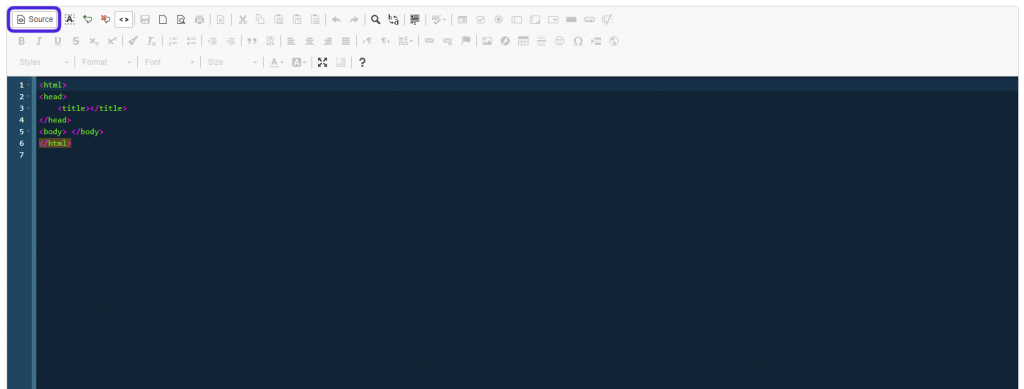
- Switch the source to access the HTML coding area to create your email template using the HTML Code Builder.
Drag and Drop Editor:
- If you select the Drag & Drop Editor, you will be brought to this interactive email template builder.
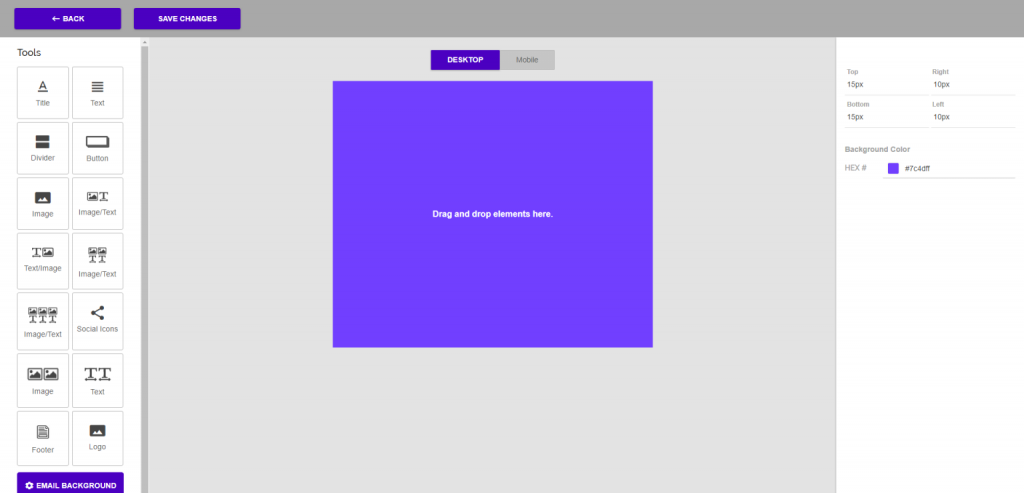
- See the video below for a basic overview of how to use some of the Drag & Drop Editor features:
- It’s that easy!
- Within the Drag & Drop Editor, you can customize the padding, colors, and font from the style manager on the right side of the screen.
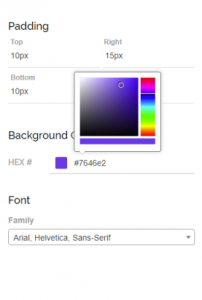
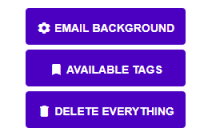
- The Drag & Drop Editor also allows you to customize the background color/padding, add any available tags, upload images from outside of the platform, switch from desktop to mobile view, and has a button to delete everything you’ve worked on if you want to start over.
- When you’re satisfied with the email template you’ve created, be sure to click Save Changes at the top of the page to ensure the template will be added to Your Emails list.
- Note: You must have an unsubscribe URL in your email broadcast to proceed from the Drag & Drop Editor.
2. Using an Email Template
- From the ‘Your Emails’ page, you have the option of selecting email templates you have already created or imported to preview, edit, copy, or delete.
Preview:
- To preview your email, simply click on the image of the email you have created.
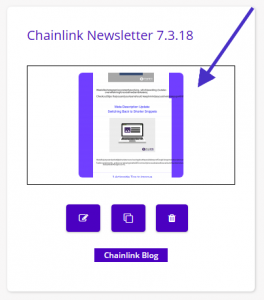
- A new window will appear with a preview of what the email would look like in a typical web browser.
Edit:
- To edit a previously created email, click the edit icon on the bottom left of the template you want to use.
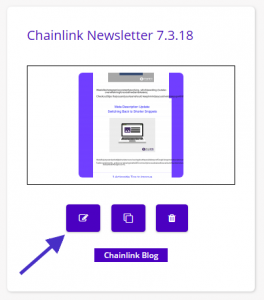
- Upon clicking this button, you will be brought to the HTML Code editor with the current version of your email template.
- From there you can edit the template using the HTML Code editor or switch to the Drag & Drop editor.
- Note: If an email template was previously built using the HTML editor or imported from outside of the platform, you will not be able to make edits using the Drag & Drop editor. Only templates originally created using the Drag & Drop Editor will be able to be further edited using Chainlink’s unique Drag & Drop feature.
Copy:
- To copy a previously customized email template, click the duplicate button in the middle.
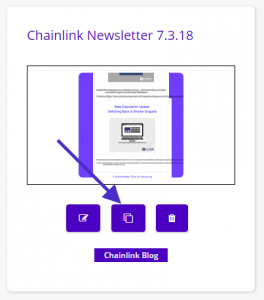
- A duplicate of the email selected will appear at the top of the ‘Your Email’ dashboard.
Delete:
- To delete an email you previously created, simply click the trash can button on the bottom right.
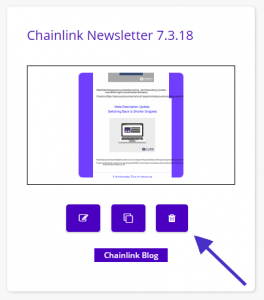
- The deleted email template will disappear from Your Emails.
3. Upload a Template
- The third and final option from the ‘Your Emails’ page is to upload a template created outside of the Chainlink Marketing Platform.
- To do so, click on the Upload Template button on the top left of the dashboard.
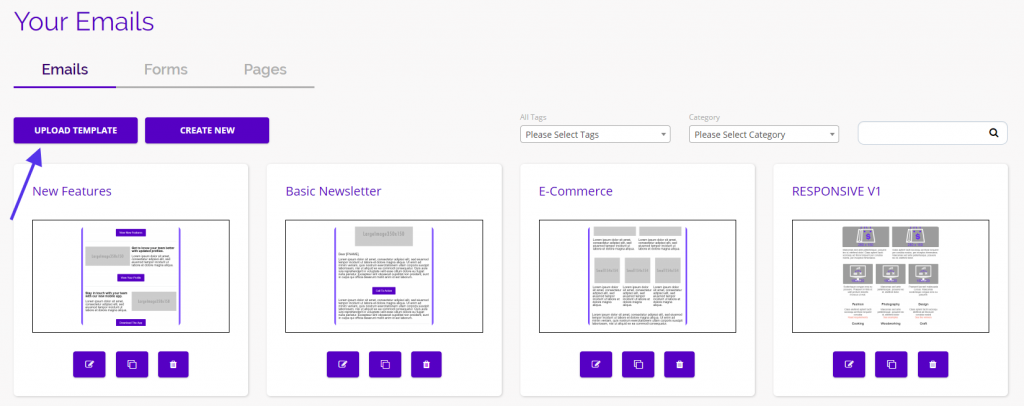
- Upon clicking the upload template button, a pop-up will then appear explaining how to upload your template.
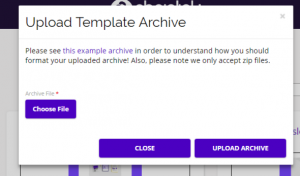
- From here you can choose the file you wish to upload, as well as view an example archive to understand the proper format for your uploaded archive.
- Note: Only zip files are accepted when uploading email templates.
- Note: Templates uploaded from outside of the platform will not be able to be edited using Chainlink’s Drag & Drop editor.