Successful marketing automation relies on triggering relevant and timely actions based on context. With Email Automation Programs, you can create personalized, relevant interactions with context.
Email Automation Programs are automated email workflows that can be deployed at regular time based intervals, or based on a number of different marketing interactions your Targets may have. One advantage of using Email Automation Programs is that once you have the program set up and running properly, the platform will do the rest of the hard work while you can sit back and analyze the results coming in to measure your program’s success. Unlike Email Response Programs, Automation Programs allow you to include multiple emails/landing pages so you can create more complex workflows.
In this guide, you’ll learn about the three different types of workflows and how to set up personalized, automated email programs.
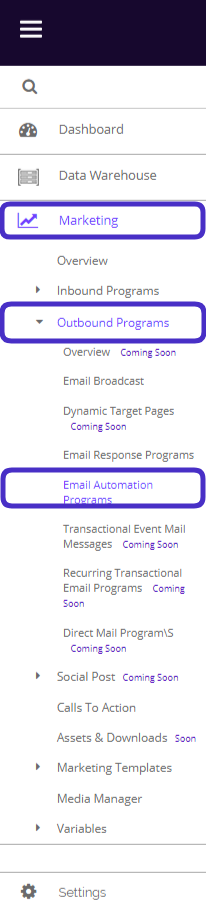
To access Email Automation Programs, navigate to Marketing > Outbound Programs > Email Automation Programs.
This is what the listing page for Automation Programs looks like:
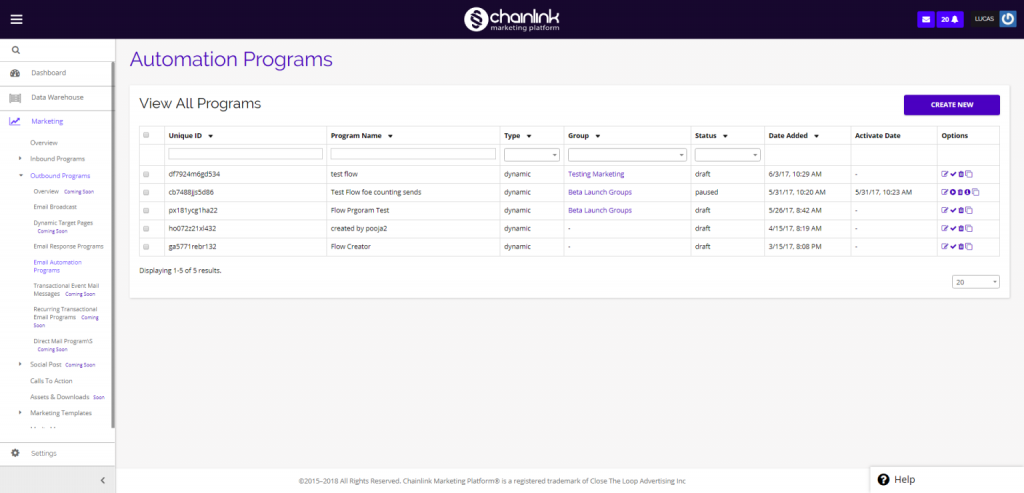
This dashboard displays a list of all your automated email programs, the type, group, status, date added, and date activated. Under the Options column, you can update, activate, delete, or copy any of your existing Email Automation Programs. You can also create new automation programs from this page.
1. Create New Email Automation Program
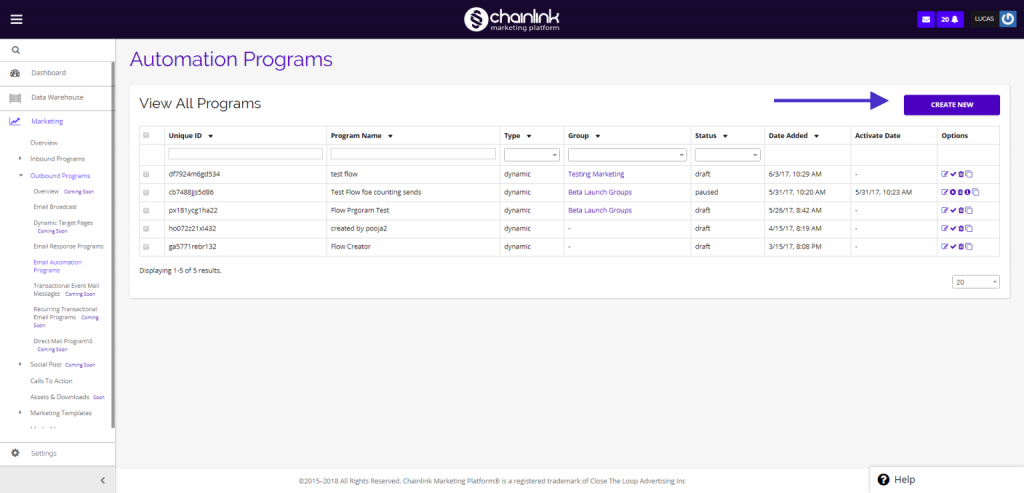
- To create a new workflow, click Create New in the upper right-hand corner.
- The first thing you’ll see when you create a new automation program is this page:
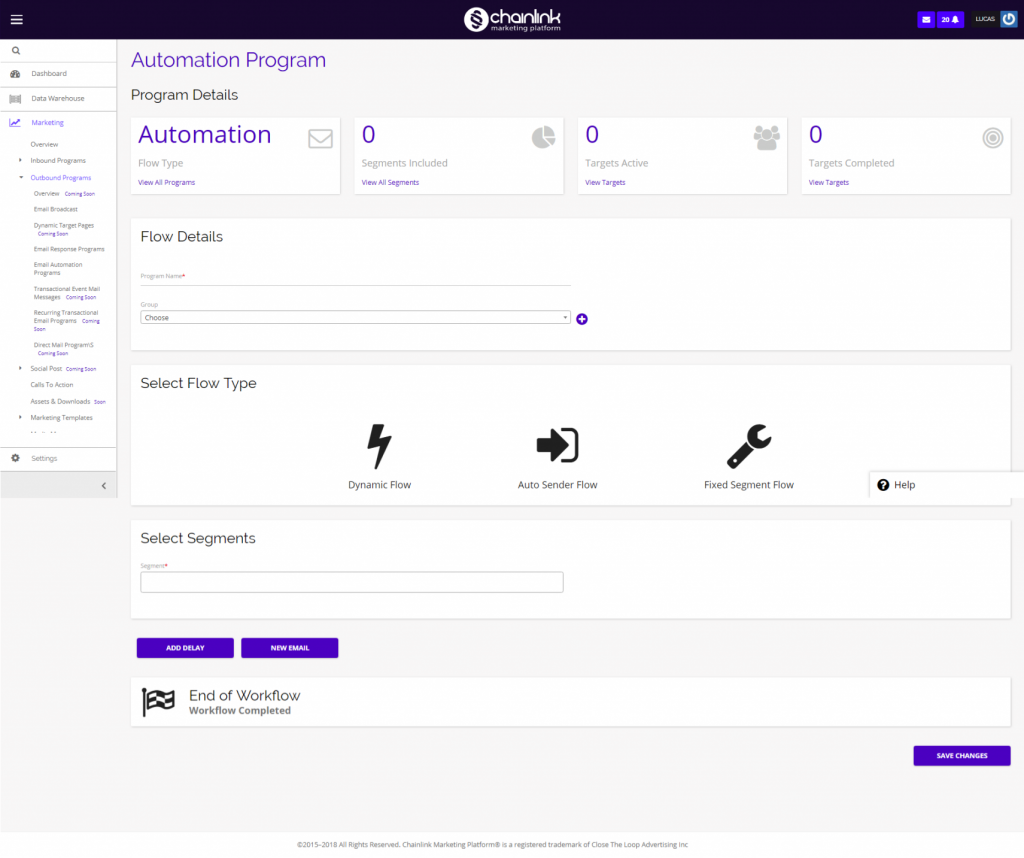
- On this page, you can name the program, assign it to a group, select the flow type, select the segments, add delays, and add any emails and landing pages you want to be a part of the program. Below you can find an explanation of the three different flow types you can pick from.
Dynamic Flow
- A dynamic workflow is similar to dynamic segments, in that it automates the program based on your targets’ interactions and behaviors. For example, with a dynamic flow, an automated email program can start on a specific date and the workflow could continue for Targets if they open the first email in the program, but stop for others who never open that initial email.
Auto Sender Flow
- An Auto Sender Flow will start the workflow for your desired segments depending solely on certain actions taken. For example, a workflow could begin immediately after a Target clicks on a certain link or opens a specific email, and those who did not click the link or open the email will not be included in the workflow, even if they are a part of the selected segment.
Fixed Segment Flow
- A Fixed Segment Flow is a workflow for static segments that operates around regular time based intervals, and will continue for every target in the segment, regardless of their actions taken. For example, you could create a fixed segment workflow that will send out one email every week to a static segment and stop for every Target in that segment after 4 weeks.
- Note: You can only send to Static Segments if you select Fixed Segment Flow.
- In the Email section, you have the option of using an Email Template or building your own email using the HTML Code editor or the Drag & Drop editor.
- For more information on how to use the HTML and Drag & Drop Editors, take a look at the Email Broadcast Knowledge Base.
- Choose an existing email template from the drop-down, or create a new template by clicking on the page icon to the right of the drop-down.
- You can edit the selected email template by clicking the pencil icon next to the template name.
- Note: If you plan on including a Landing Page in the email content, be sure to add the tag [LANDING_PAGE_URL] somewhere in the body of your email. Using this tag will automatically upload the correct landing page URL from the page you select in the coming landing page step.
- Note: If you select “Yes” for Plain Text Email, a plain text version of your email will be sent to those Targets whose email providers do not allow the original email to reach the inbox. An email provider can reject an email from a Target’s inbox if the email contains ‘spammy’ looking content.
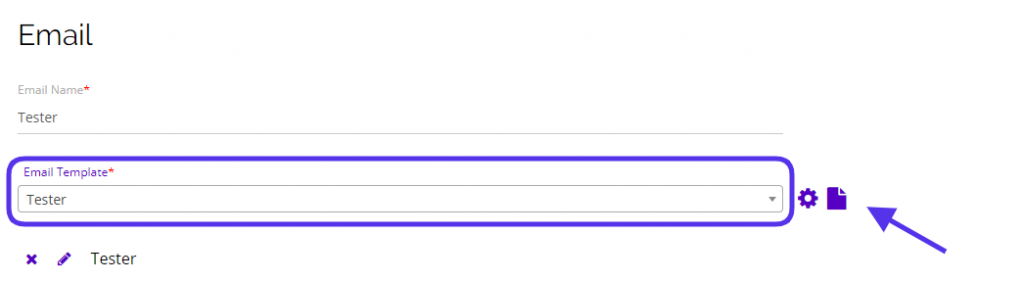
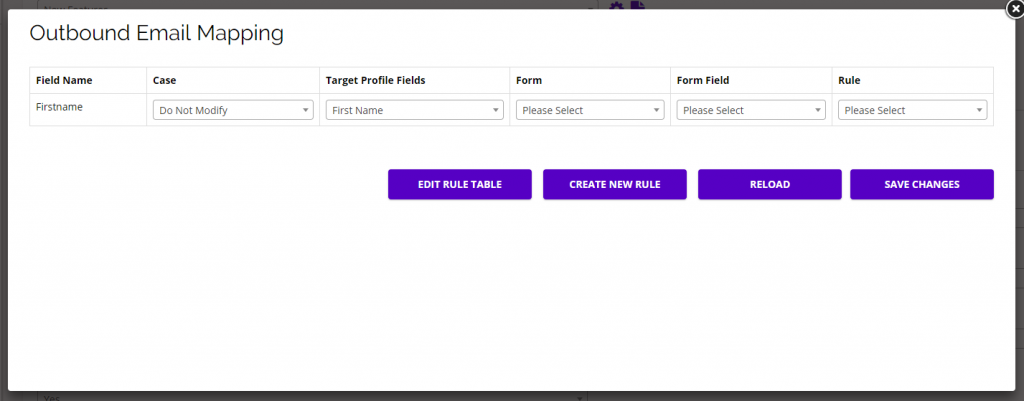
- If you want to dynamically map your email , click the Map Email button and the Outbound Email Mapping pop-up will appear.
- Email mapping is useful if you want add personalized content for every target in the segment you are sending to.
- Note: You must have the variable you want to map somewhere within the email. You can add a variable using {variable} anywhere in the body of your email.
- In the example below, we are mapping the variable {Firstname} in the email content with the profile field First Name in the platform.
- When this program is sent, wherever the {Firstname} variable appears in the email, the Target’s first name from the platform will populate the variable.
- The Field Name is the same variable name used in your email content, and the Target Profile Field is the profile field from the platform that will be used for each Target.
- You can ignore the Form Fields when mapping emails.
- You can also add custom rules for each field you are mapping to decide the mapping process/type.
- Note: You do not need to create rules to successfully map your emails.
-
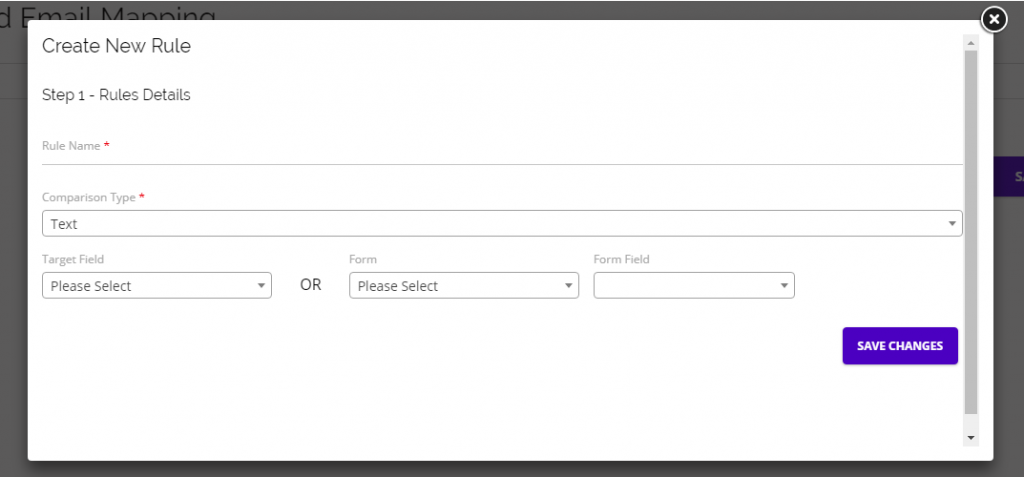
- After clicking Create New Rule, a pop-up form will appear where you can add the rule name, type, target field OR form and form field.
- When creating outbound email mapping rules, use the Target Field, not the Form/Form Field.
- Once your rule is created you can select it for your variables in the Rule drop-down.
- After selecting the rule from the drop-down, click Edit Rule Table to set up the specific conditions for the mapping process.
- After adding your program, segment, and email information, you then have the option of attaching a custom landing page.
Landing Page
- The next step in building your workflow is to attach a landing page (adding a landing page to your email automation program is optional).
- Attaching a landing page is useful if you want to direct Targets from your email to one of your Landing Pages. Adding the landing page here will allow the Chainlink Marketing Platform to track page visits stemming from your email. (A normal email broadcast is unable to track landing page visits)

- Click the Add Landing Page button, input the landing page name and select which template you want to use, or build your own landing page by clicking on the page icon to the right of the template options.
- To edit an existing page template, click the pencil icon next to the selected template and select the template from the drop down. The page template will then load, allowing you to make any edits you want.
- For more details on how to build your own Landing Page, visit the Landing Page Knowledge Base.
- Note: To include your Landing Page in the email content, be sure to add the tag [LANDING_PAGE_URL] somewhere in the body of your email. Using this tag will automatically upload the correct landing page URL for the page you select here.
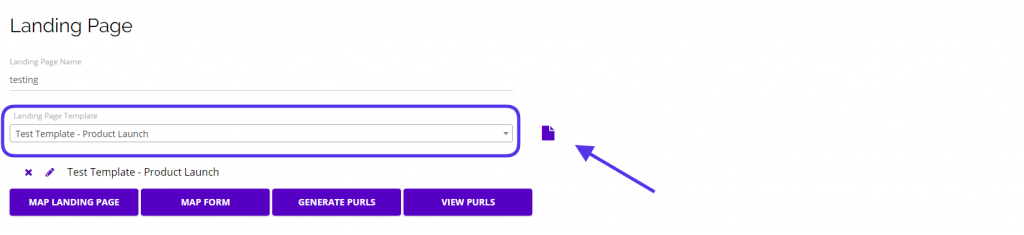
- Decide if you want to dynamically map your landing page or a form on that page and follow the same mapping steps as email mapping.
- Form mapping is slightly different, because it allows you to update a Target’s platform profile information based on the information they provide in their form responses.
- Note: You can only map a form if there is a form present on your selected landing page.
Scheduling, Delays, and If/Then Conditions
- Once you have added your emails and landing pages, you can move on to scheduling and creating custom workflow conditions that will dictate when your emails will be sent out and what actions have to be taken for a target to receive the next step in the workflow.
Schedule Email:
- Scheduling allows you to decide when you want your workflow to begin and when you should stop all activity in the Email Automation Program.
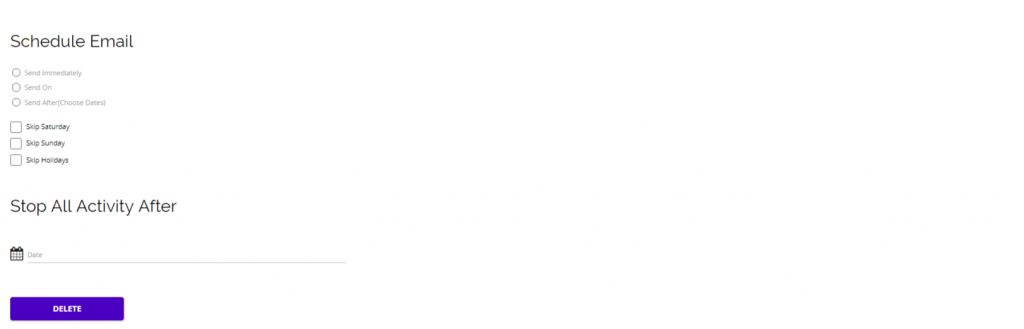
- For each email you add to your workflow, you can schedule it to be sent immediately, on a certain date, or after a date.
Delays:
- You also have the option of adding delays and If/Then conditions to your workflow.
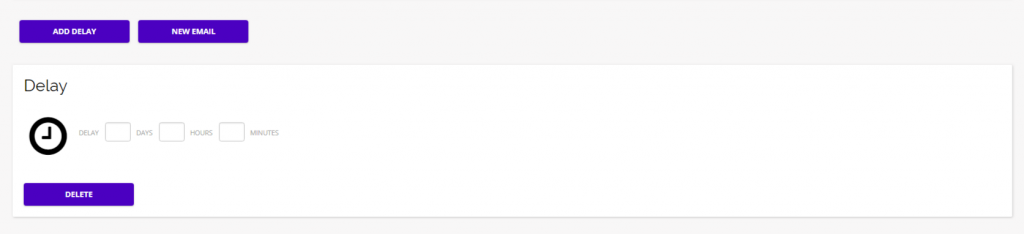
- Delays can be useful if you want to wait a specific amount of time before an email is sent out.
- Delays can be used with If/Then conditions to specify exactly when a Target should receive the next step in the workflow.
- Note: Delays can be set up before or in-between any of the emails added to your automation program.
If/Then Conditions:
- If/Then Conditions can be useful to specify what actions a Target must take to continue through the workflow.
- Paired with Delays, If/Then Conditions can hone in on extremely specific times and conditions for emails to be sent out.
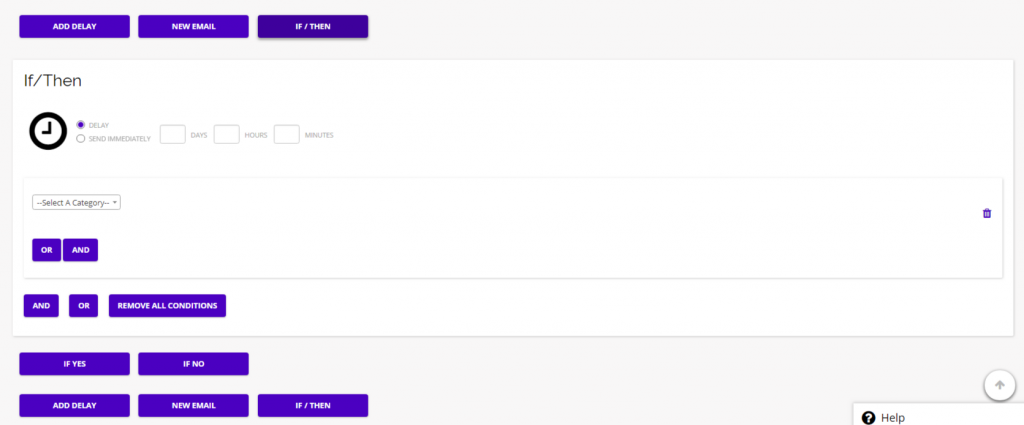
- If/Then conditions can operate around several categories:
- Form
- Landing Page
- Link
- Program
- Utilizing the OR/AND buttons allows you to branch your workflow even further.
- For example: If a target opens your first email AND clicks through to the landing page you attached, Then a second email can be sent an hour later.
- This Email Automation Program would be utilizing multiple Emails, Landing Pages, If/Then Conditions, and Delays.
- For example: If a target opens your first email AND clicks through to the landing page you attached, Then a second email can be sent an hour later.
- When you’ve finished creating your custom workflow, click Save Changes in the bottom right of the page to save your Automated Email Program to add it to the platform.
- To activate your automation program, return to your list of automation programs and click the check mark icon under the options column.
- Note: We recommend sending out test emails for any emails you add to your Automation Program to ensure everything is working properly across all email clients.
2. Options
- On the Email Automation Programs dashboard, you will have a few quick tools under the options column.
Edit:
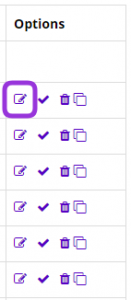
- To edit an Email Response Program you have already created, click the pencil/paper icon under the options column.
Active/Pause:
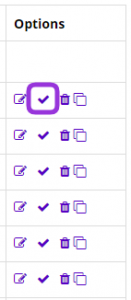
- If your program has not yet been activated, you will be able to activate it by clicking the check icon under the options column.
- If your program has already been activated, there will be a pause icon instead of the check mark that you can use to easily pause your program.
Delete:
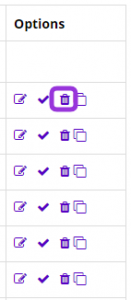
- Easily delete an Email Response Program by clicking the trash can icon under the options column.
Copy:
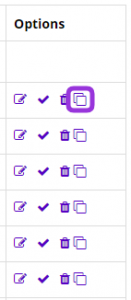
- To make an exact copy of an Email Response Program, click the duplicate icon under the options column.
Overview:
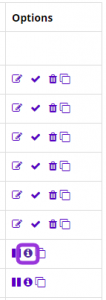
- If your program is live or is already completed, you can click the “i” icon under the options column to see the overview of that programs’ statistics including:
- Total Deliveries
- Unique Opens Rate
- Unique Clicks Rate
- Unsubscribe Rate
- Bounce Rate
- This is what the Email Automation Program Analysis Report looks like:
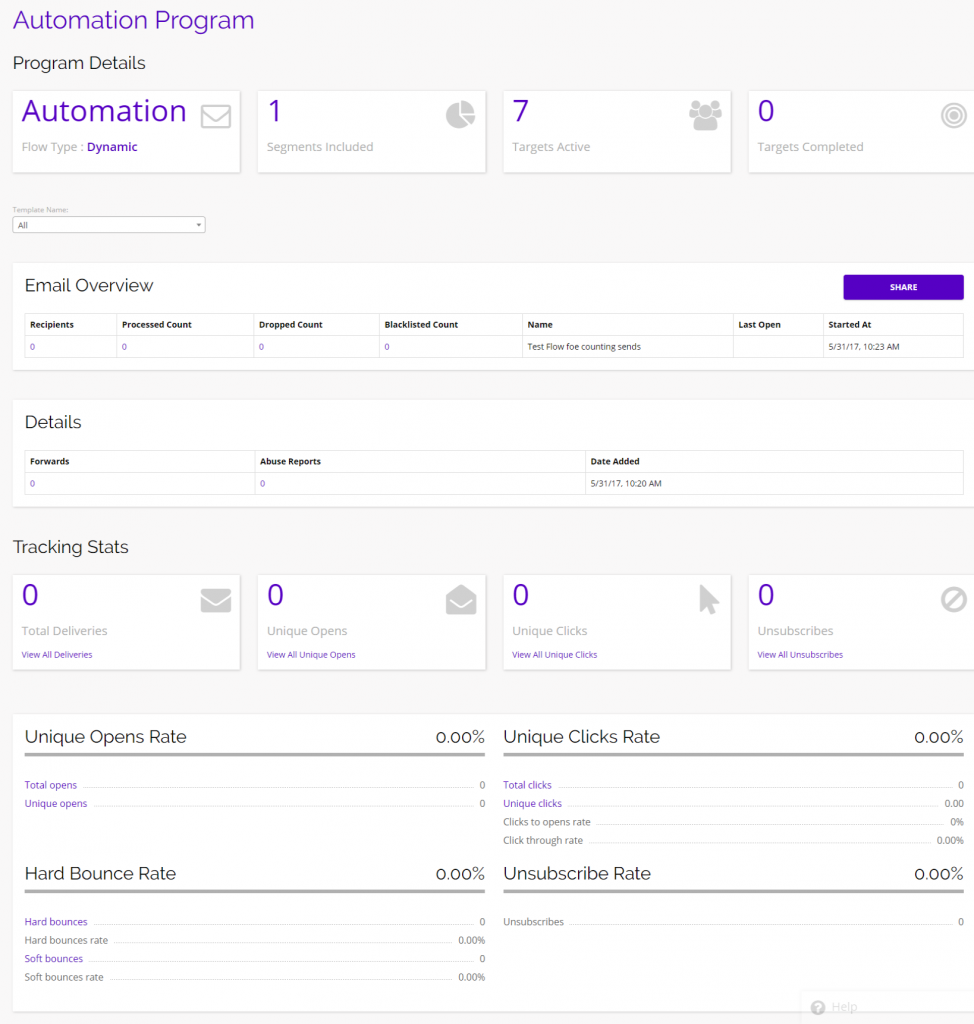
- From here you can view all of the data and statistics related to your Email Automation Program.
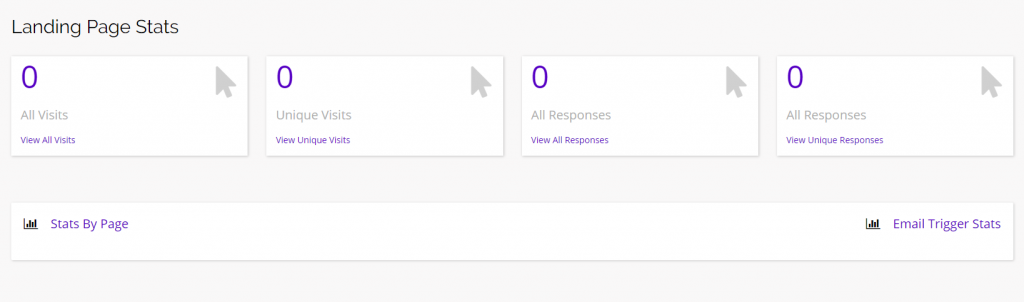
- If you attached any landing pages, select the desired template name from the drop-down at the top of this reporting page, and that landing page’s tracking stats will be added to the bottom of the report.