In Chainlink’s Target Score Settings, you can set up your own custom scoring for all Targets based on common Behaviors and Custom Conditions. Each Target will have an overall score based on variables like email sends, opens, bounces, link clicks, landing page visits, form submissions and more. Custom scoring allows you to express what is most valuable for you campaigns and see who your top targets are.
Contact (aka Cold Lead)
A new Marketing Target that hasn’t “raised their hand” or expressed any interest yet in your services or products.
Lead (aka Warm Lead)
A new Marketing Target that has “raised their hand” or has responded to any previous marketing efforts to express interest yet in your services or products.
Account
Current account that has made it from the top of your funnel into the sales process and is a current customer.
Former Account
Previous account that you’re trying to re-engage.
Note: You can create custom scoring that is different for each type of lead/account.
To access Target Score Settings, navigate to Settings > Account Settings > Target Score Settings
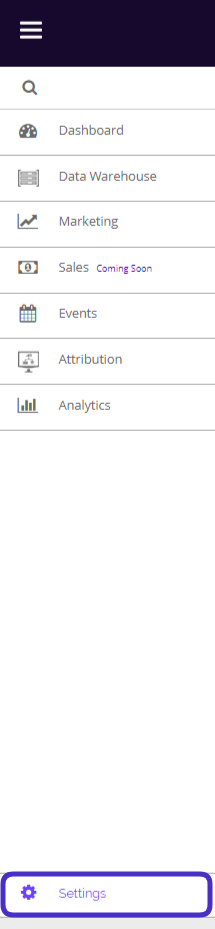
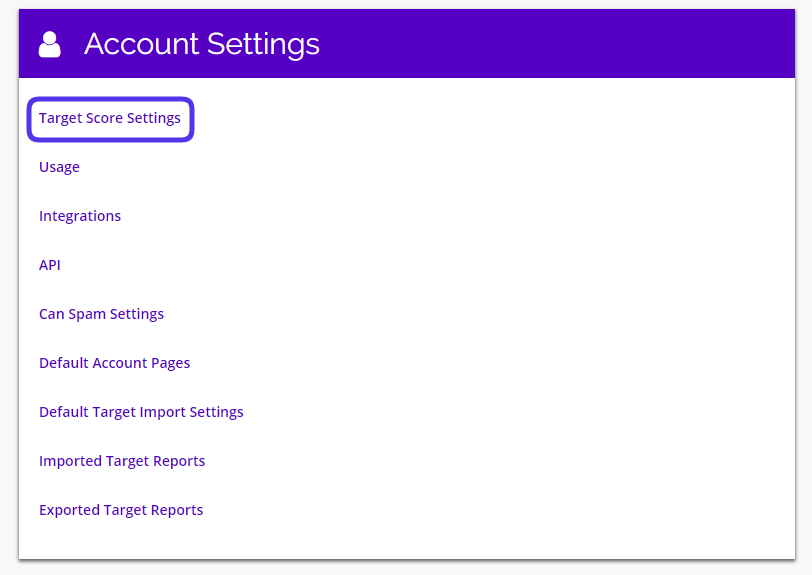
This is what the target scores settings dashboard looks like:
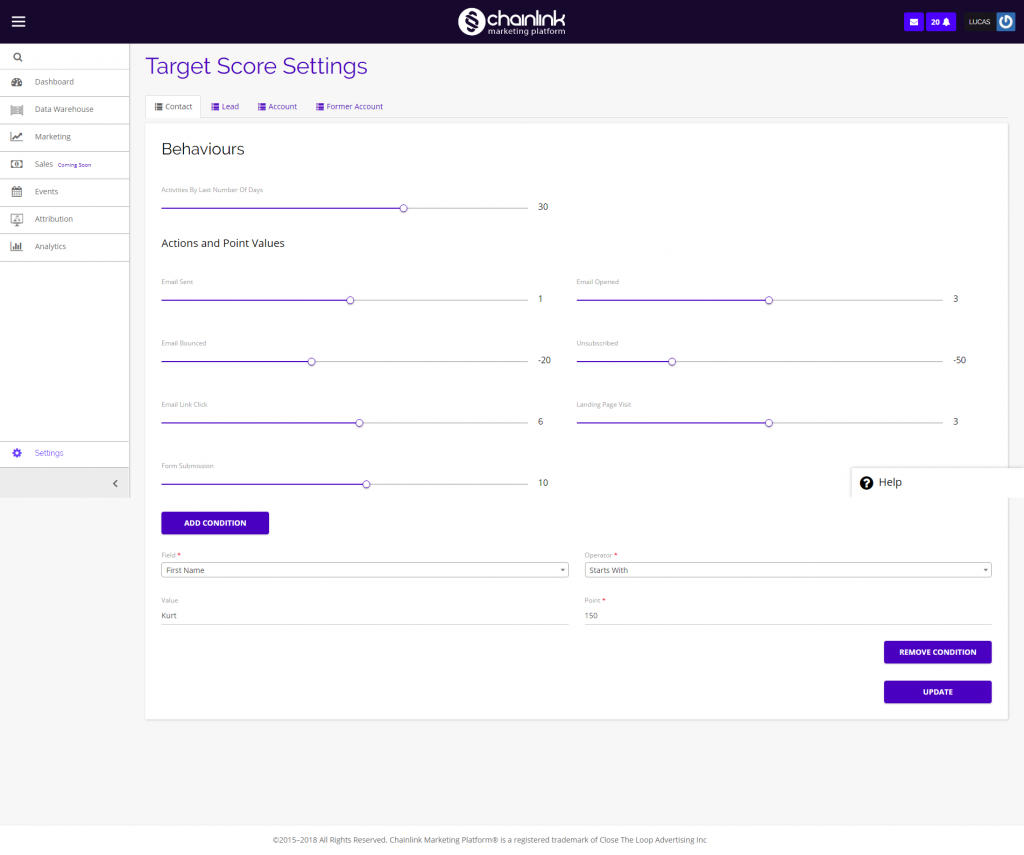
From here you can customize the point values for each action taken (Email Sent, Emails Bounced, Email Opened, Email Link Click, Unsubscribed, Form Submission, and Landing Page Visit)
You also have the ability to add as many custom conditions as you want.
The different tabs: Contact, Lead, Account, and Former Account represent the different type of targets you can interact with.
1. Points
- The first section of Target Score Settings is titled “Behaviors”. Here you can view and edit all of the custom scoring values for every behavior or action.
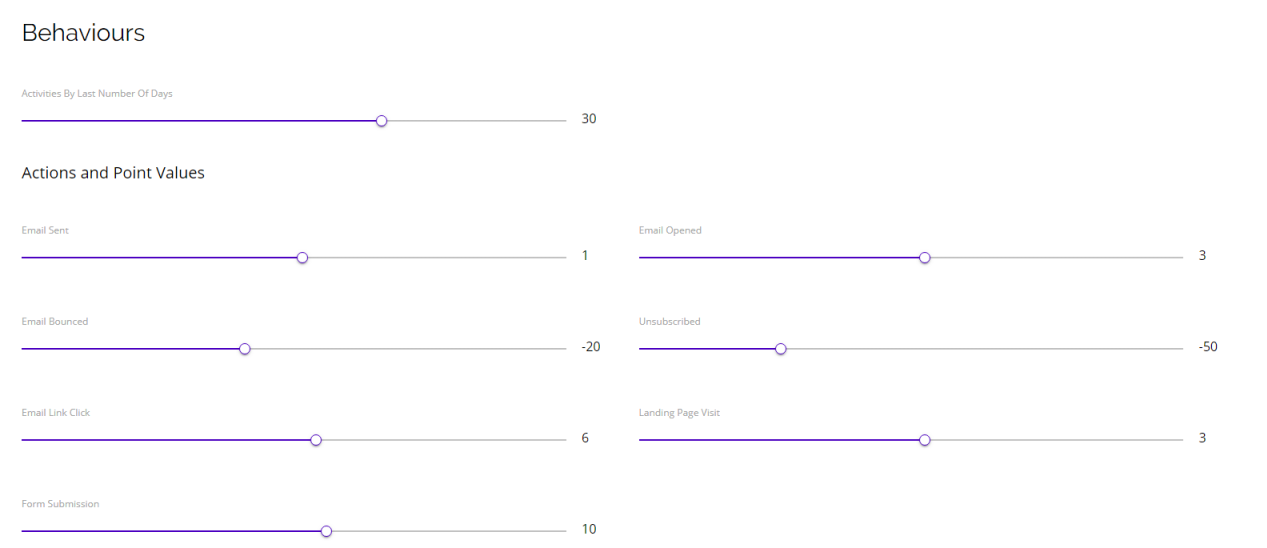
- In this example you can see the default values for different actions taken by contacts in the past 30 days:
- Email Sent: 1 Point
- Email Opened: 3 Points
- Email Bounced: -20 Points
- Unsubscribed: -50 Points
- Email Link Click: 6 Points
- Landing Page Visits: 3 Points
- Form Submission: 10 Points
- You can easily adjust the point values for each action by using the sliders below the actions.
2. Conditions
- Below the points section, you will find an area to add custom conditions with point values.
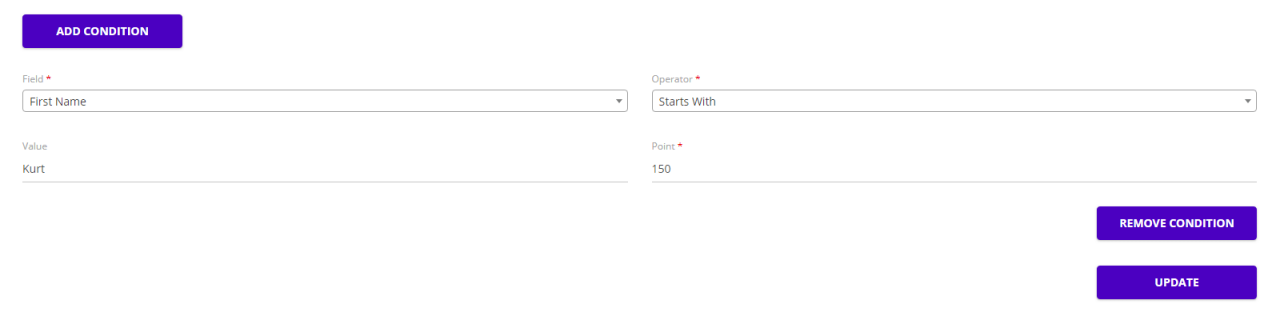
- In the example above, anyone with the first name Kurt would be given 150 points (this most likely wouldn’t be useful for a real marketing campaign, unless you are trying to only target people named Kurt).
- Adding custom conditions can be helpful if you are looking to target a specific group by company, age, or country. This will allow you to reward more points to certain targets within those groups if they complete an action.
- Conditions are also different for all account types.
- If you add a condition in the Contacts section, it will not be added to the Lead, Account, and Former Account sections.
3. Target Score
- Points for different actions taken accumulate for a Target’s score.

- Above you can see the total score for this target on their profile page.
- Based on all of the actions taken by this target related to programs created through Chainlink’s platform, they earned a score of 28.
- Analyzing scoring for individual targets will help you get an idea of which targets are consistently interacting with your programs and which targets you are not reaching successfully.
- Under the top-level profile information, you will find a more detailed summary of the programs they are a part of and how that target accumulated their total number of points by looking at:
- Information
- Engagement
- Activity
- Segments
- Programs
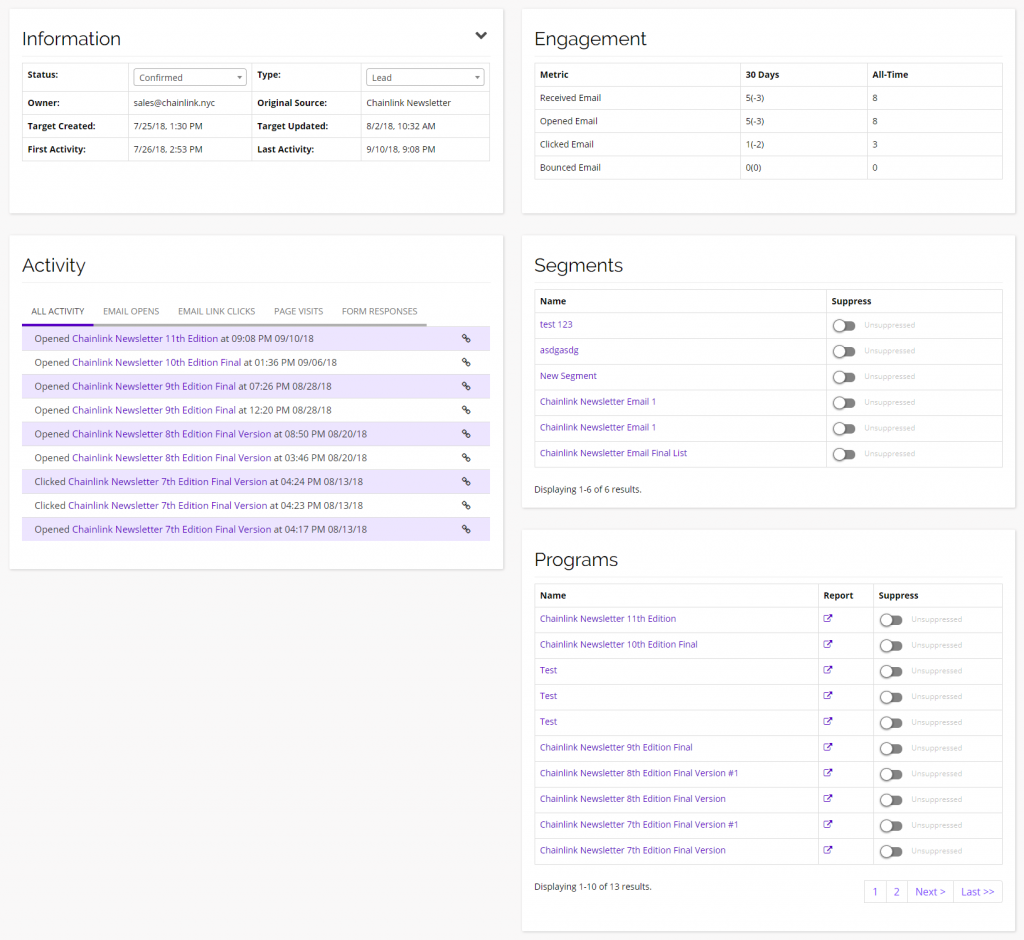
- From the Target’s profile, you can see more account information, their engagement and how it translates to points, their recent activity, and the segments and programs they are a part of.
- You can also easily suppress the Target from a Segment or Program by using the buttons under the suppress columns.