Within the attribution section of the Chainlink Marketing Platform, you are able to organize your programs by Marketers. Using the Agencies and Agents tool, it’s easy to get an overview of who is generating the most page visits, conversions, orders, and revenue for your Marketing Campaign.
For example, if you were to hire two influencers to boost page visits, you would want to be able to see which of your influencers created the most traffic and in turn generated the most revenue for your company. The Agencies and Agents tool makes it easy to analyze and compare your marketers’ performance.
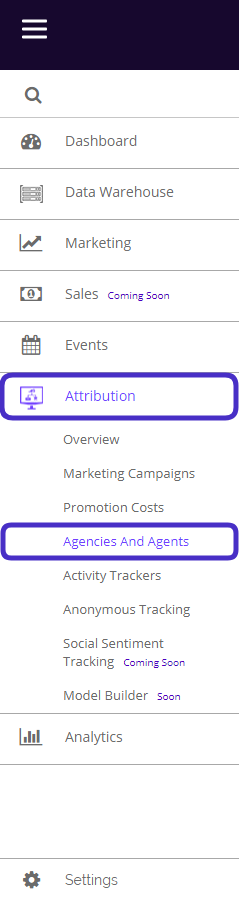
To access Agencies and Agents, navigate to Attribution > Agencies And Agents.
This is what the Agencies And Agents page looks like:
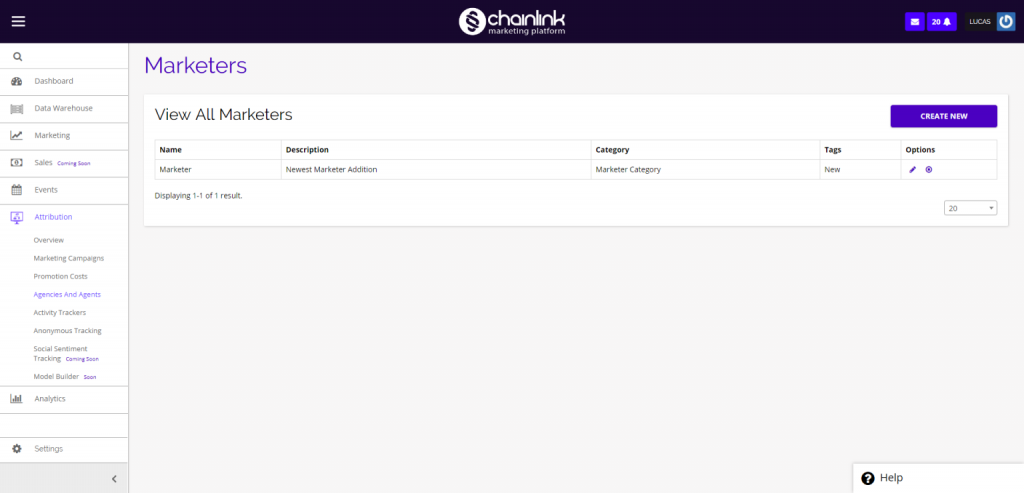
From here you will be able to view all of the information on your current marketers and create as many new marketers as you’d like.
To edit a current marketer, click the pencil icon under the options column. You will then be brought to the same page as if you were creating a new marketer, but it will be populated with the current marketer’s information. From there you can make any edits you need.
To remove a Marketer from the platform, click the delete icon under the options column.
1. Create a New Marketer
- To create a new marketer, simply click the Create New button on the top right of the dashboard.
- You will be brought to a page where you can enter all of the necessary details about your new marketer:
- Name
- Category
- Tags
- Description
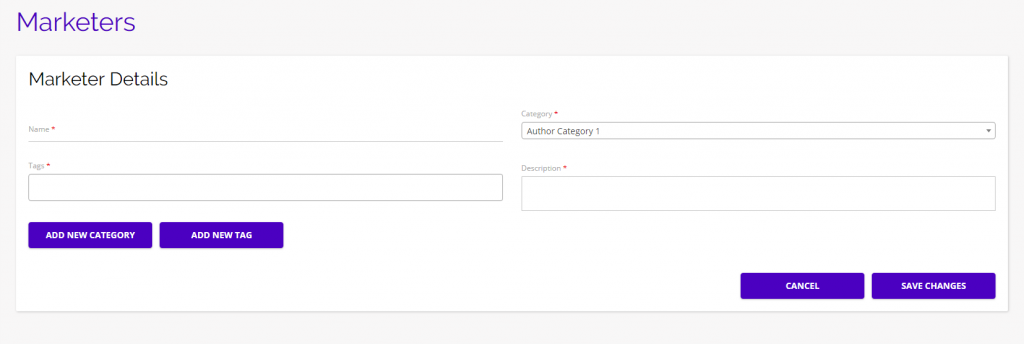
- Once you have filled out the required fields, click Save Changes and your new marketer will be saved in the Chainlink Marketing Platform.
- You can find your new marketer on the Agencies and Agents dashboard.
- To view the performance of your marketers, navigate to Attribution > Marketing Campaigns and click on the Performance Analysis button.
- From the Performance Analysis page, you can filter your campaign performance by marketers, making it easy to analyze which marketers have been performing the best.