The Chainlink Marketing Platform uses Segments instead of lists like other platforms. There are multiple marketing reasons to do this, but the easiest way to think of it is that a Segment is just a set of account-based conditions that define a group of Targets to be used in marketing programs.
Segments can be defined by Profile (Name, Company, City etc), Behavior (Did open an email, did click a link etc), Member of a Data Source or other Segment (or not), Suppression (whether a target is Suppressed from other programs), or Social Profiles (Facebook profile Y/N etc).
Segments can be Static (only update when the Segment is Built or Manually Updated) or Dynamic (update in real-time based on Target marketing interactions and additions to the Platform).
It might make sense to have a Static Segment for a one-time promotion for everyone that lives in a city & state if you have a limited or one-time offer. However, you may want a Dynamic Segment that updates based on your account Target Scoring, which will update in real time. For example, you might want to have a Dynamic Segment with conditions for any Target that has interacted with a previous program.
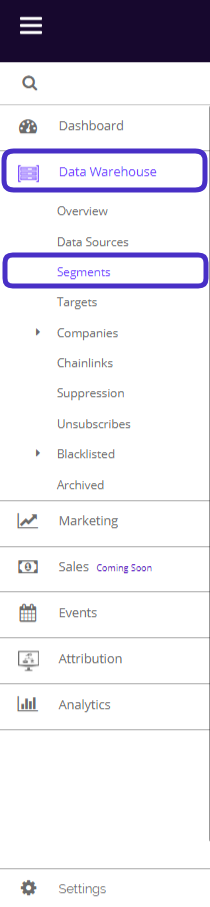
To access your Segments, navigate to Data Warehouse > Segments.
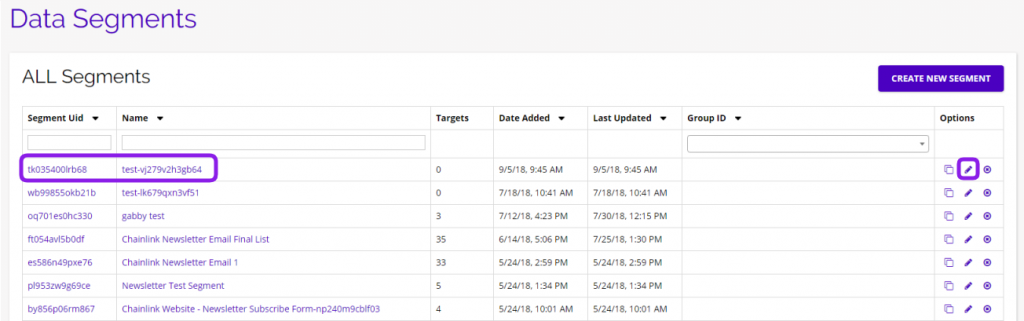
This is what the Segments dashboard looks like:
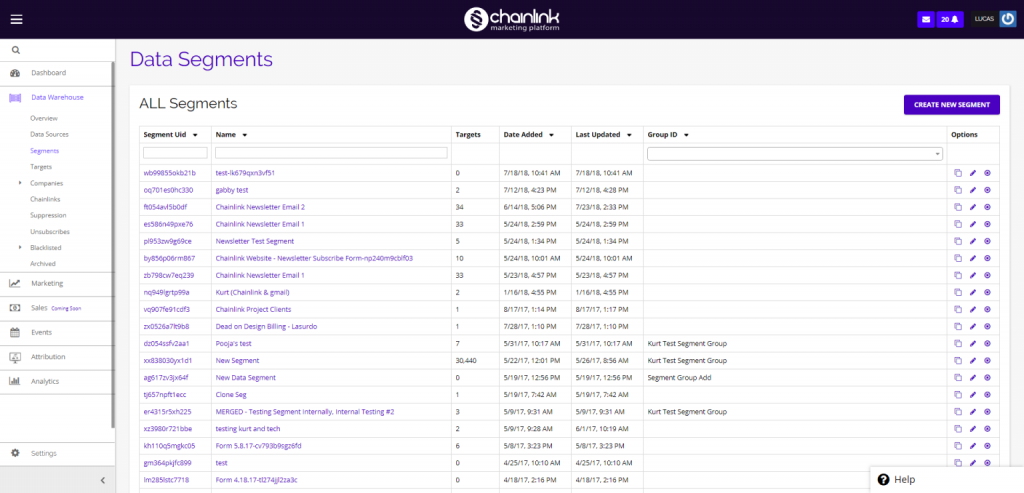
From here you can view and edit any existing Segments as well as create new Segments.
1. Create a New Segment
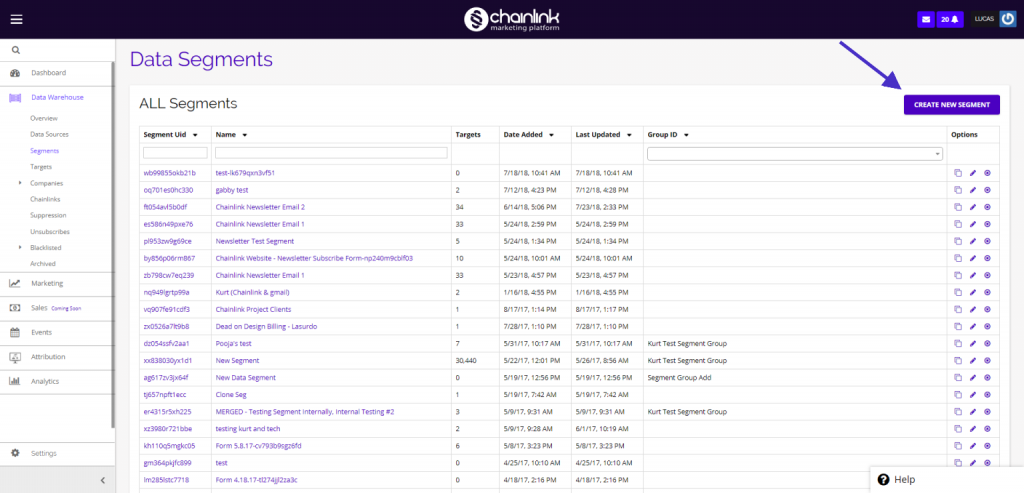
- To Create a new segment, click the Create New Segment button in the top right corner of the page.
- When you click the button, you will be brought to a new page where you can enter the required information:
- Segment Name
- Group
- Type – Dynamic or Static
- Dynamic Segments: Update in real time and can be useful for Segments with conditions for any Target that has interacted with a program.
- Static Segments: Only update when the Segment is built or manually updated.
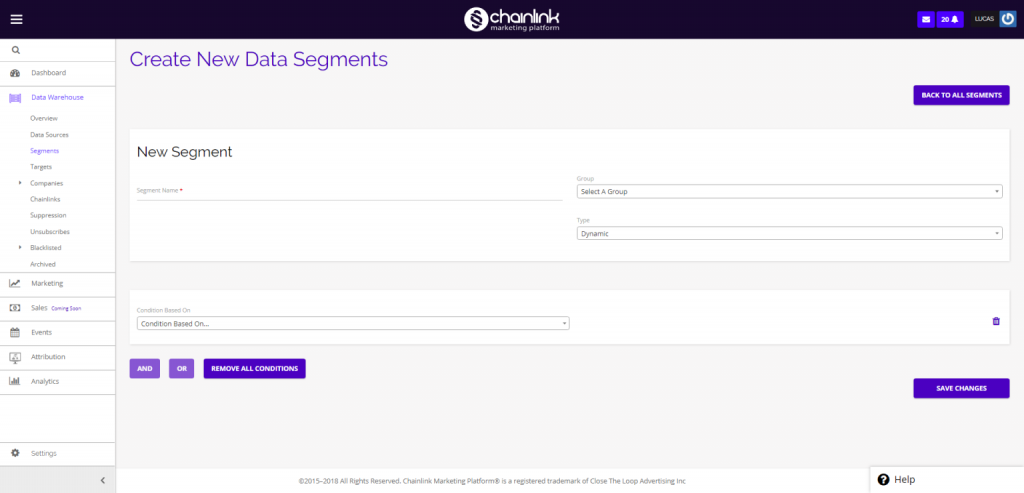
- You can also add specific AND/OR conditions based on:
- Profile
- Behavior
- Source or Segment
- Suppression
- Social (Under Development)
- Conditions make it possible to further segment a group of Targets for specific programs.
- Note: Forever Free accounts will only be able to add one condition for a segment.

- Enter all of the required information and add any conditions you would like for your new segment.
- Click Save Changes when finished and your segment will be added to the platform and the top of the Segments dashboard.
2. Edit Segments
- To edit an existing segment, click on one of the purple links under the Segment Uid/Name columns or the pencil icon under the options column.
- You will be brought to the same page as if you were creating a new segment, but here you can edit/update the existing segment information.
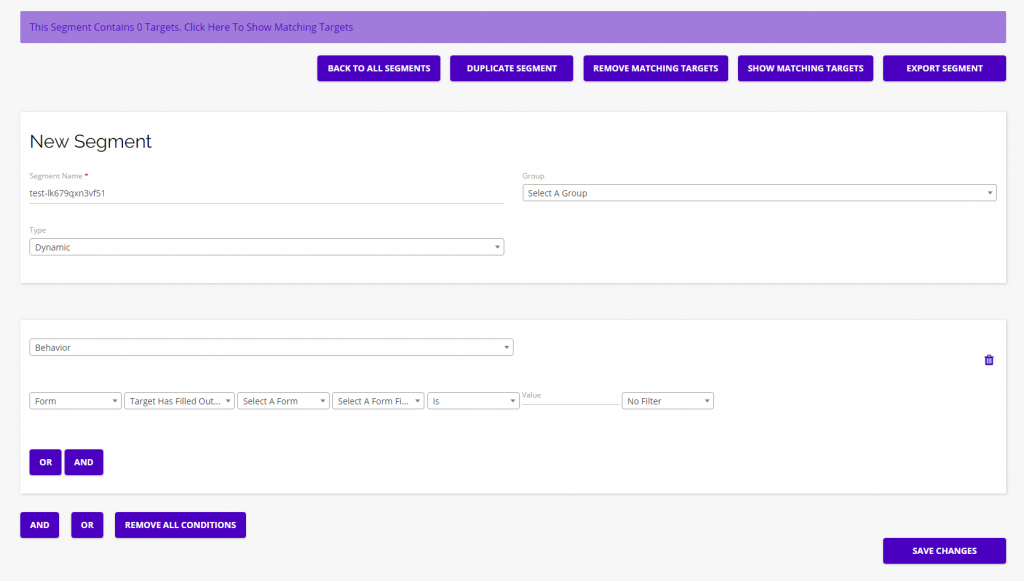
- From here you can change any of the information you previously input for the segment, add new conditions, or use the purple buttons at the top of the page to:
- Duplicate Segment
- Show Matching Targets
- Remove Matching Targets
- Export Segment
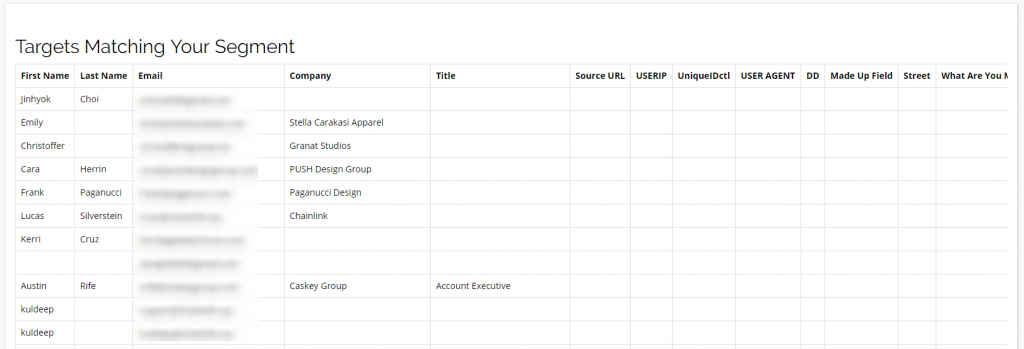
- If you click Show Matching Targets, a list of the Targets in that segment will appear under the segment information.
- Using the Remove Matching Targets button, you will be able to remove a group of Targets from a Segment based on custom conditions (coming soon).
Export Segment
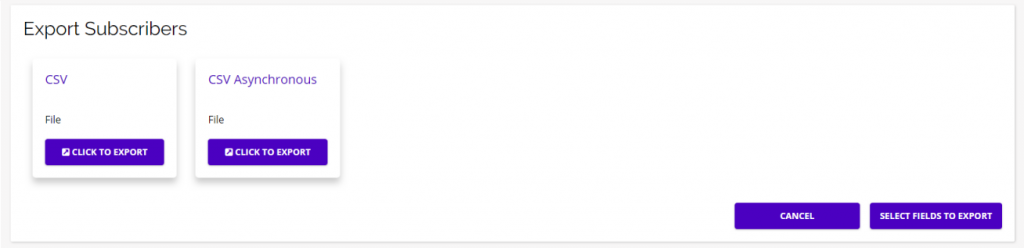
- To export data on your Targets from a segment click on the purple Export Segment button within the Edit Segment page.
- You will have the options of choosing what type of file you want to export as well as selecting which fields you want to include in the export.
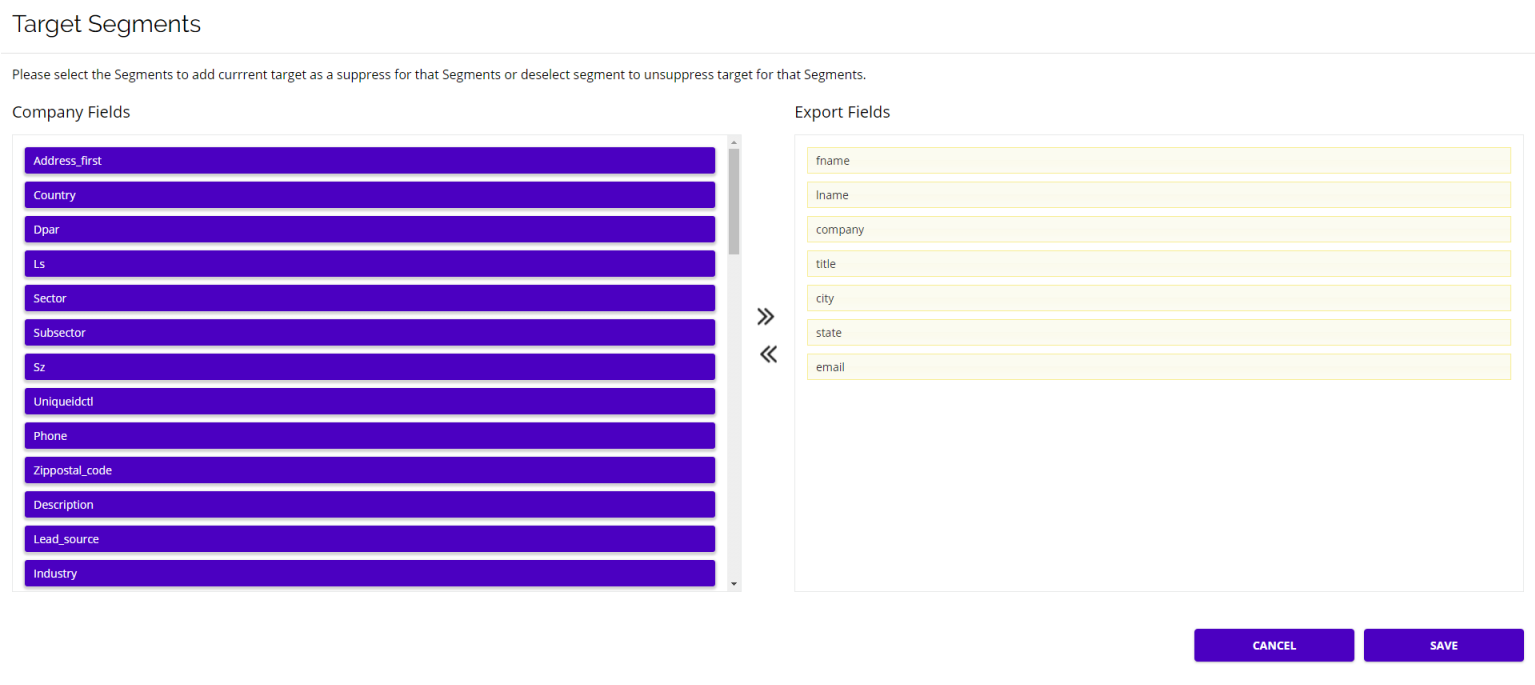
- The default export fields are:
- First name
- Last name
- Company
- Title
- City
- State
- You can add or remove any fields you want to export by dragging the desired fields to/from the export fields.
- When you are finished selecting the fields you want to export, click Save and then select the Click To Export button for the file type you want to export, and the export will begin immediately.
Options
- From the listing page with all of your Segments, you will have a few quick options to choose from.
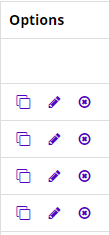
- Going from left to right, you will be able to easily duplicate, update, or delete any of your Segments from the listing page.