The Venues/Locations page within Chainlink’s Marketing Platform allows you to view all of the locations you have created for any events you might be planning. You can easily create a new venue if the one you’re looking for isn’t already in the Platform.
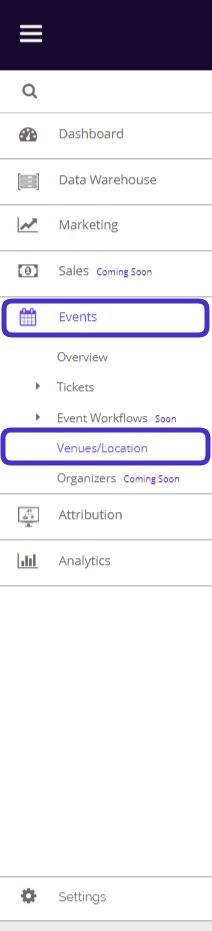
To access your venues, navigate to Events > Venues/Location.
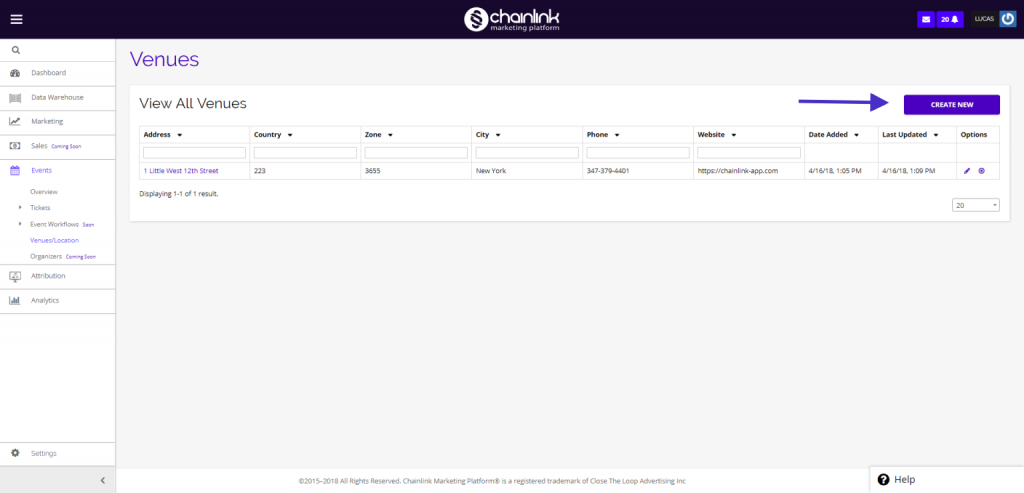
This is what the Venues/Location listing page looks like:
1. Create a New Venue
- Click the Create New button in the top right corner of the dashboard to create a new venue.
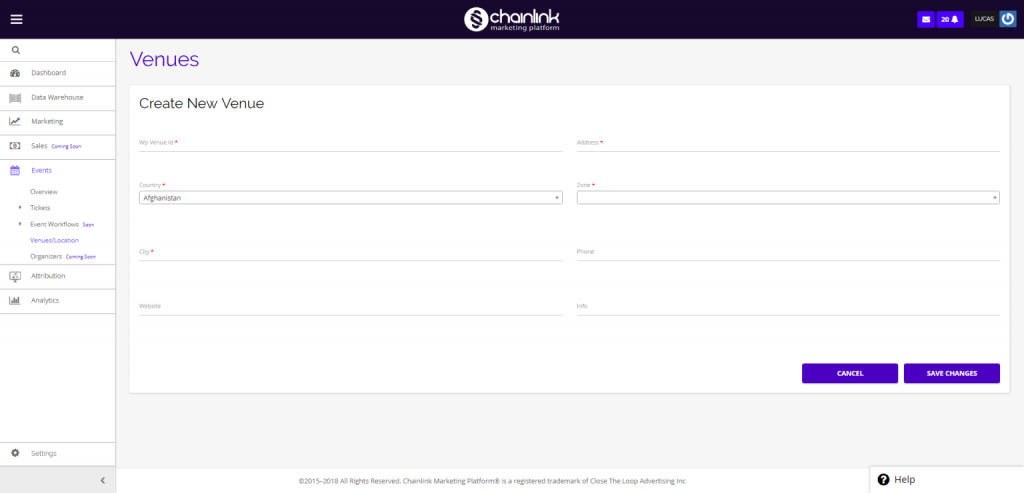
- Fill in the required information to make a new venue: Venue id, address, country, zone, city, and any additional information you’d like. When you’re done, be sure to click Save Changes on the bottom right of the screen to ensure your venue is added to the Chainlink Marketing Platform and appears on the venues dashboard.
- This venue can now be selected when creating a new event in Chainlink’s Platform.
- To view/update an existing Venue, click on the location’s Address or the pencil icon under the options column.
- To remove a Venue/Location from the platform, click on the delete icon under the options column.