Unsubscribes shows you all of your account’s Targets that have previously unsubscribed from one of your marketing programs, or Targets that one of your account users has manually unsubscribed.
From here you can manually add targets to the Unsubscribed list if they’ve responded to one of your Marketing Programs and not submitted a form, or import a list of Unsubscribes from outside of the platform.
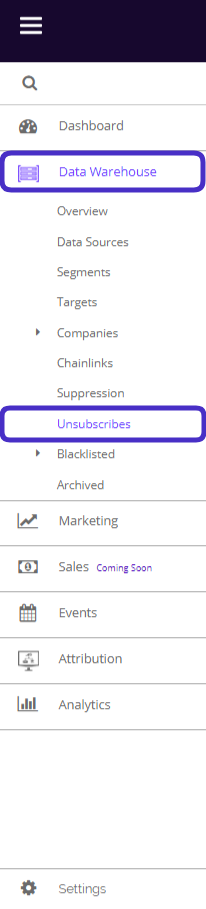
To access Unsubscribes, navigate to Data Warehouse > Unsubscribes.
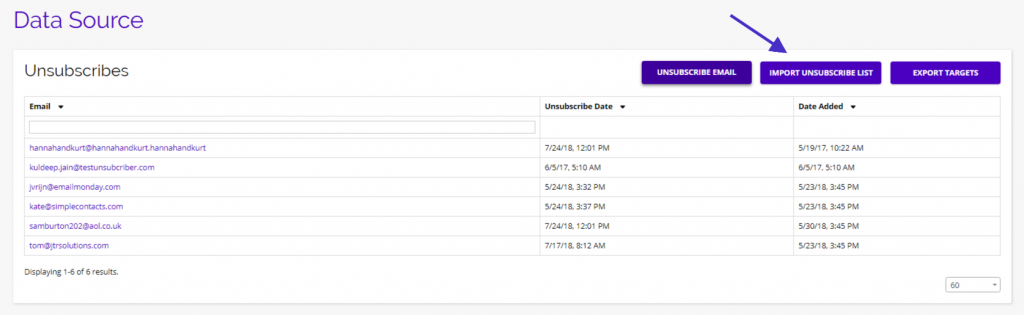
This is what the Unsubscribes dashboard looks like:
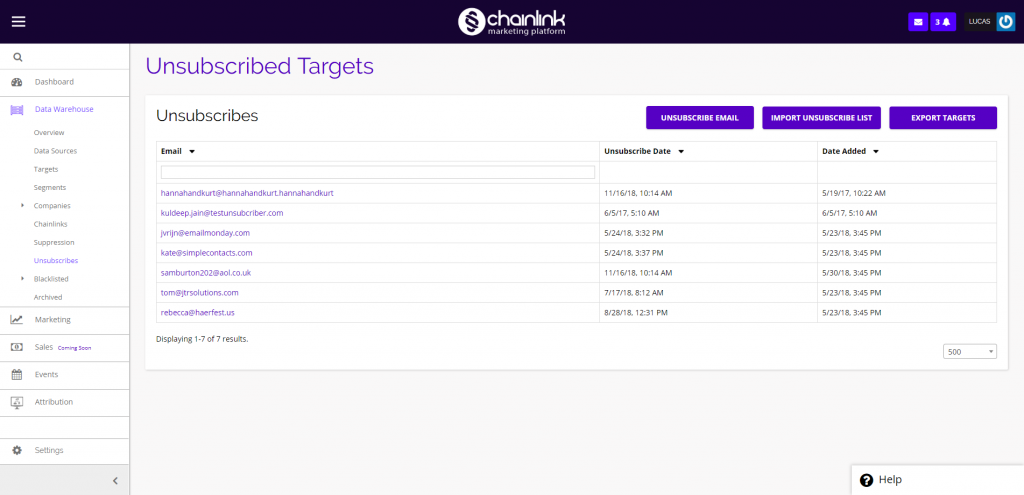
From the Unsubscribes dashboard, you have the ability to Unsubscribe individual emails, import a list of Targets you want to Unsubscribe, or export your Unsubscribed Targets.
You can also view the profile of an Unsubscribed Target by clicking on their email address.
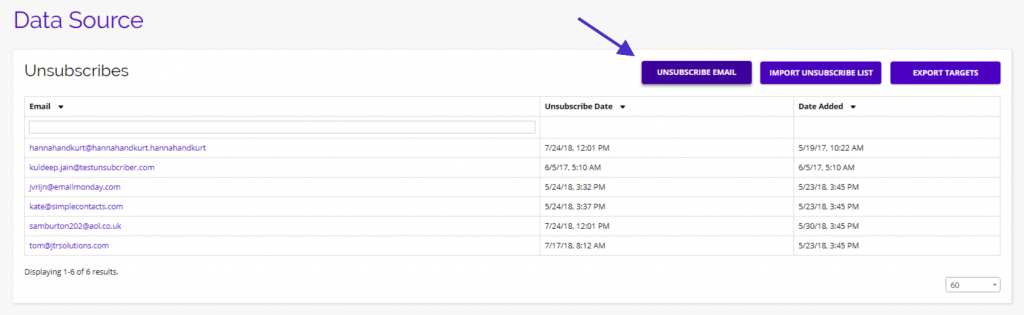
1. Unsubscribe Email
- To unsubscribe an individual email, click the Unsubscribe Email button.
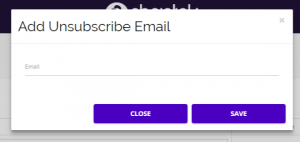
- Next, you will be prompted to enter the email address you want to Unsubscribe. Be sure to click Save when finished to add the email to your Unsubscribe list.
2. Import Unsubscribe List
- From the Unsubscribe page, you also have the ability to import a list of emails from outside of the Chainlink Marketing Platform that you want to Unsubscribe .
- To do this, click the Import Unsubscribe List and follow the instructions.
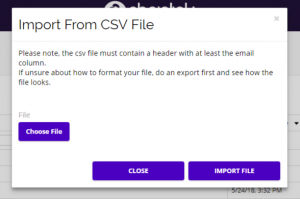
- You will be prompted to select the CSV file you want to import from your computer.
- Note: The CSV file must contain a header with at least the email column. If you are unsure how to format your file, do an export first to see how the file looks.
3. Export Unsubscribed Targets
- From the Unsubscribes dashboard you can also export a list of your Unsubscribed Targets.
- To do so, click the Export Targets button and follow the instructions.
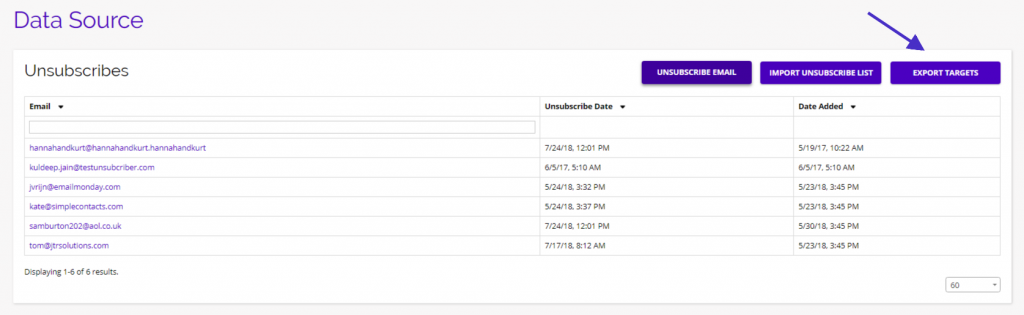
- From here you will be instructed to export your Targets as a CSV file. Simply click the Click To Export button and your download will begin automatically.
